1. Introduction
A newly registered account can sign in to the Akselos Portal but cannot reach any data until an administrator grants access. New users therefore request permission from an administrator, who grants access to an organization and the folders, repositories, and collections it contains.
An administrator can set the access level of an individual account or of a team, which is a group of user accounts. There are three types of access: Read, Write, and Admin. Each level includes the abilities of the level before it, and each presents a different layout and set of functions in the interface. The capabilities of the three levels are summarized below and then described in detail in the sections that follow.
Table 1.1. Capabilities of each access type
| Capability | Read | Write | Admin |
|---|---|---|---|
| View collections and structural twin data | Yes | Yes | Yes |
| Download individual items and view change logs | Yes | Yes | Yes |
| Run engineering assessments | No | Yes | Yes |
| Commit changes to structural twin and collection data | No | Yes | Yes |
| Create collections, repositories, and folders | No | Yes | Yes |
| Rename, delete, and move items within a Folder, Collection or Repository | No | Yes | Yes |
| Run Component Training (Training sub-tab) | No | Yes | Yes |
| Delete any collection, repository, or folder | No | No | Yes |
| Rename and clone a collection | No | No | Yes |
| Switch between solver versions | No | No | Yes |
| Set permissions for individual accounts and teams | No | No | Yes |
| Manage Teams and Organization Settings | No | No | Yes |
2. Read Access
Read access allows a user to view and use existing data without changing it. A Read user can view and interact with the embedded dashboard to obtain insightful reports on the assets. This makes Read the standard access level for operators and senior managers who only need the technical reports displayed in the SPM dashboard.
At the organization and folder level, a Read user can browse the contents of a folder and open the collections, repositories, and folders it contains. As shown in Figure 1, the interface presents these items as view-only: the user can open each item and download its files, but the toolbar offers no buttons to create, rename, or delete anything. A folder may also display an embedded dashboard, which a Read user can view but cannot edit.
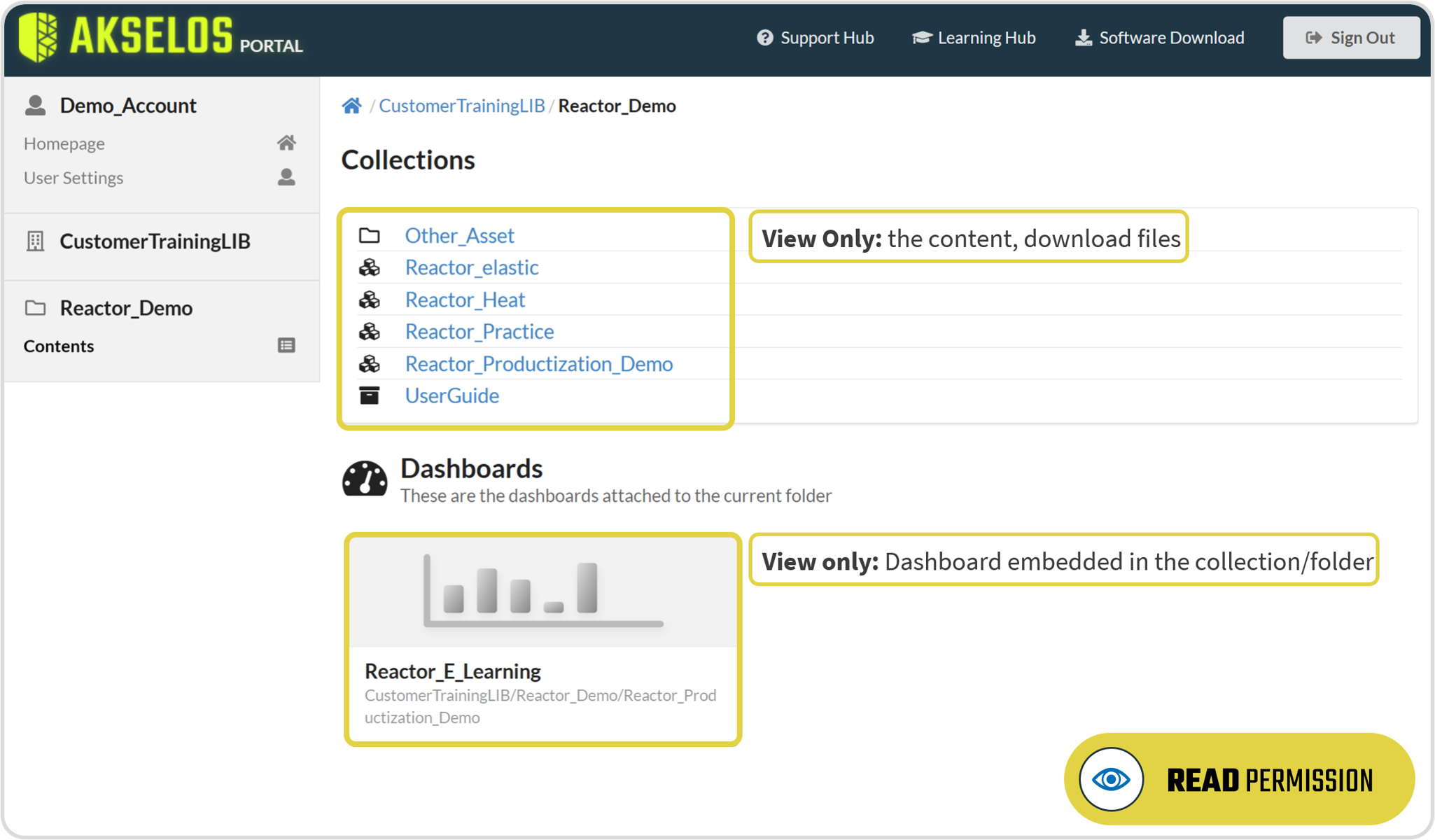
Figure 1. Read access: view collection contents, download files, and view embedded dashboards
Inside a collection, a Read user sees the list of files and folders that make up the collection data, as shown in Figure 2. Each item can be downloaded separately to the local machine using the download icon in its row. Every change to an item is recorded, and the user can open the change log to view its history. A Read user cannot upload, rename, move, delete, or otherwise commit any change to the collection datasets.
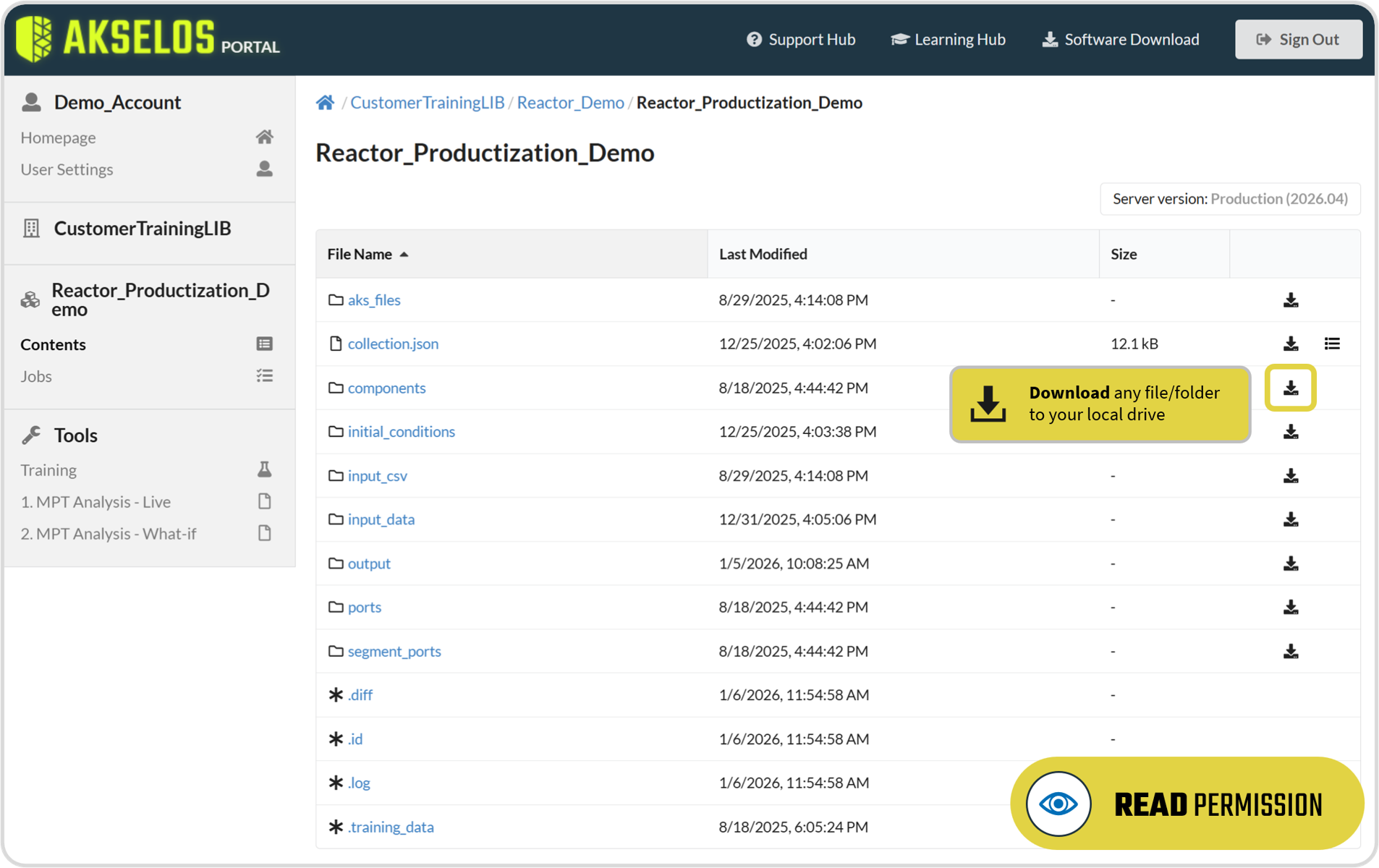
Figure 2. Read access: download any file or folder in a collection to your local drive
3. Write Access
Write access includes everything Read access allows, and adds the ability to create data and to edit existing data. The available functions depend on where the user is in the data structure, as described below.
3.1 At the Organization and Folder Level
At the organization and folder level, a Write user gains three buttons that a Read user does not have: New Collection, New Repository, and New Folder, as shown in Figure 3. With these buttons the user can create new collections, repositories, and folders, and the same three buttons appear inside a folder for creating collections, repositories, and sub-folders.
A Write user can delete an empty folder, but cannot delete an existing collection or repository, nor a folder that still contains items. If the user attempts to delete a folder that is not empty, an error message is displayed.
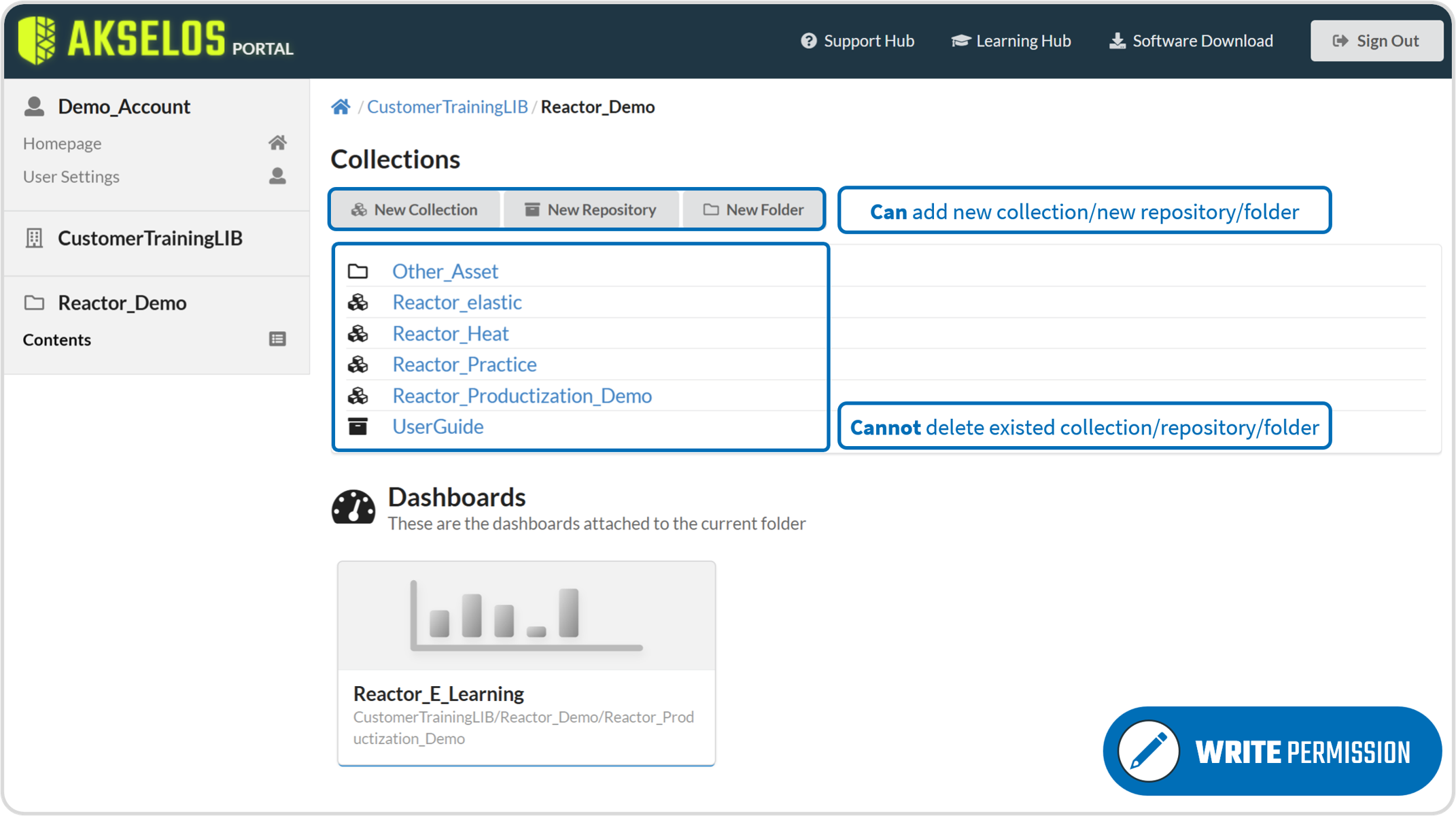
Figure 3. Write access: create a new collection, repository, or folder
Inside a collection or a repository, a Write user has two additional buttons, New Folder and Upload File(s), for creating sub-folders and uploading new files. As shown in Figure 4, each item in the list also carries its own set of actions: the user can rename, move, download, or delete that item. The same controls apply to the items of a repository.
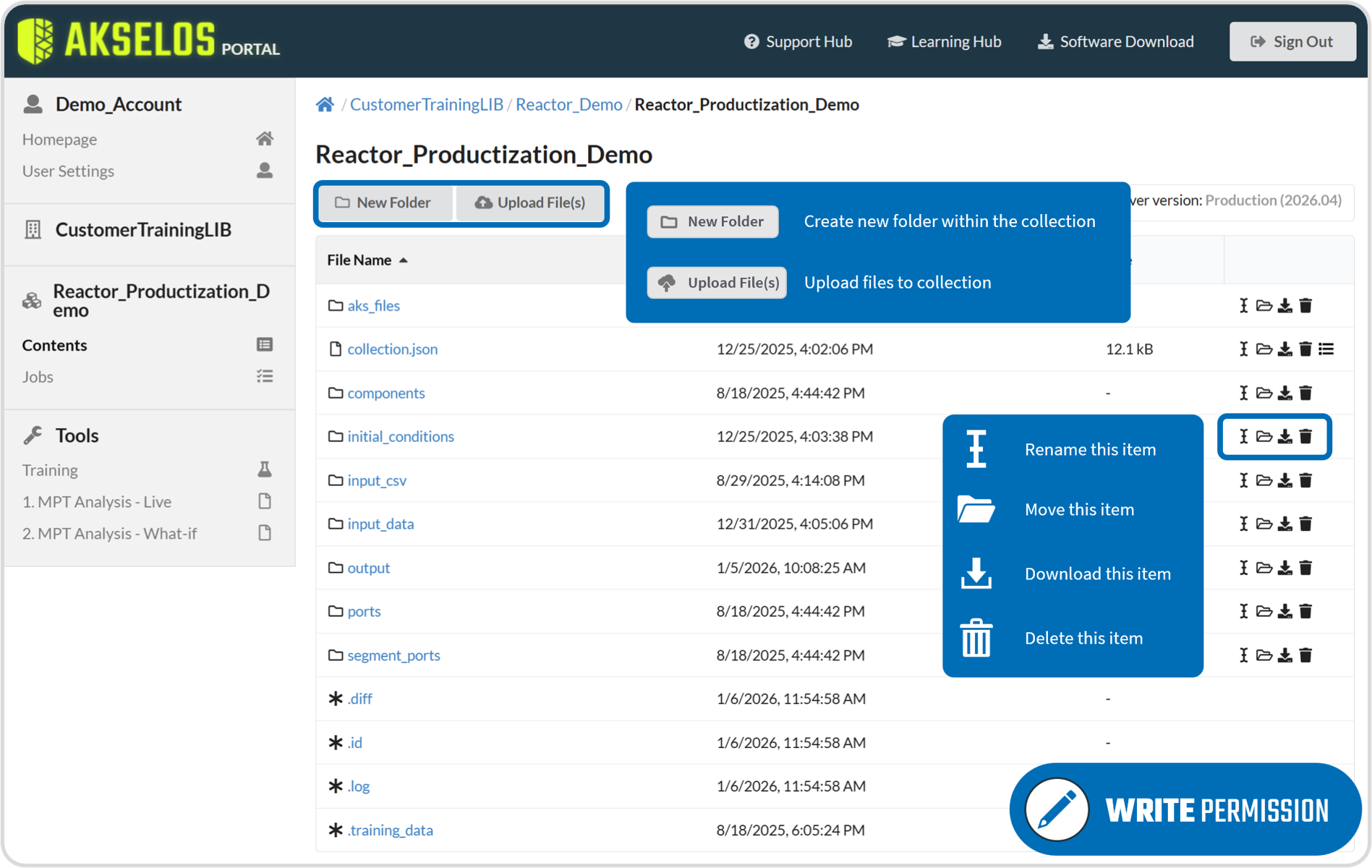
Figure 4. Write access: rename, move, download, or delete an item in a collection
3.2 Running Assessments
A Write user can also run engineering assessments. Assessments run as applets on Akselos Cloud, ingesting live sensor data together with the collection's structural twin models to compute results such as the stress state and Utilization Factor of an asset. Running an assessment writes new metafiles to the collection and can override existing data within it, so at least Write access is required to run assessments.
4. Admin Access
Admin access includes everything Read and Write access allow, and adds full control over the organization and its data. At the organization and folder level, an Admin user can create or delete any collection, repository, or folder, with no restriction on deleting items that already exist. As shown in Figure 5, a trash bin icon appears on every collection, repository, and folder so that each can be deleted.
Inside a collection, an Admin user has additional controls beyond those of a Write user. As shown in Figure 6, the Move/Rename Collection and Clone Collection buttons let the user move or rename the collection and copy it to another location. A Server version control lets the user switch between solver versions used for Component Training or for solving a model; this is not recommended for common users. Inside a repository or a folder, an Admin user has the same control as a Write user, plus the ability to delete any item.
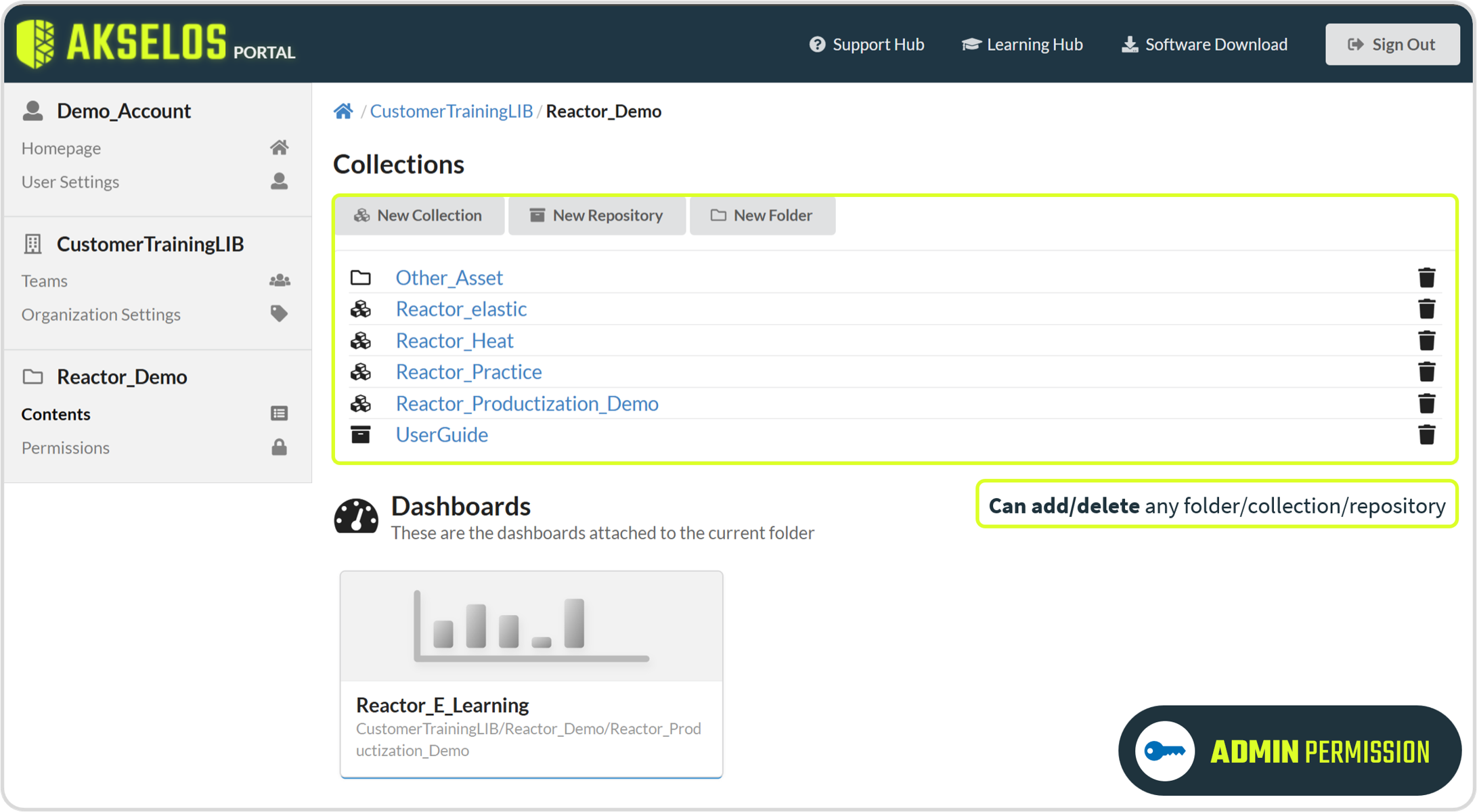
Figure 5. Admin access: add or delete any folder, collection, or repository
Beyond data, Admin access grants management of the organization itself. An Admin user sees three additional sub-tabs in the left menu: Permissions, Teams, and Organization Settings. The Permissions sub-tab is where an administrator sets access for individual accounts and teams. The Teams sub-tab is where an administrator manages which team has access to the organization. The Organization Settings sub-tab is where an administrator reviews organization information such as License Information and Access Logging. These sub-tabs are described at the level of what they do.
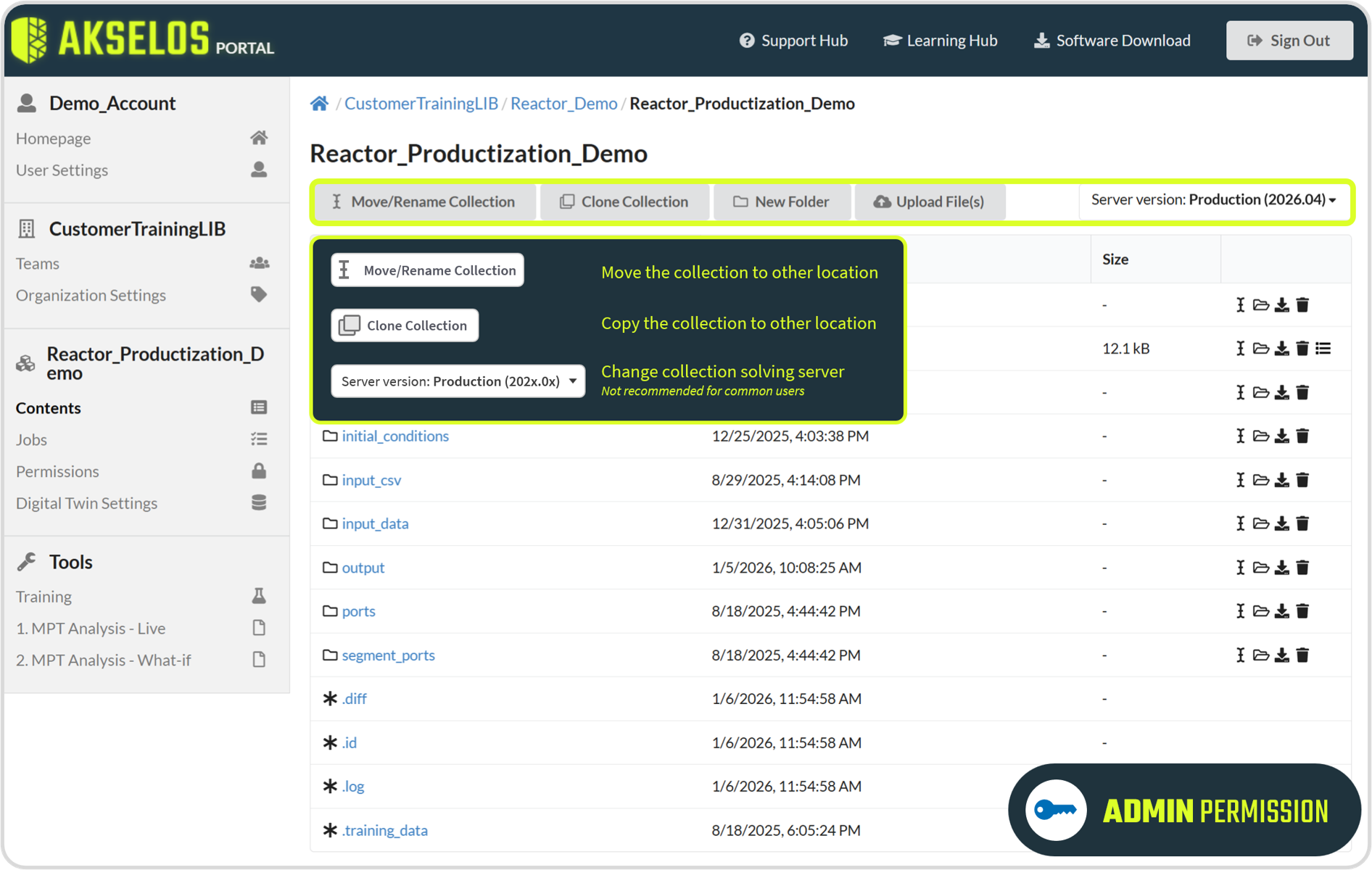
Figure 6. Admin access: move, rename, or clone a collection and switch between solver versions
5. Choosing the Right Access Level
Each user should be granted the access level that matches their role. Granting more access than a role needs increases the risk of accidental changes to asset data, while granting too little keeps users from doing their work. The table below maps each access level to the roles it typically suits:
Table 5.1. Access levels and the roles they suit
| Access Level | Typical users |
|---|---|
| Read | Operators and senior managers who only need to view the dashboard and the technical reports of the assets. |
| Write | Engineers who run assessments and create or edit collection data. |
| Admin | IT staff and account managers who manage teams, permissions, and access across the organization. |