1. Akselos Structural Performance Management Overview
Structural Performance Management (SPM) is the system Akselos provides. It continuously calculates the real structural limits of critical infrastructure from operating data, so you can safely increase throughput, reduce downtime, and extend asset life. It does this with Physics AI and high-fidelity structural twins that show how the steel actually responds under real conditions.
At its core is Reduced-Basis Finite Element Analysis (RB-FEA), Akselos’ patented solver. It runs high-fidelity structural analysis 1000× faster than conventional finite element analysis, just as accurately, continuously and across an entire site. SPM connects operating data, inspection records, and design information into one live structural view, so engineers and operators can see how their assets respond as conditions change and base decisions on evidence.
The Akselos SPM ecosystem brings this together in three parts, shown in Figure 1: the structural model, the Akselos Cloud Solver, and the Akselos Portal. A single Akselos account gives a user access to everything the ecosystem holds: the structural twins, the operating data, and the reports and assessments built on them. The account serves all users, whether or not they work with SPM directly.
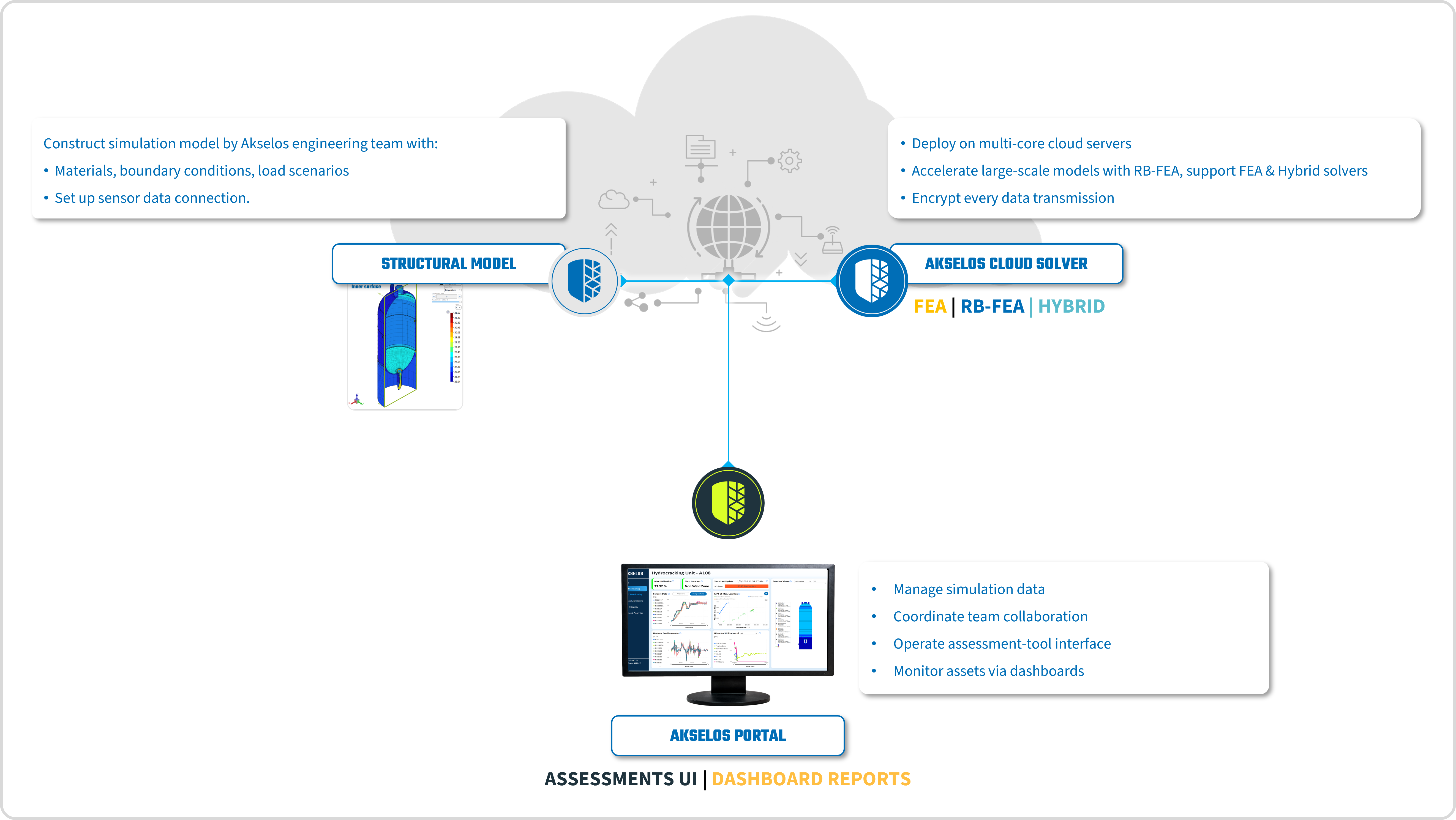
Figure 1. The Akselos SPM ecosystem: the structural model, the Akselos Cloud Solver, and the Akselos Portal.
This article concerns the Akselos Portal, which is the platform a new user signs into first. The sections below introduce the Portal, then describe how to register and manage the account that opens it.
2. The Akselos Portal
The Akselos Portal is the web-based interface of Akselos SPM and the daily working environment for operators, engineers, and integrity teams. It presents interactive reports that visualize structural health indicators such as stress hotspots and fatigue life, drawn from computation that runs on Akselos Cloud. The Portal requires no local installation and no advanced simulation expertise, which allows stakeholders to review results and carry out routine assessments directly in a browser.
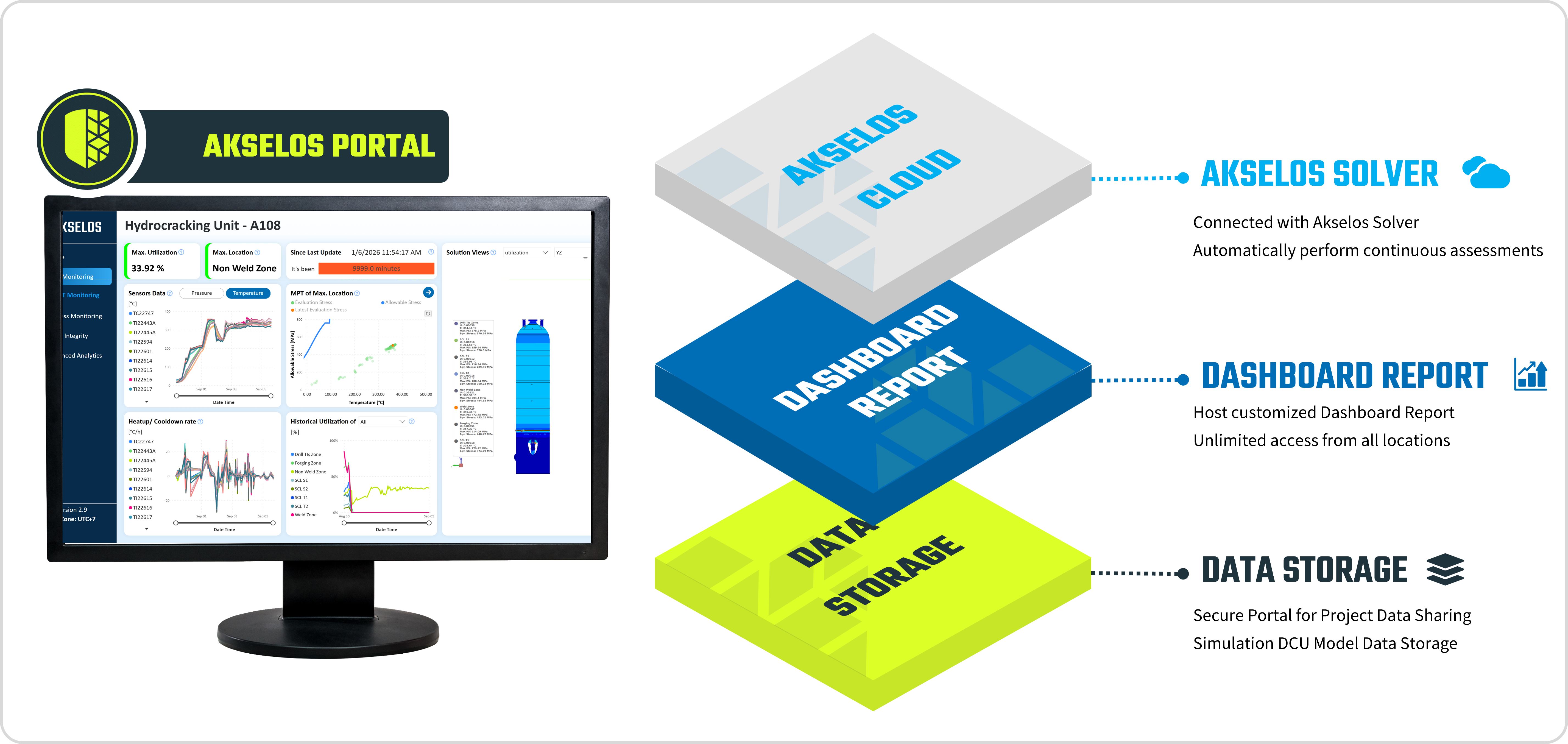
Figure 2. The Akselos Portal and its layers: Akselos Cloud, Dashboard Report, and Data Storage.
Within the Akselos SPM ecosystem, the Portal is the point where cloud computation becomes operational information.
Access to the Portal depends on a single Akselos account. Without an account, the Portal cannot be opened and the structural data, reports, and assessments held in an organization cannot be reached. Creating an account is therefore the first action a new user takes, and the procedure is described in the next section.
3. Registering an Account
The Akselos Portal is reached directly through its web address, or through the public Akselos website, and opens to a login screen where the user signs in with existing credentials or registers a new account. Registration establishes the Akselos account identity used to access the Portal. The entry points are listed below, and the registration methods follow.
- Public website: https://akselos.com, then click the LOG IN button to open the Portal.
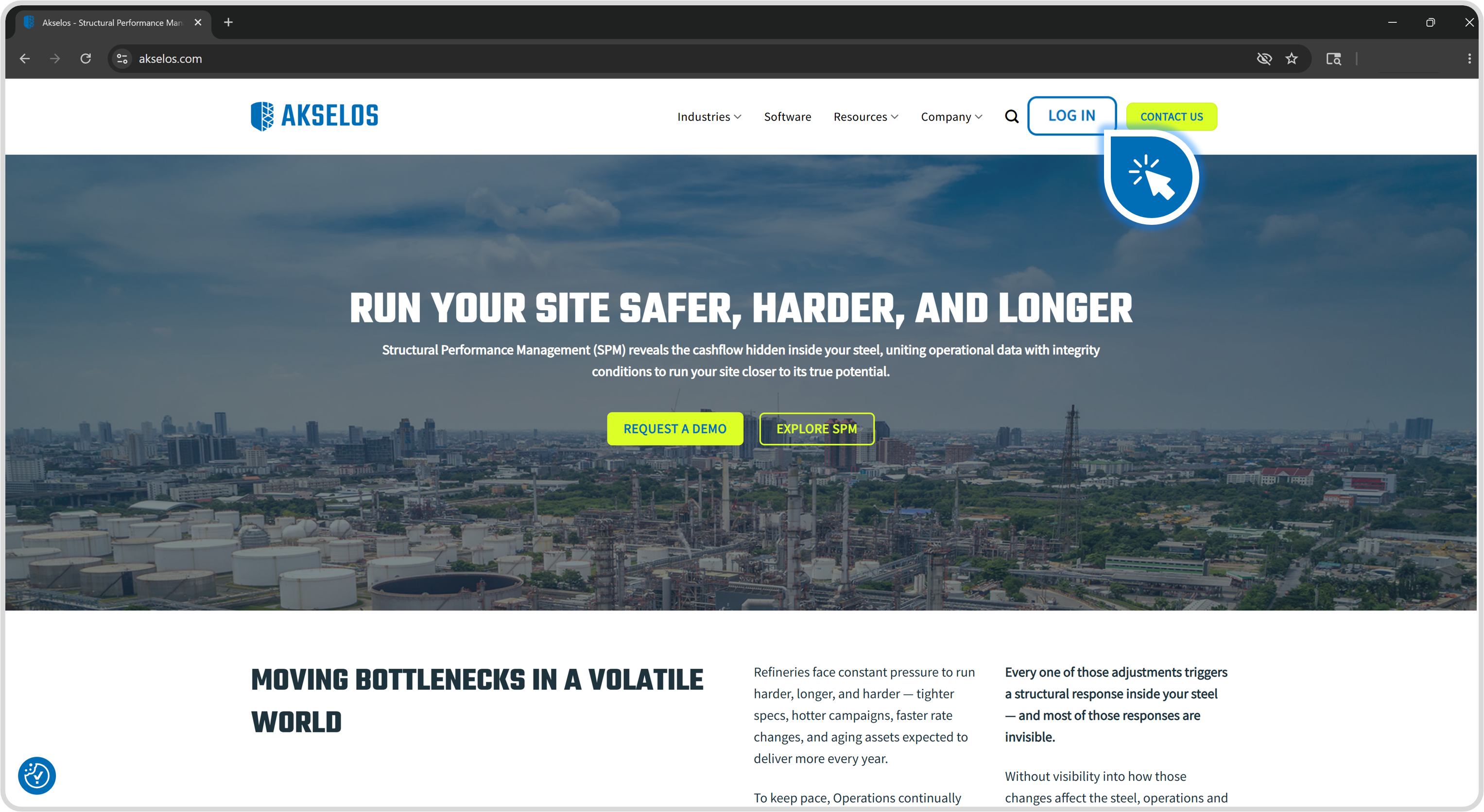
Figure 3. Accessing the Portal from the public Akselos website using the LOG IN button.
- Direct address: https://portal.akselos.com
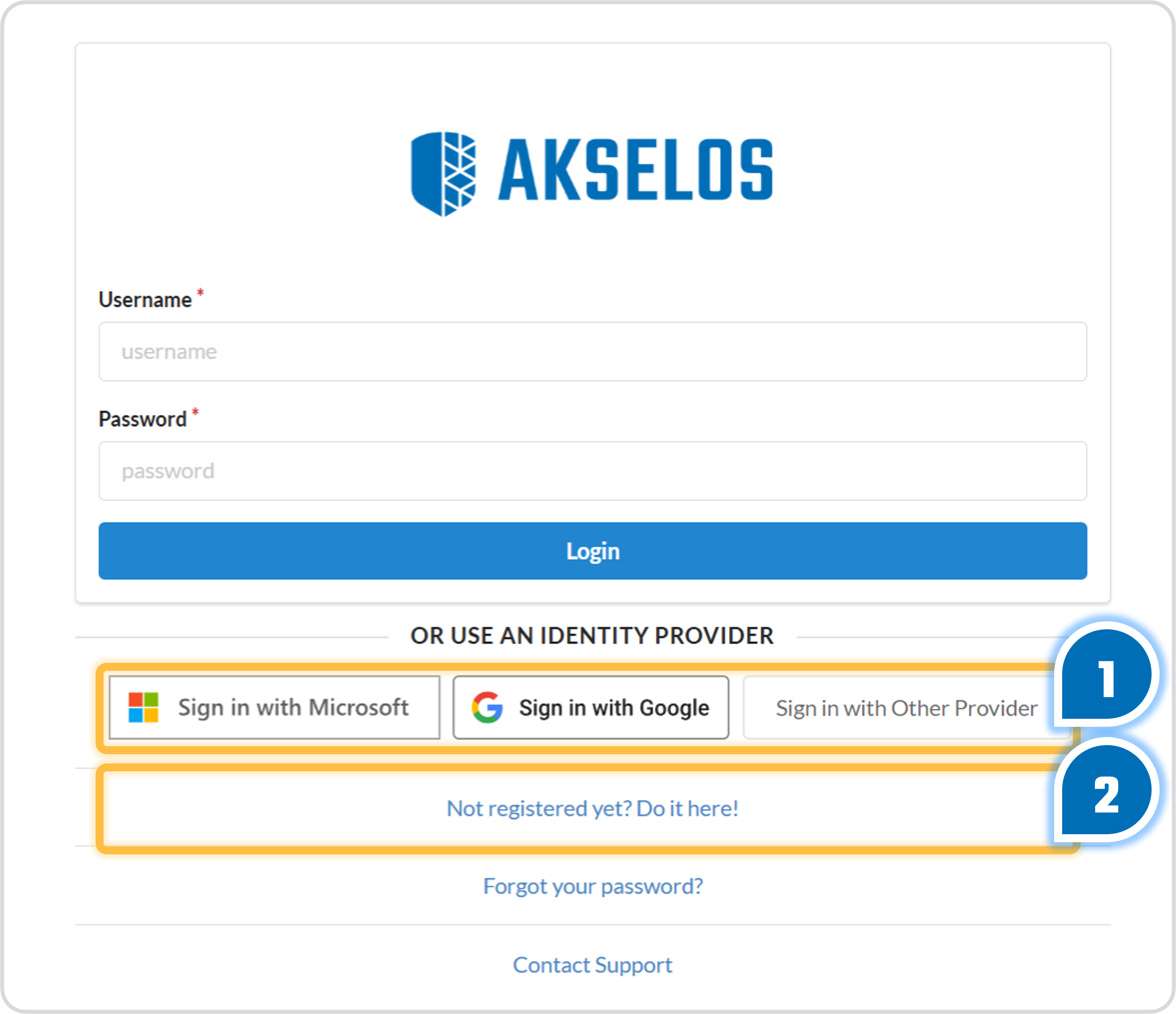
Figure 4. The Portal login screen, with identity-provider options and the registration link.
There are two ways to set up an Akselos account, both covered below: single sign-on (see Section 3.1) and username and password (see Section 3.2).
An account becomes active right away, but that alone does not grant access to any data. A new account can sign in to the Portal yet will see no collections until an administrator grants access.
3.1 Registration with Single Sign-On (Recommended)
Single sign-on (SSO) registers the account through a third-party identity provider that the user already maintains, rather than creating a separate Akselos password. The supported providers are Microsoft and Google. The login screen also offers a Sign in with Other Provider option for organizations that authenticate through a different identity provider. This is the method recommended by the Akselos team, for the reasons given below.
- The account is tied to one working email identity the user already holds, so there is no additional Akselos password to remember or rotate.
- Access is easier for an organization to control, because account provisioning and removal follow the existing identity provider.
- Sign-in is faster, since the user authenticates through a session they already use for daily work.
To register with single sign-on:
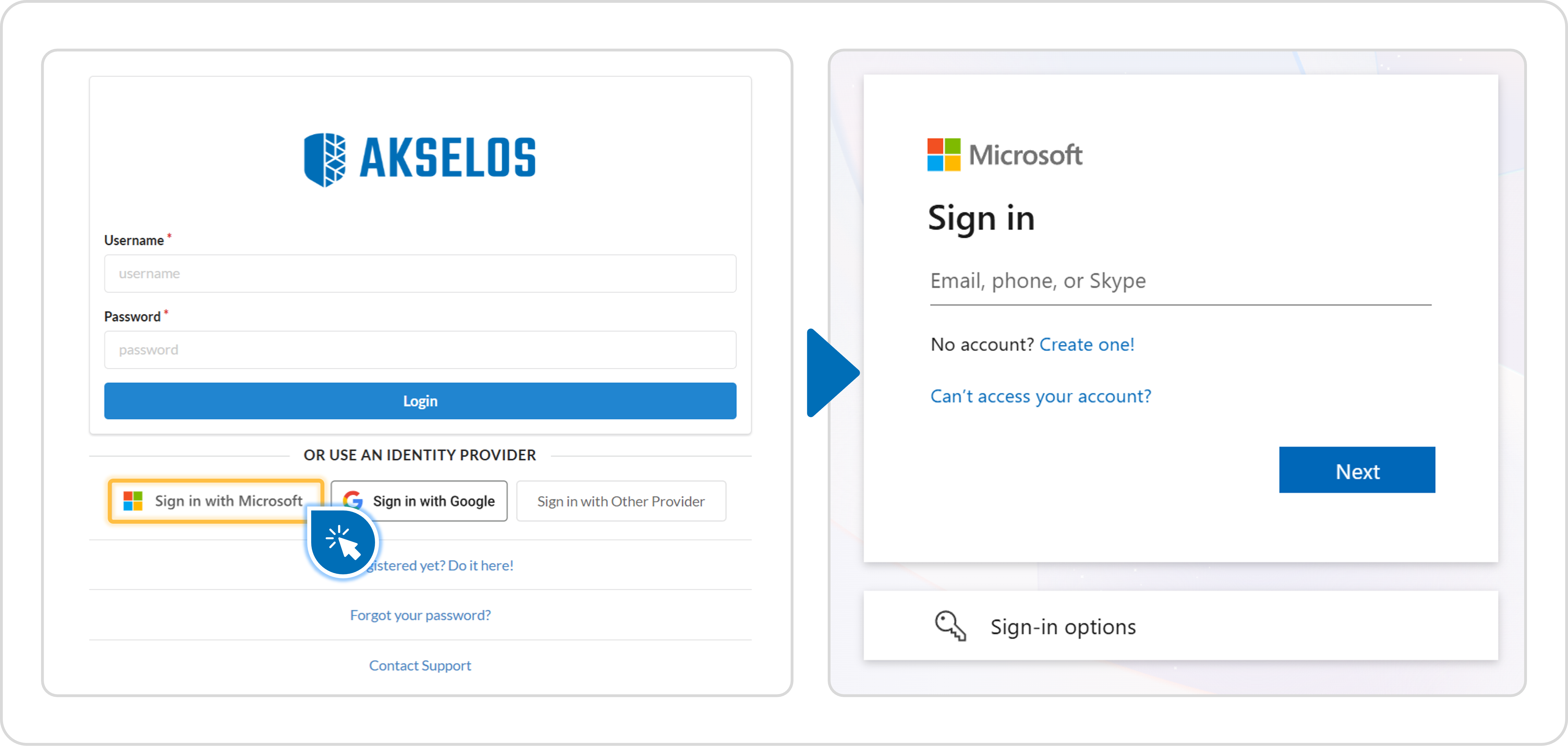
Figure 5. Registering with single sign-on by clicking Sign in with Microsoft on the Portal login screen.
- Open the Portal login screen at https://portal.akselos.com.
- Click Sign in with Microsoft, Sign in with Google or Sign in with Other Provider, according to the provider the organization uses.
- Complete the provider sign-in flow in the window that opens.
- Approve any access request shown by the provider to return to the Portal as a registered user.
Recommendation: Use single sign-on as the primary registration method. If the provider does not complete sign-in, confirm with the organization’s IT team whether a firewall or network policy is blocking the provider. If the organization uses none of the listed providers, register with a username and password instead (see Section 3.2).
3.2 Registration with Username and Password
Registration by username and password creates a dedicated Akselos credential and is the alternative when single sign-on is not available. The account is created immediately upon submission of the form.
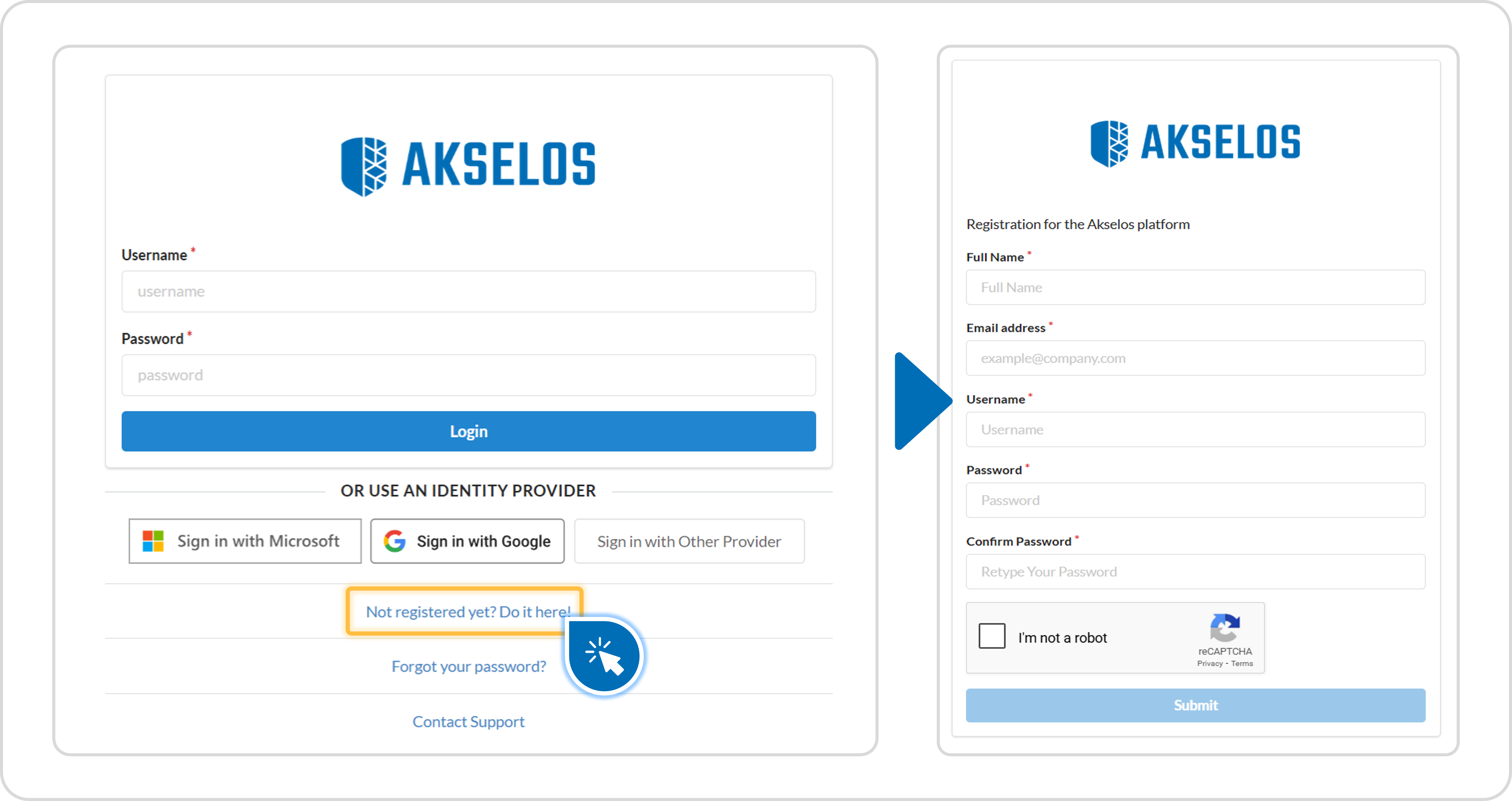
Figure 6. Username and password registration: clicking Not registered yet? Do it here! opens the registration form.
- Open the Portal login screen at https://portal.akselos.com.
- Click the Not registered yet? Do it here! link below the login form.
- Complete the required account fields on the registration form.
- Click the Submit button.
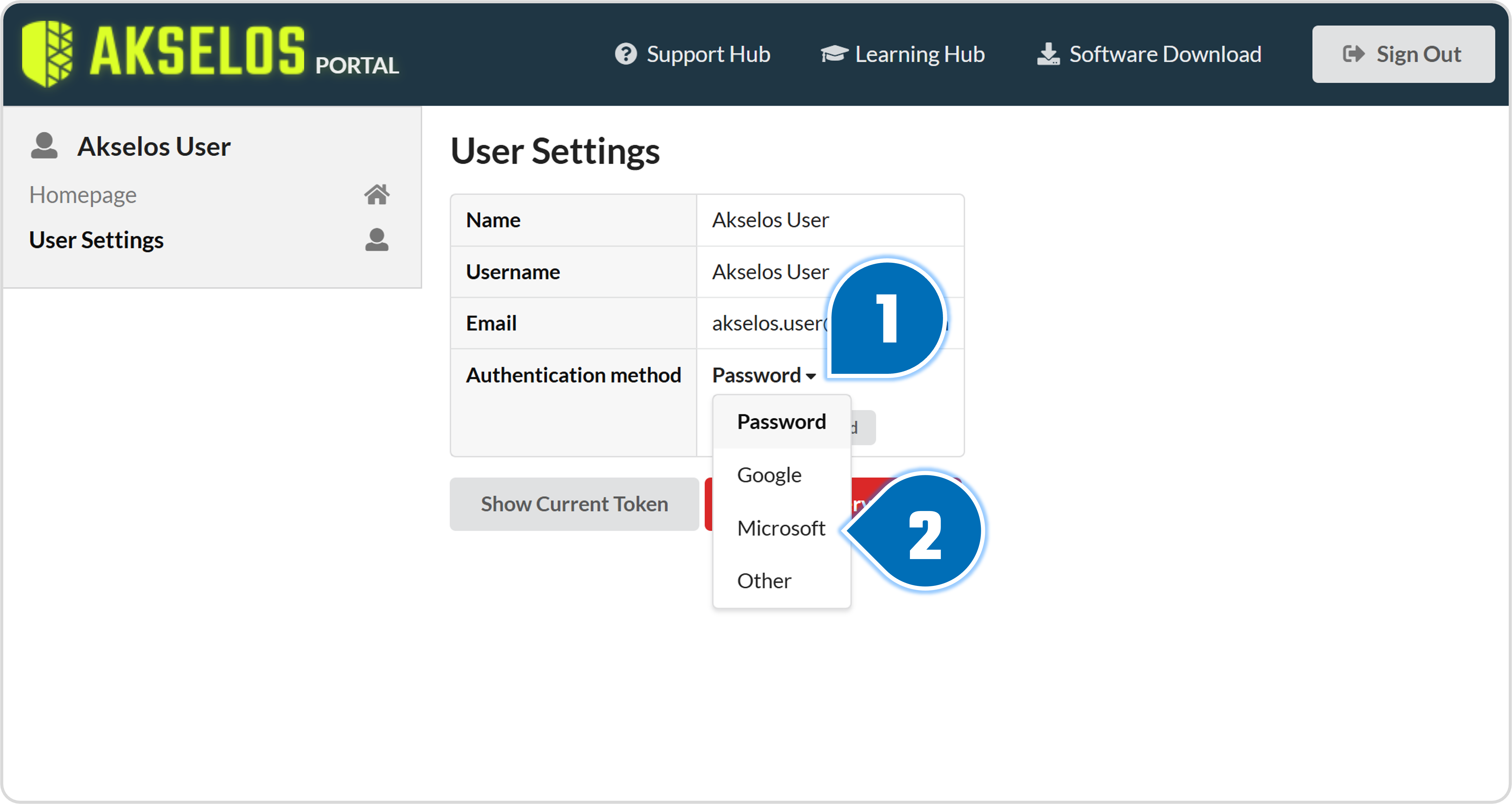
The two methods can be used together. After the account exists, the user can switch between password authentication and provider-based authentication from User Settings (see Section 4.4).
3.3 Registration Confirmation
A confirmation alert on the screen signals a successful registration and confirms that the account is ready for Portal access. A notification is also sent to the registered email address to confirm the new account.
Note: A newly registered account can sign in to the Portal but cannot view any collections until an administrator grants access.
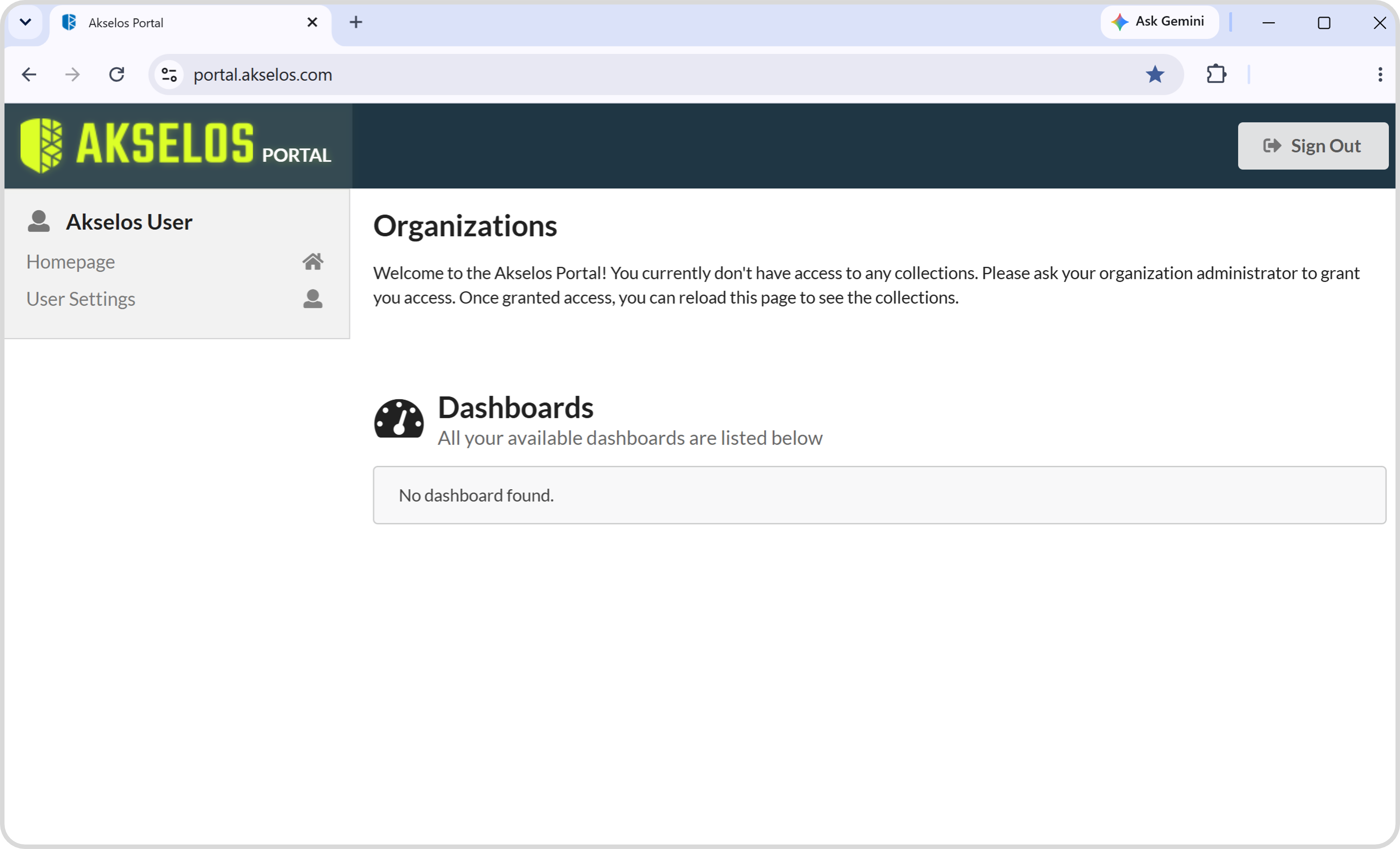
Figure 7. The first sign-in view of a newly registered account.
After the first sign-in, the user contacts the organization administrator, or [email protected], to obtain access to the collections for their asset location.
4. Managing Your Account in User Settings
The User Settings tab is the single location for reviewing account information and managing personal authentication. From this tab the user reviews account details, signs out of all devices, changes the password, and selects the authentication method. Each function is described in the subsections below.
4.1 Reviewing Account Information
In User Settings, the user can review the details of the account and sign out of every device on which the account is currently signed in. This provides a single point of control for account-level housekeeping and session management.
The Sign Out Everywhere button ends every active session, so that the account is no longer signed in on any device. Use it when a security problem is suspected, or when a device is changed or replaced.
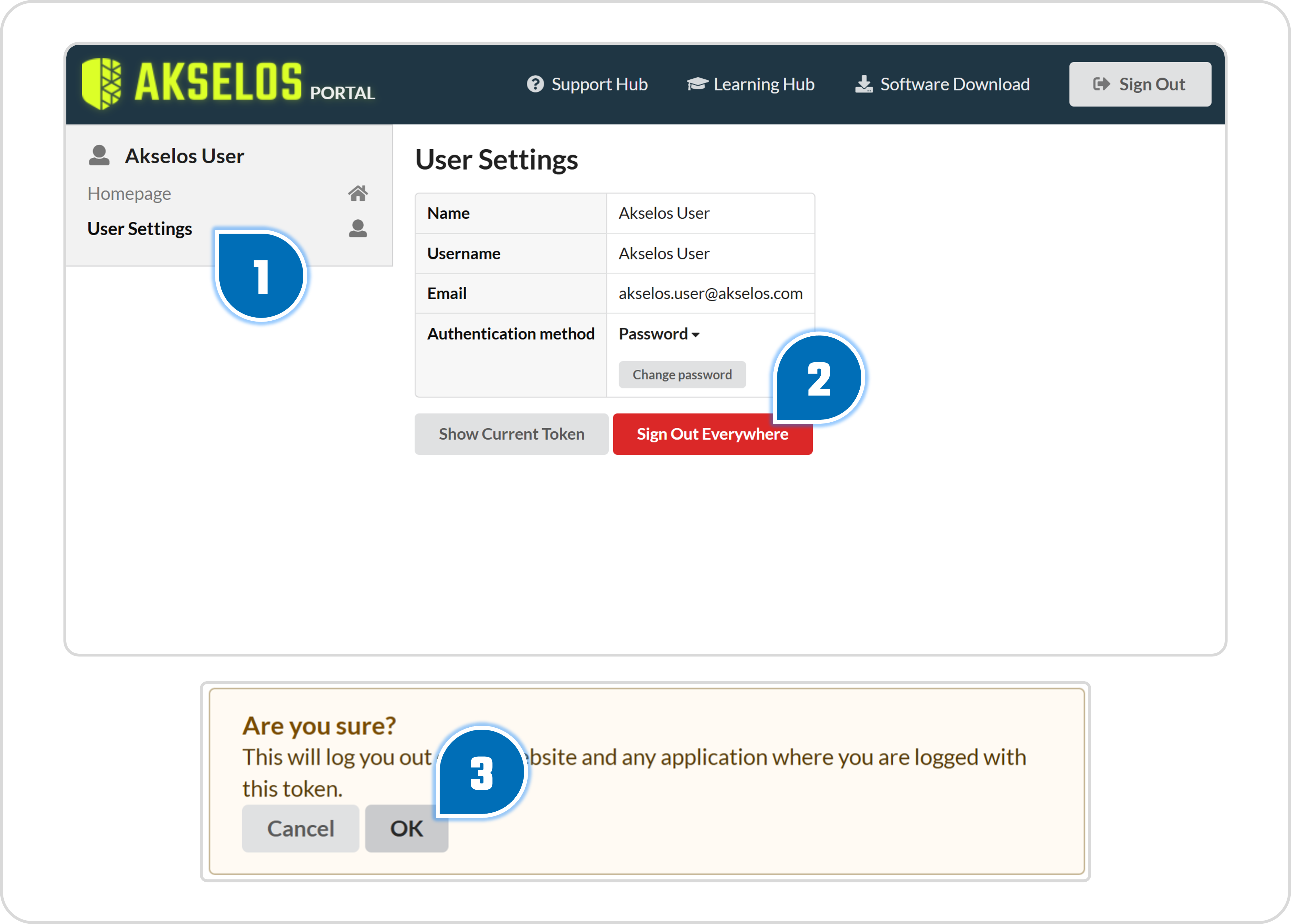
Figure 8. The Sign Out Everywhere button in User Settings, with the confirmation prompt that ends every active session across devices.
4.2 Changing Your Password
The Akselos password can be changed at any time from the User Settings tab, as part of routine account maintenance or after a suspected compromise. The steps below walk through the change.
Note: This applies only to accounts created with the username and password method (Section 3.2). Accounts that sign in through single sign-on are managed by their identity provider and have no separate Akselos password to change.
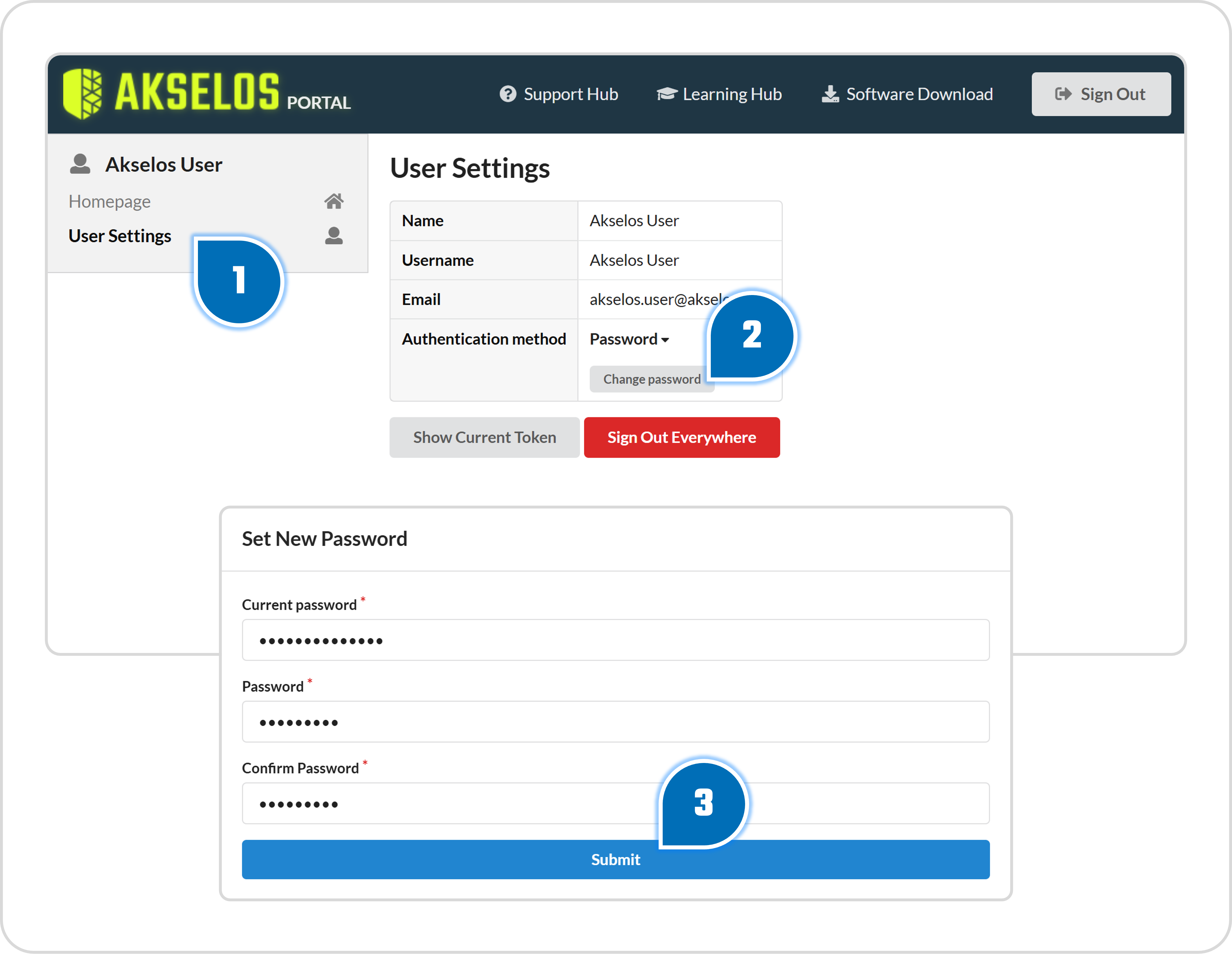
Figure 9. Changing the password from User Settings using the Set New Password form.
- Open the User Settings tab.
- Click Change password.
- Complete the required fields in the Set New Password form.
- Click the Submit button.
A notification confirms when the password has been changed successfully.
4.3 Resetting a Forgotten Password
If the user cannot recall the account password, the Forgot your password? option resets it without administrator involvement.
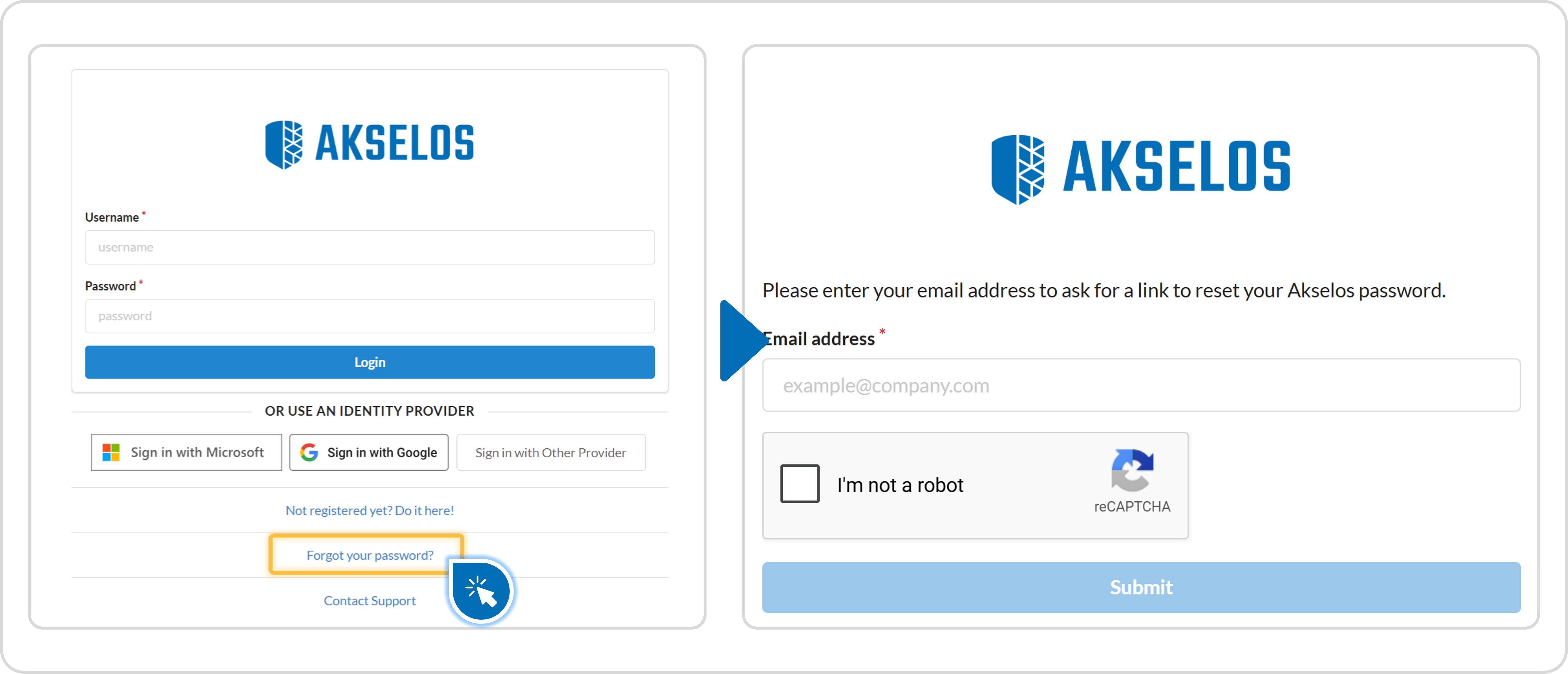
Figure 10. Requesting a password reset through the Forgot your password? option.
- On the login screen, click Forgot your password?.
- Enter the account email address.
- Confirm the I'm not a robot check.
- Click the Submit button.
A password-reset link is sent to the supplied email address. The user clicks that link to set a new password for the account.
4.4 Authentication Methods
The Portal is accessed through direct sign-in, by password or by single sign-on. The Authentication method field in User Settings sets which one the account uses. The interface also refers to access tokens. These serve advanced use cases with the Akselos in-house tools, and a new user can leave them aside.