1. Introduction
The Akselos Structural Performance Management (SPM) solution for Floating Offshore Wind provides high-fidelity structural twins for the accurate simulation of large-scale floating substructures. Built on Reduced-Basis Finite Element Analysis (RB-FEA), the platform enables near real-time resolution of models with millions of degrees of freedom, supporting continuous evaluation of structural integrity under complex hydrodynamic and aerodynamic loading conditions.
A key component of this capability is WorkFLOWT, an automated high-throughput computation engine developed to handle the large volume of Design Load Cases (DLCs) required for offshore certification. WorkFLOWT streamlines the workflow from coupled analysis to structural verification by automatically executing Ultimate Limit State (ULS) and Fatigue Limit State (FLS) assessments throughout the asset lifecycle.
The solution is structured around four core modules, each aligned with a specific stage of the engineering workflow:
Akselos Portal: A centralized web-based ecosystem for secure asset management, real-time job tracking, and organization-wide collaboration.
Akselos Modeler: The primary engineering environment for building structural twins, configuring specialized physics such as hydrostatics and ballast modeling, and defining boundary conditions.
Akselos Solvers: A suite of high-performance computational solvers, including Static, Modal, Dynamic, and Net Forces solvers, optimized for the efficient analysis of complex floating structures.
Post-Processing and Akselos Analyser: An integrated validation environment combining detailed result visualization with automated batch assessment for structural code compliance in accordance with DNV, API, and ISO standards.
Note: Access to all features and platforms described above requires an Akselos account with the appropriate permissions granted. Please refer to the Account Creation article for guidance on setting up an account, and contact Akselos Support to request the required access permissions.
2. Akselos Portal
The Akselos Portal is the centralized, web-based ecosystem designed to manage the full lifecycle of Structural Performance Management (SPM). It serves as the primary hub for organizing structural twin assets, monitoring high-performance computing jobs, and ensuring collaboration across engineering teams.
By providing secure, cloud-native access to data, the Portal eliminates the need for local infrastructure management, allowing users to focus on analysis and decision-making.
| Feature Category | User Interface | Description |
|---|---|---|
| Asset Management | 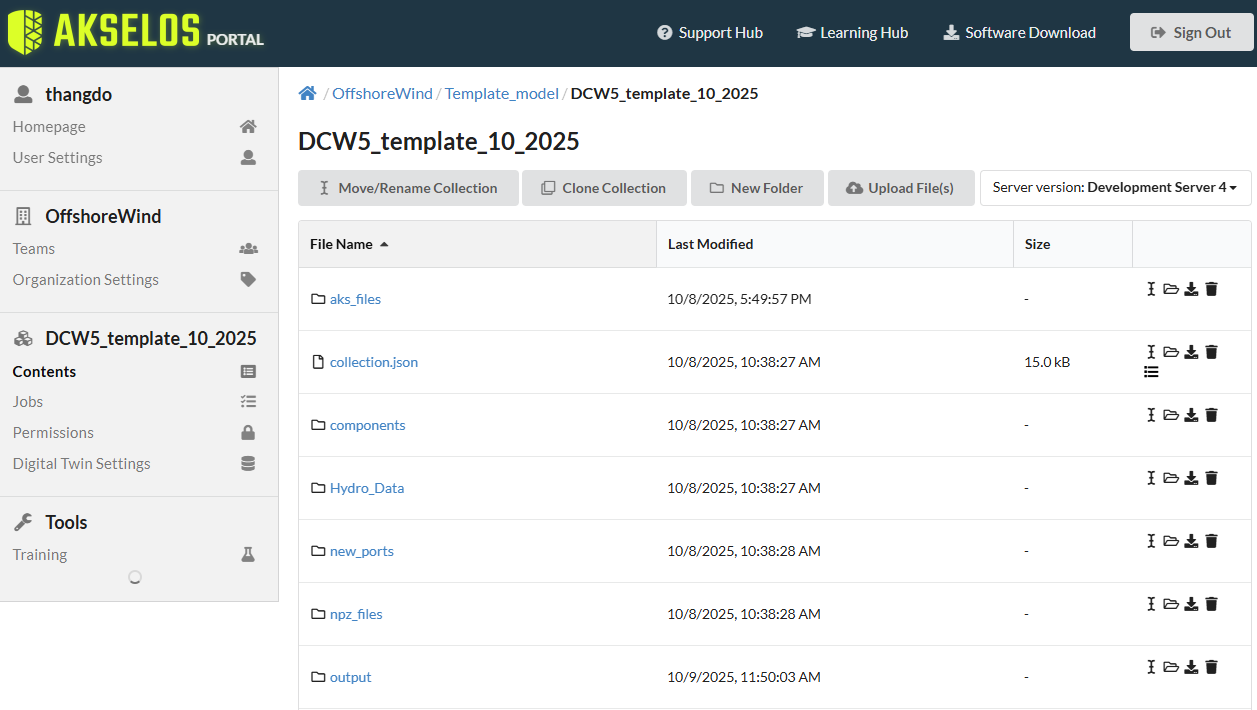 | Delivers a centralized workspace that allows secure access, management, and organization of structural twin data, including collections, libraries, and results, from any location without requiring local software installation. Users can upload, download, and update asset data directly through the web browser. |
| Operational Monitoring | 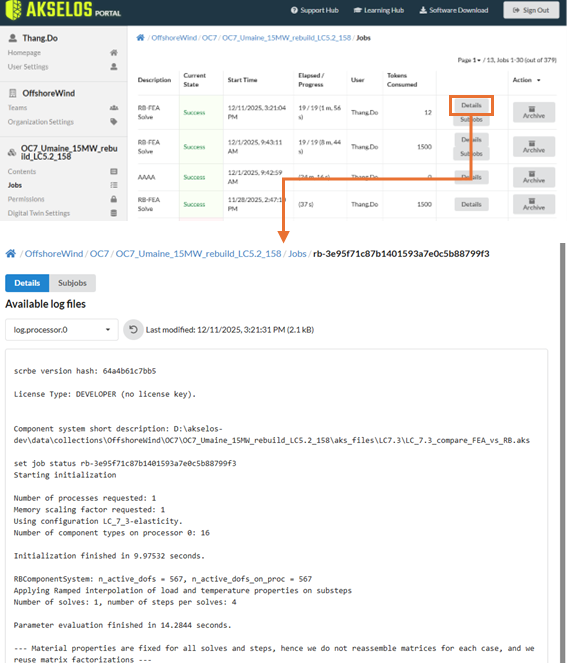 | Enables users to monitor the status and progress of analysis and solver jobs in real time. This capability provides clear visibility into computational performance, supports rapid identification and resolution of failed processes, and improves overall workflow efficiency. |
| Collaboration and Access Control | 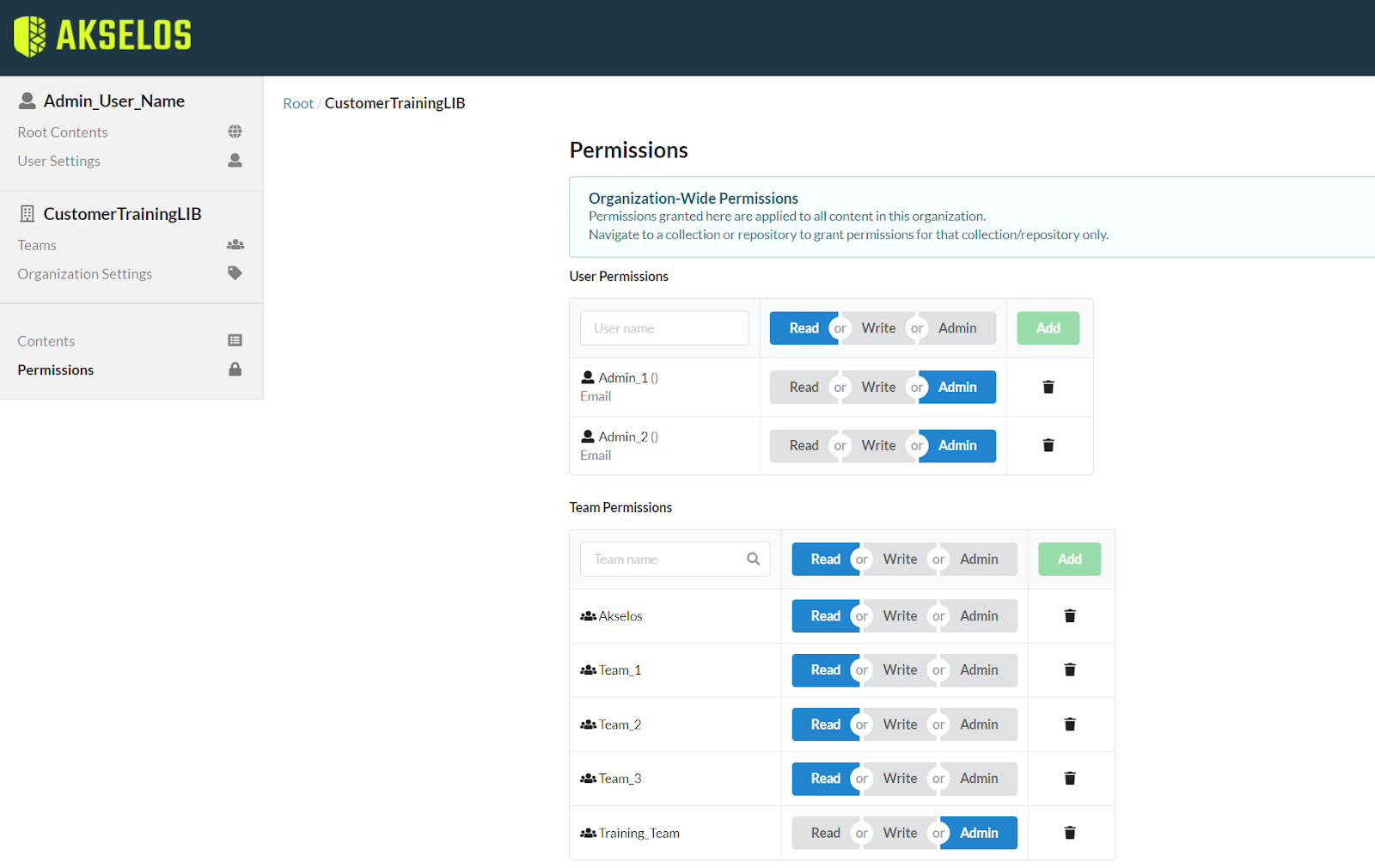 | Supports collaborative engineering by allowing teams to share structural twin assets and result collections within the organization. All access is centrally managed by organization administrators using role-based permission controls:
|
| Authentication and Integration | 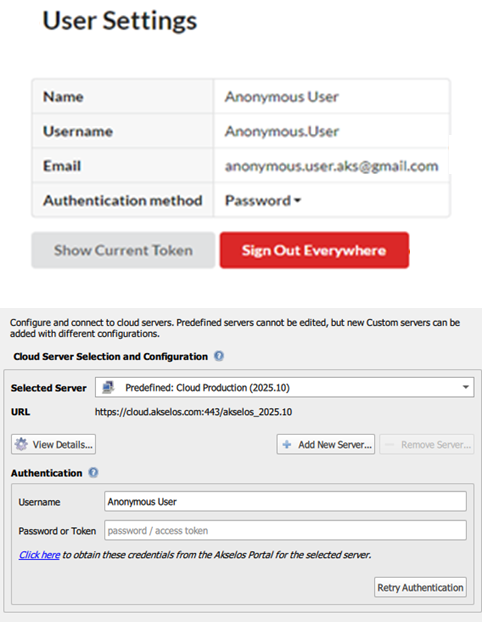 | Provides secure authentication using either standard passwords or access tokens. Offers unified session management, allowing users to view and control active sessions, sign out from remote devices, and integrate authentication seamlessly with the desktop Akselos Modeler. |
3. Akselos Modeler
The Akselos Modeler is the primary engineering environment for constructing structural twins. It provides a specialized workspace for assembling components, configuring physics, and preparing simulations using Reduced-Basis FEA (RB-FEA).
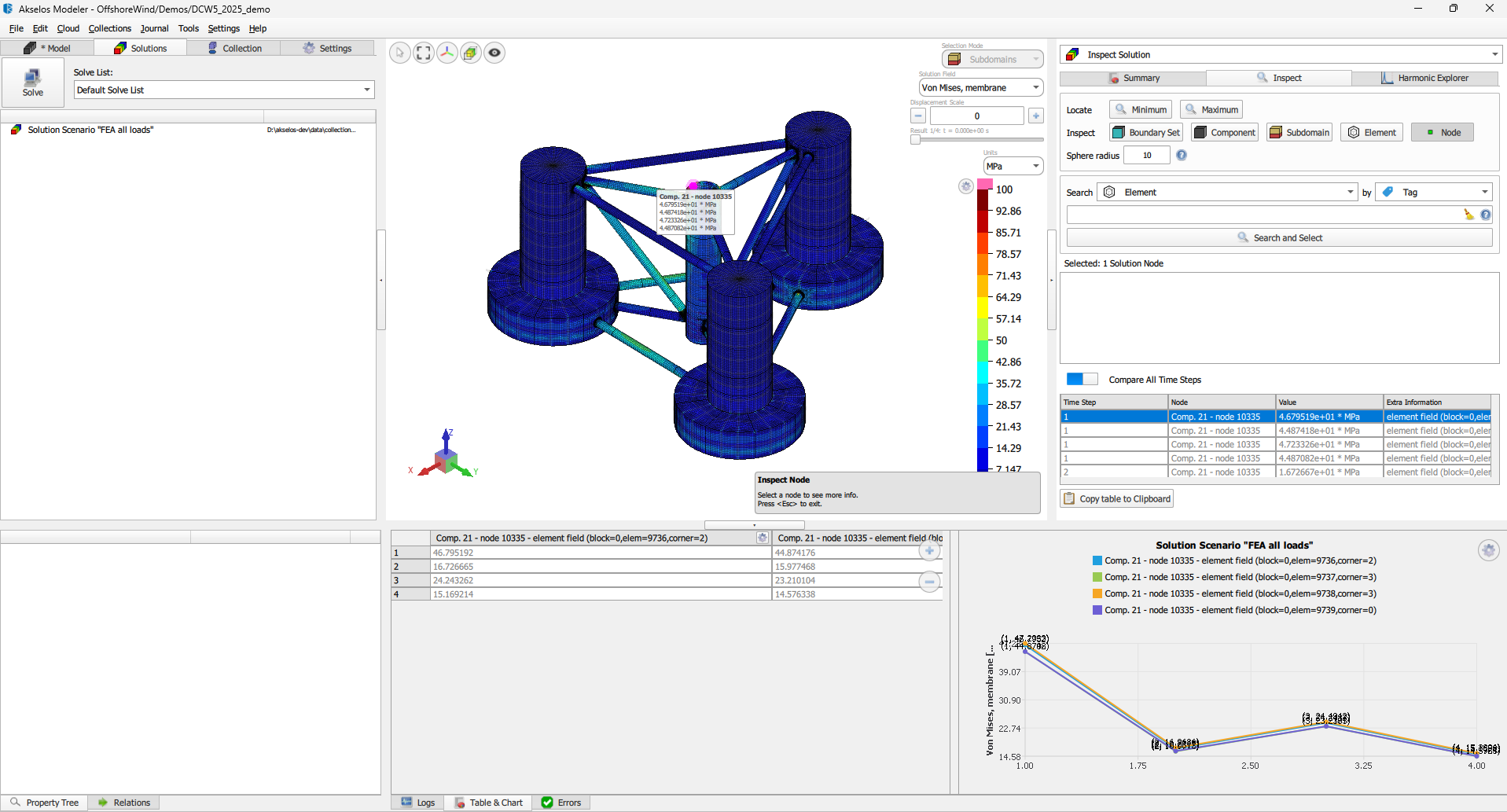
3.1 Interface Architecture
The user interface provides streamlined access to model setup, load definition, solver execution, and result visualization through a consistent, task-oriented workflow. There are 3 main UI tabs:
- Collection tab: Centralized view for organizing and managing component libraries and collection-level properties, such as cross-section and material libraries.
- Model tab: Main workspace for building and configuring the FEA model, including load and boundary condition definition, model-level parameter setup, and solver configuration.
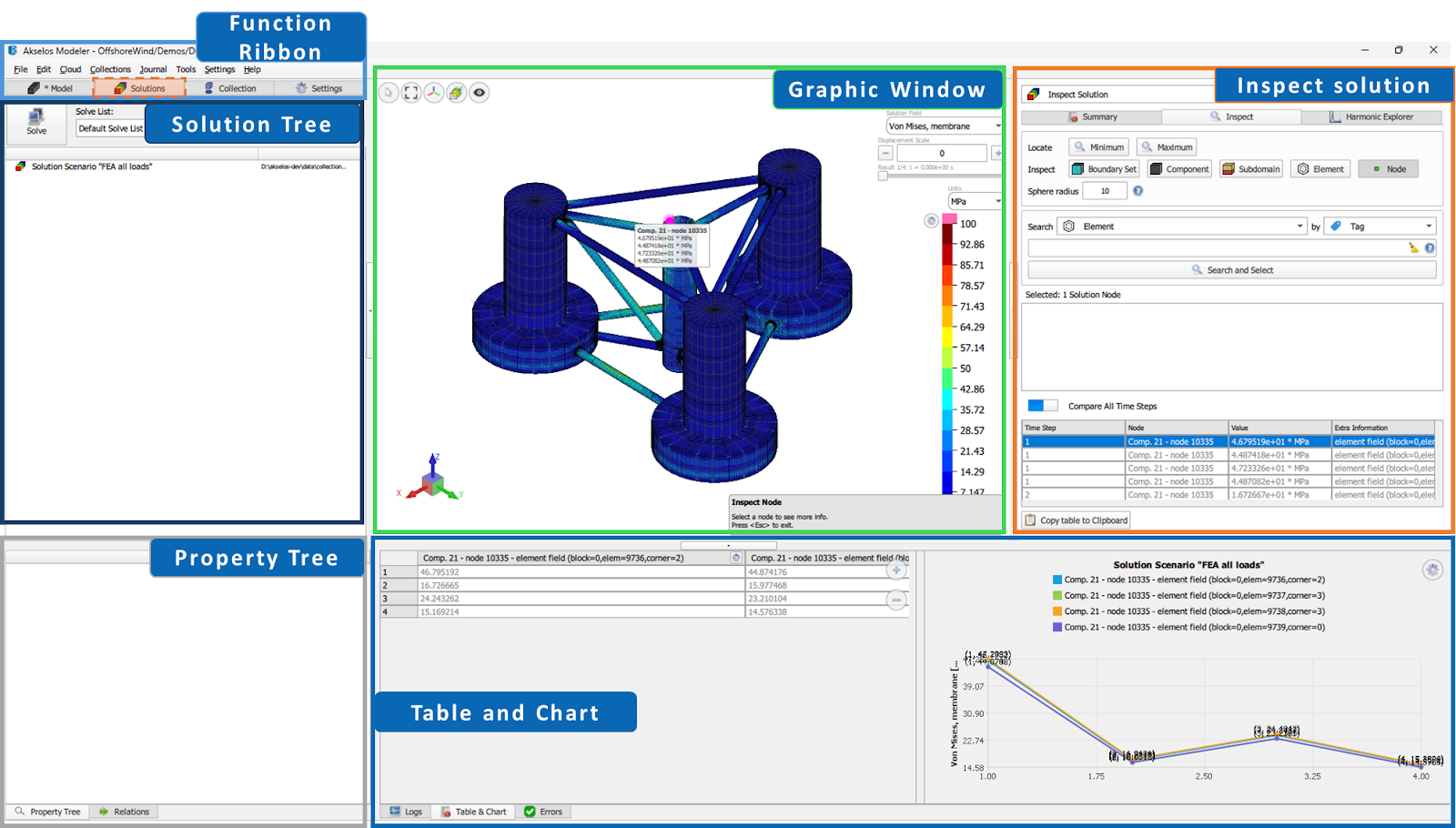
- Solution tab: Centralized interface for running and managing analysis cases and inspecting solutions.
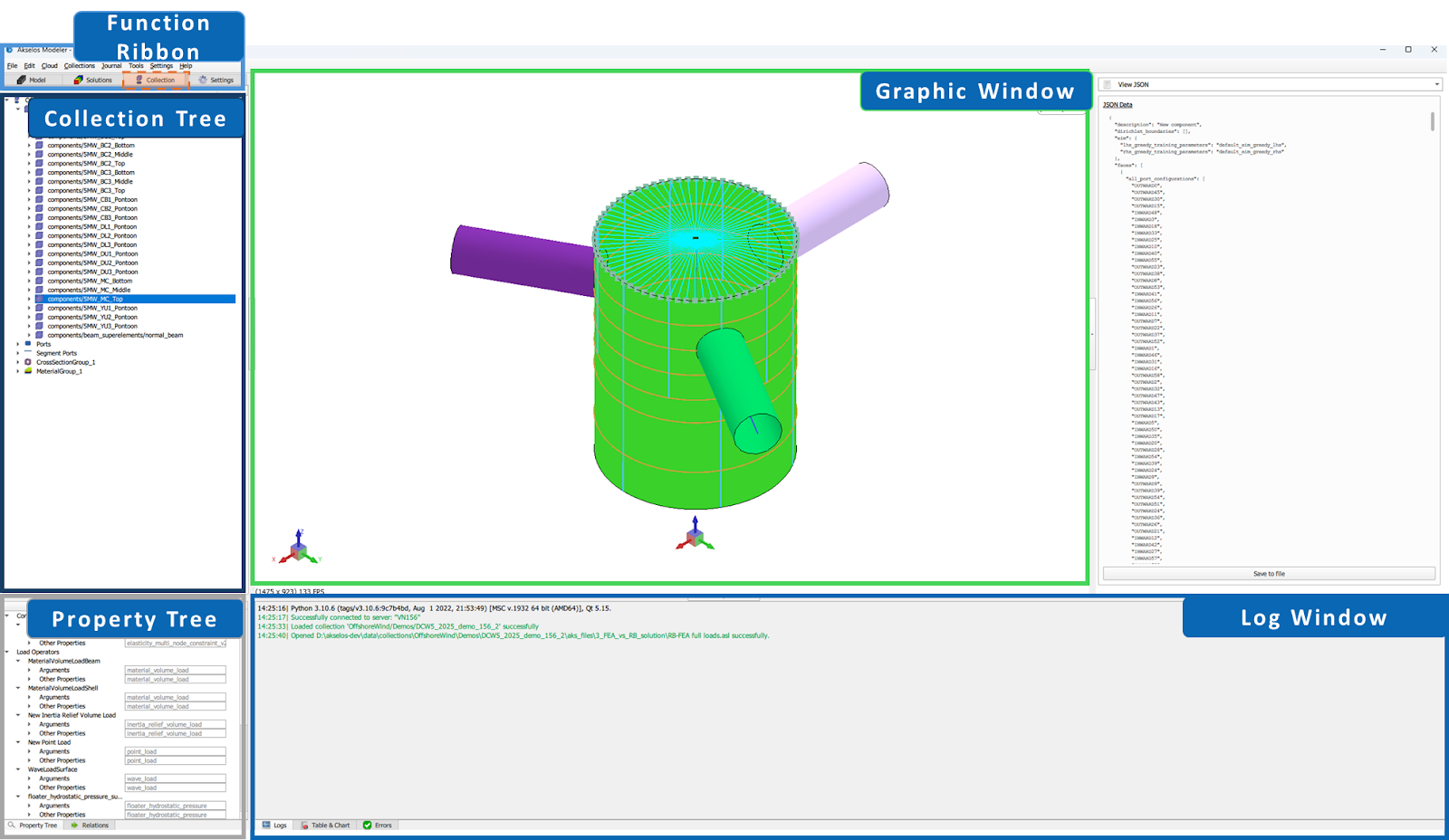
Collection tab
| Feature Category | User Interface | Description |
|---|---|---|
| Collection Tree | 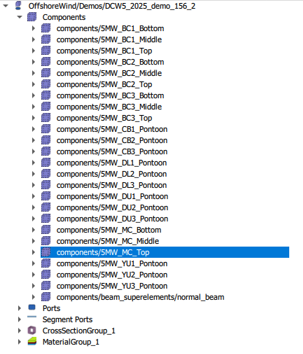 | Provides a hierarchical view of the model collection content, including components, ports, cross section groups, and material groups. Allows users to browse the collection structure, inspect component definitions, and select entities for review or reuse. Includes collection level settings such as material libraries and cross section libraries. Users can create and modify the collection tree and use it during the FEA model build process. |
| Graphic Window | 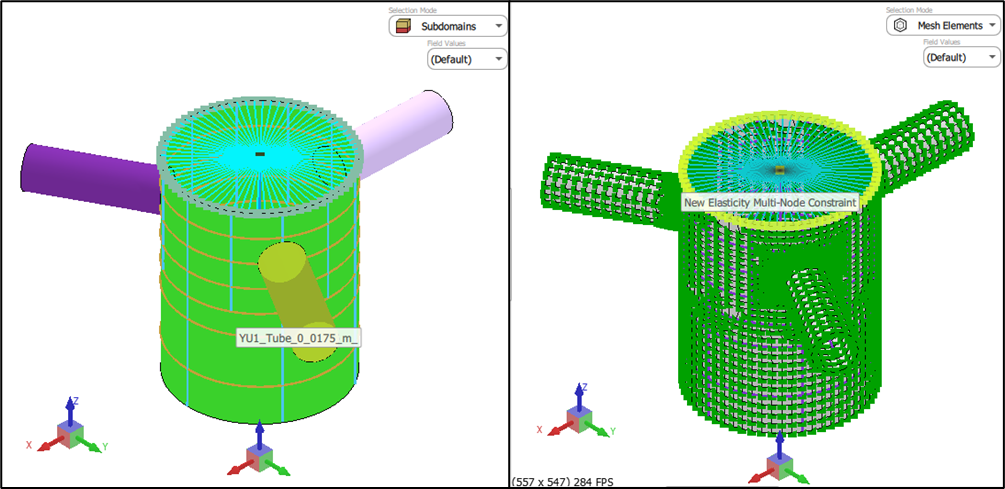 | Displays the selected collection entity in a three dimensional view, including component geometry, ports, and reference features. Supports interactive visualization and entity selection. |
| Property Tree | 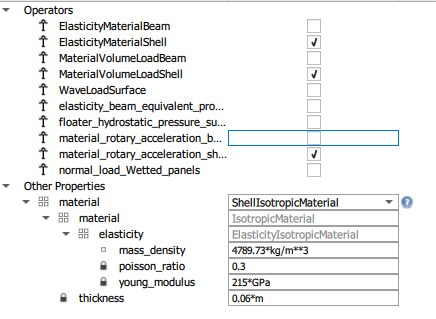 | Displays properties of the selected collection entity, including component, port, cross section, and material group definitions. Allows users to review and adjust collection level parameters and definitions. |
Model tab
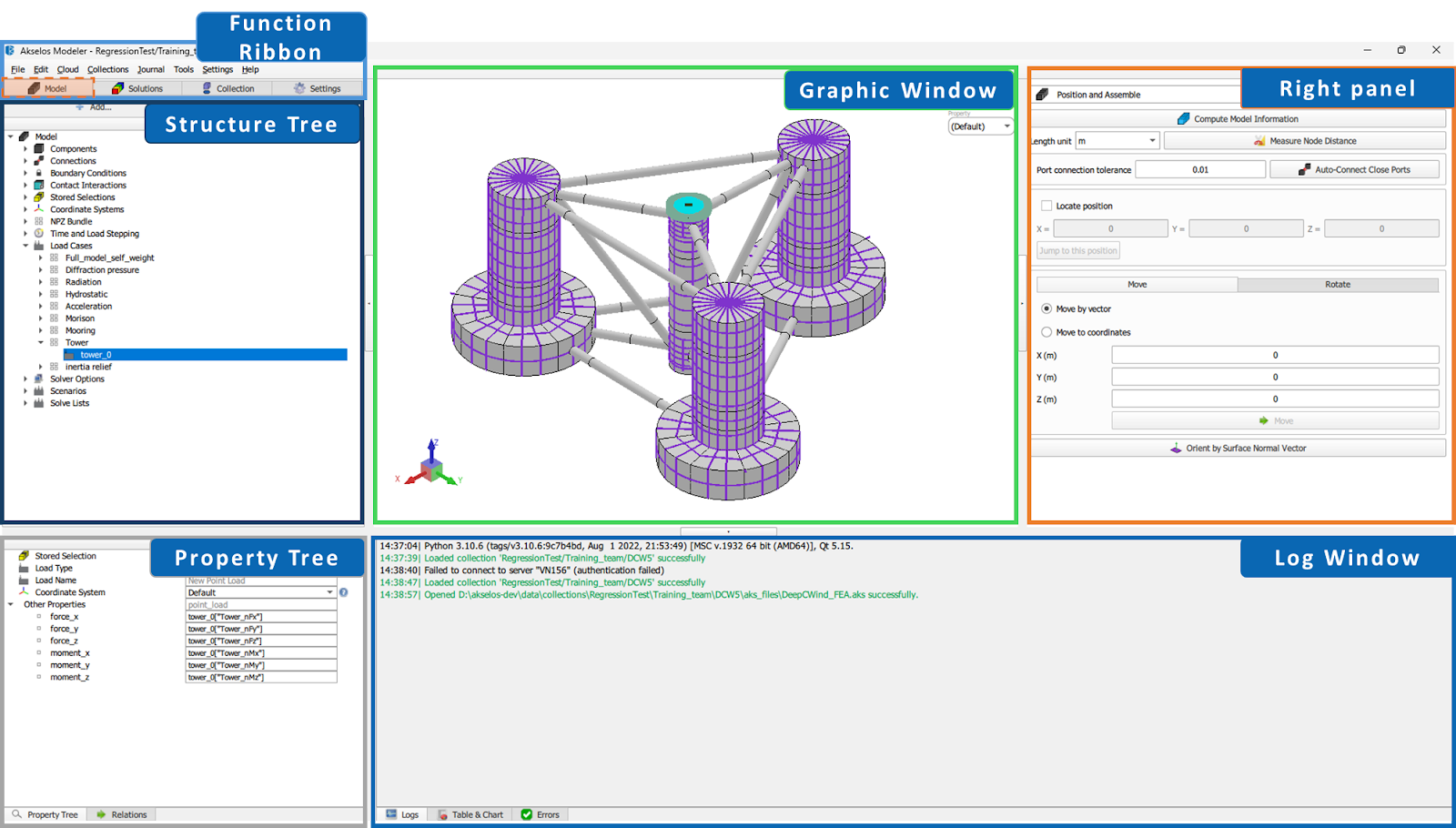
| Feature Category | User Interface | Description |
|---|---|---|
| Function Ribbons |  | Top-level command ribbon providing access to core workflows such as model creation, solution setup, collections, and global settings. The ribbon is context-aware and updates based on the active task. |
| Structure Tree | 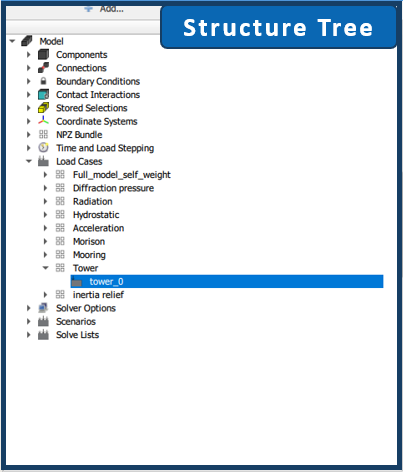 | Hierarchical representation of the model definition, including components, connections, boundary conditions, load cases, solver options, and scenarios. This tree serves as the primary navigation and organization mechanism. Users can browse model entities, activate or edit items, manage load cases, and configure analysis settings. |
| Graphic Window | 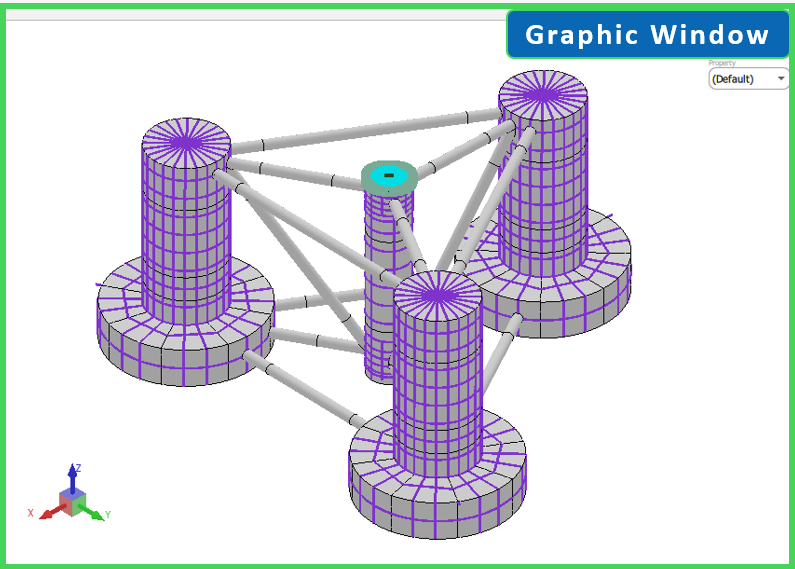 | Central three-dimensional visualization window displaying geometry, mesh, loads, boundary conditions, and results. Supports interactive operations such as rotate, pan, zoom, and selection, enabling visual inspection of geometry, mesh quality, loads, and constraints. |
| Right Panel (Plug-ins) | 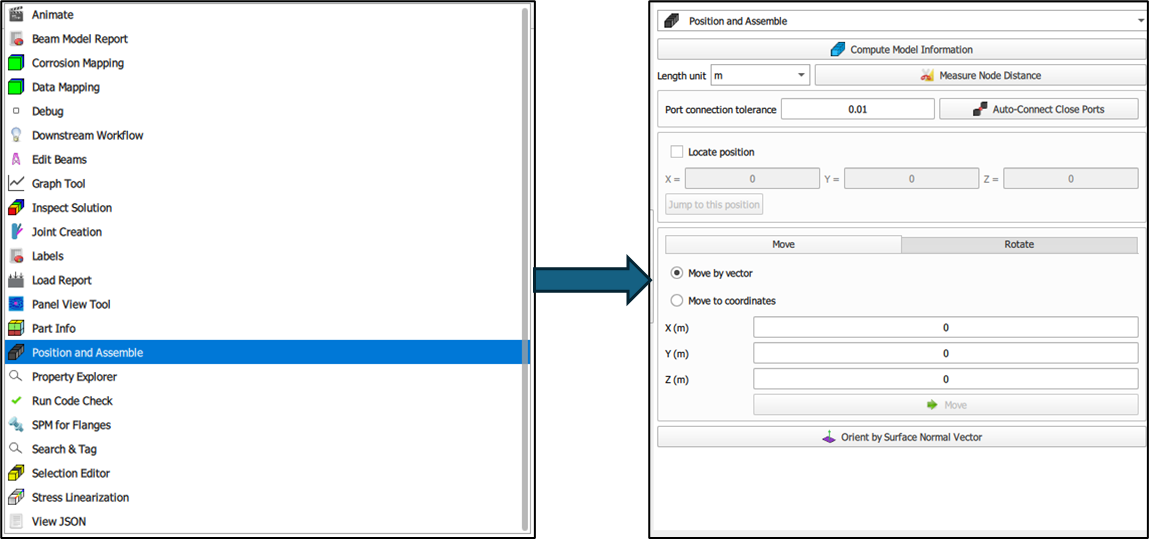 | Plugin panel hosting modular tools for advanced modeling, inspection, reporting, and workflow tasks. Each plugin focuses on a specific function and can be activated on demand. Enables users to access specialized tools, configure advanced operations, inspect and validate model data, perform transformations, and execute post-processing tasks. |
| Property Tree | 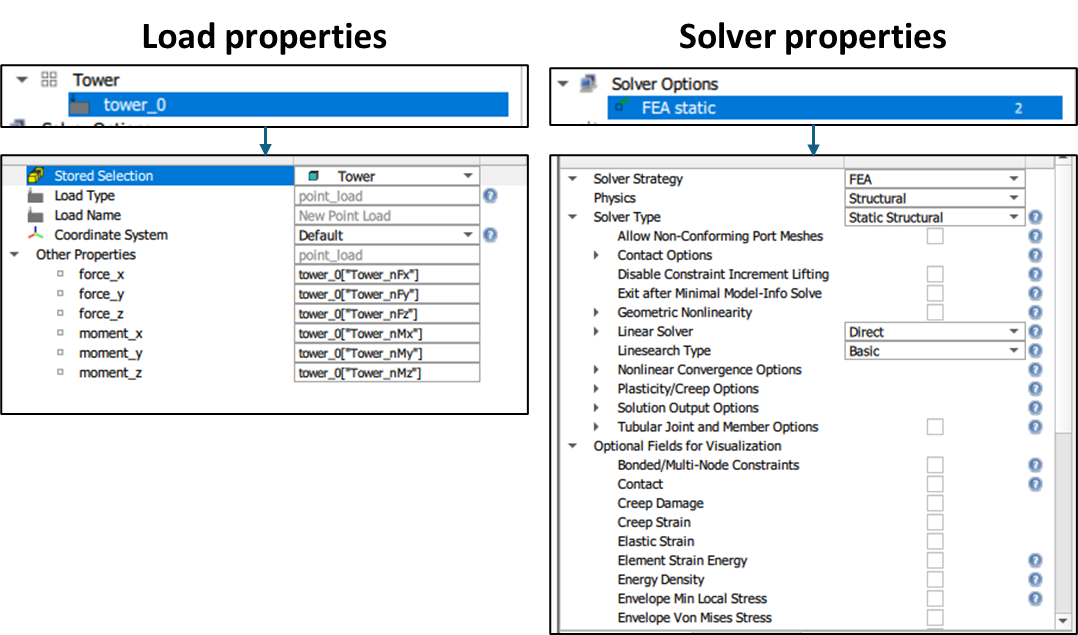 | Displays the full set of editable parameters for the currently selected item in the Structure Tree. Properties are organized hierarchically and consistently across object types.
This one-to-one mapping between Structure Tree items and Property Tree definitions ensures clarity, consistency, and precise control over model configuration. |
| Log Window | 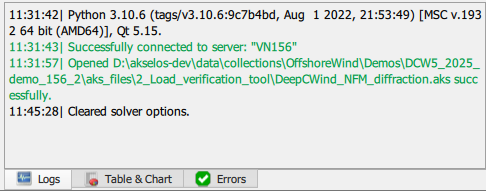 | Real-time system feedback panel displaying messages related to model loading, validation, solver execution, warnings, and errors. Supports diagnostics, traceability, and verification of successful execution steps. |
| Table and Chart | 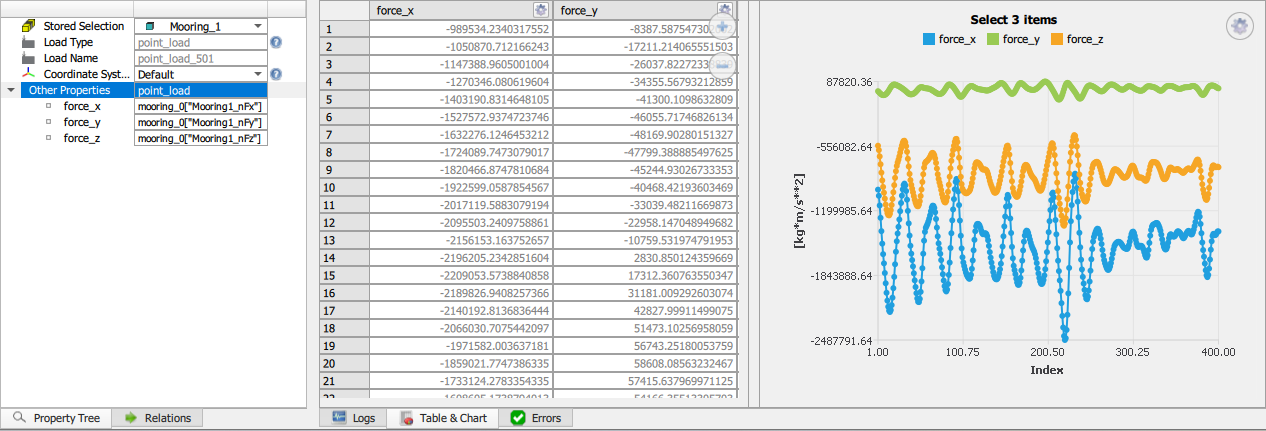 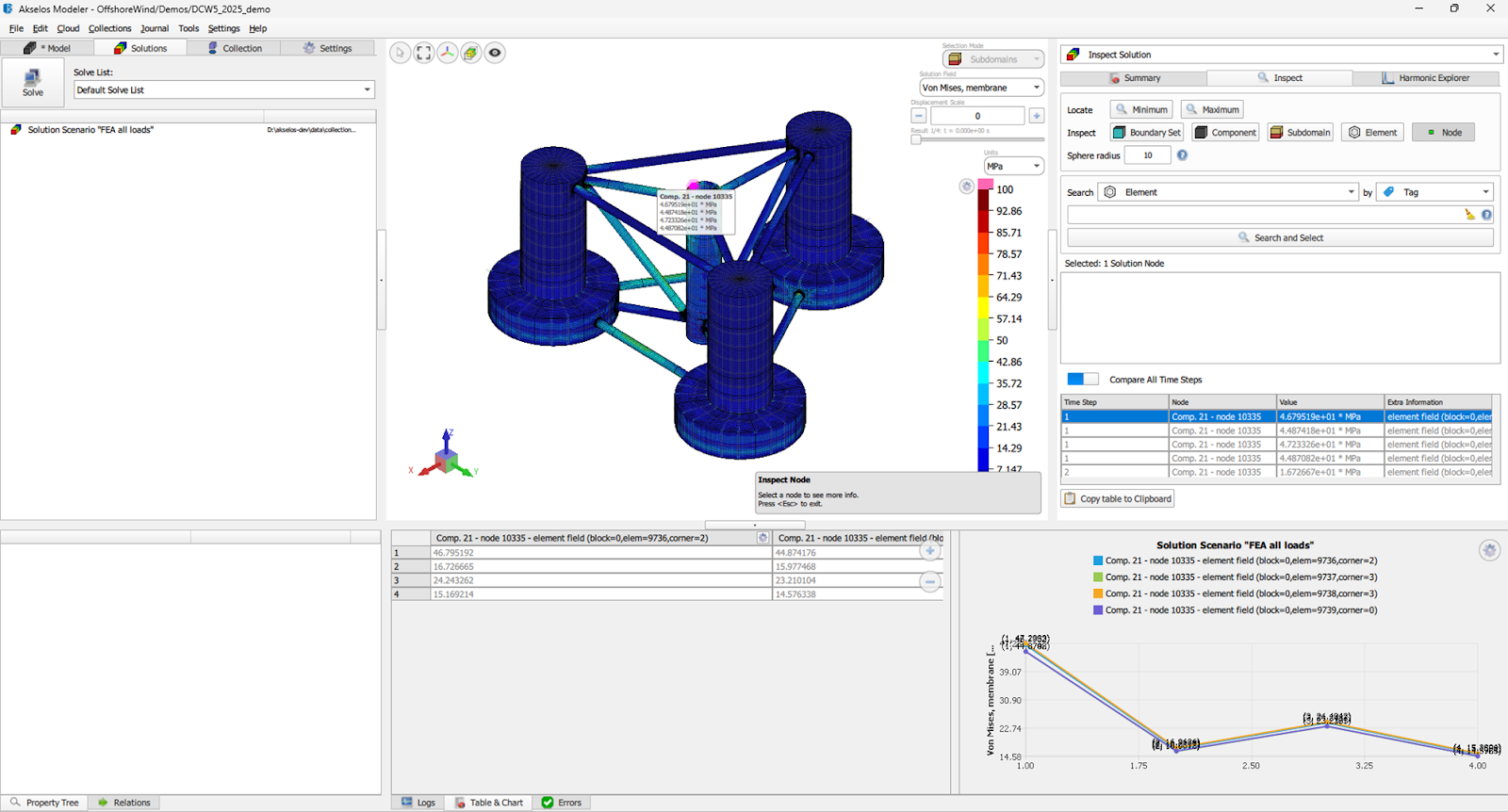 | Provides synchronized tabular and graphical visualization of numerical data, supporting both time-series and array-based datasets. Commonly used for load validation, data mapping checks, trend analysis, and post-processing review. |
| Clip Plane | 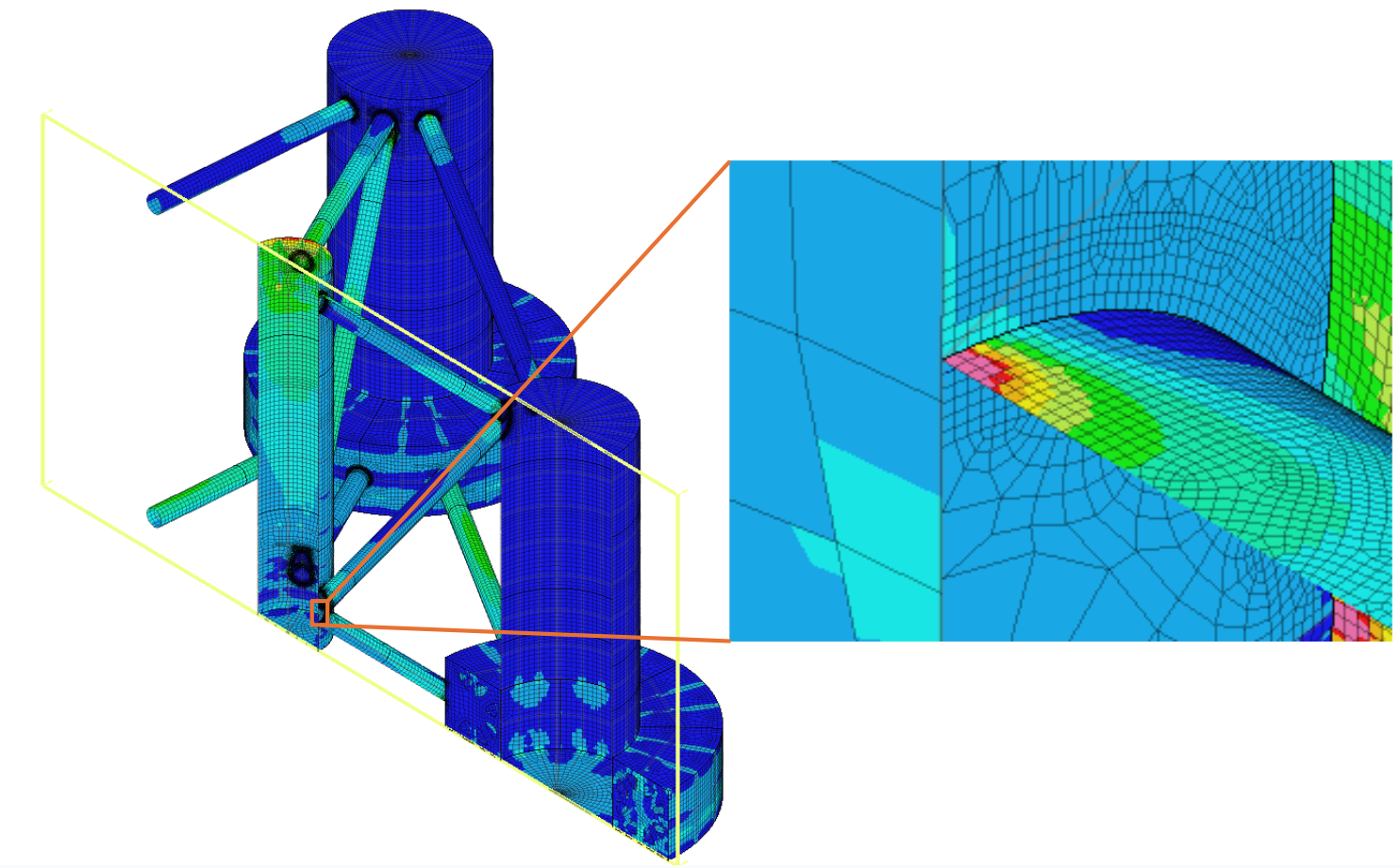 | Enables interactive cut-away visualization of components, finite element models, and results. Users can define and manipulate clipping planes to inspect internal geometry, mesh quality, and result fields. |
| Time-Series Load Visualization and Inspection | 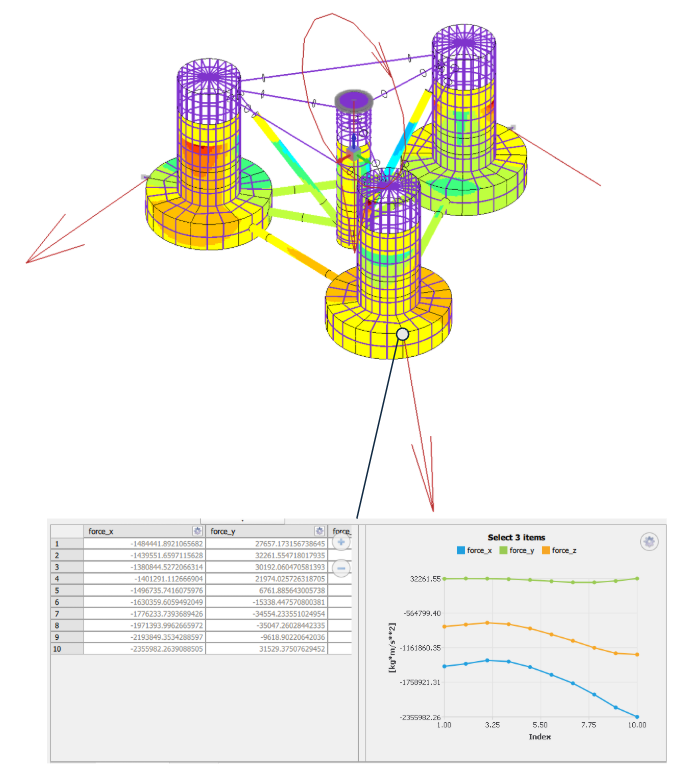 | Supports visualization of time-dependent mapped loads, including point forces and moments displayed as vectors and hydrostatic or hydrodynamic pressures shown as color-mapped distributions. Time-series and array-based load inputs can be inspected and plotted using the Table and Chart panel. |
Solution tab
| Feature Category | User Interface | Description |
|---|---|---|
| Function Ribbons (Solution Mode) | 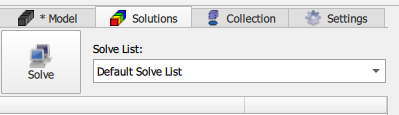 | Provides commands for solver execution and solution management, including running solve lists and switching between solution scenarios. Enables users to launch analyses, control solve execution, and manage solution lists. |
| Solution Tree | Hierarchical view of solution entities such as solve lists and solution scenarios. Acts as the primary navigation structure in solution mode. Allows users to inspect, organize, and manage solution lists. | |
| Graphic Window | 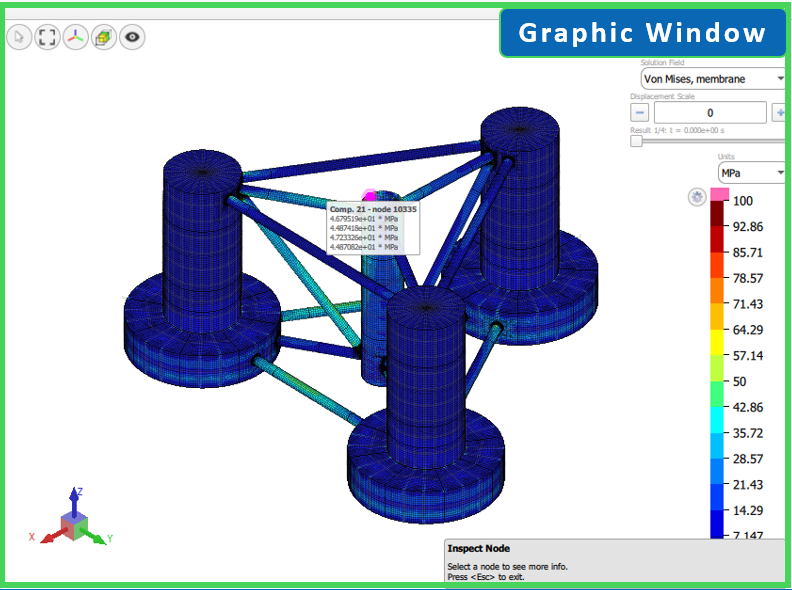 | Displays solution results on the three dimensional model, including stresses, displacements, and other result fields. Supports interactive probing, result selection, and visualization controls. |
| Inspect Solution (Right Panel) | 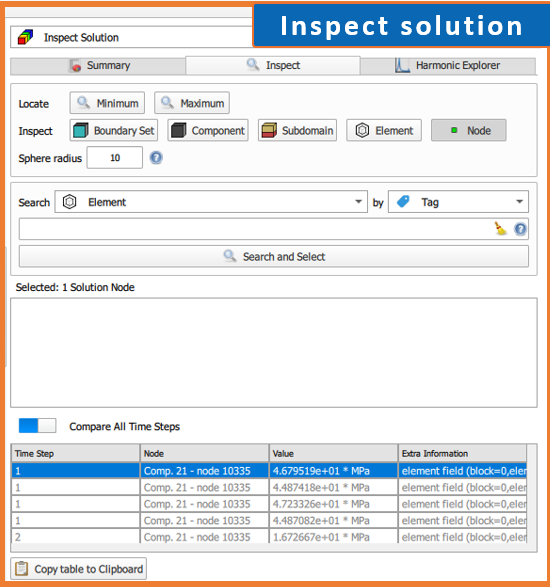 | Dedicated inspection panel for detailed result analysis. Supports searching by entity type, locating minimum and maximum values, comparing time steps, and filtering entities. Allows users to identify critical results, examine detailed values, and copy table results for external use. |
| Table and Chart (Results) | 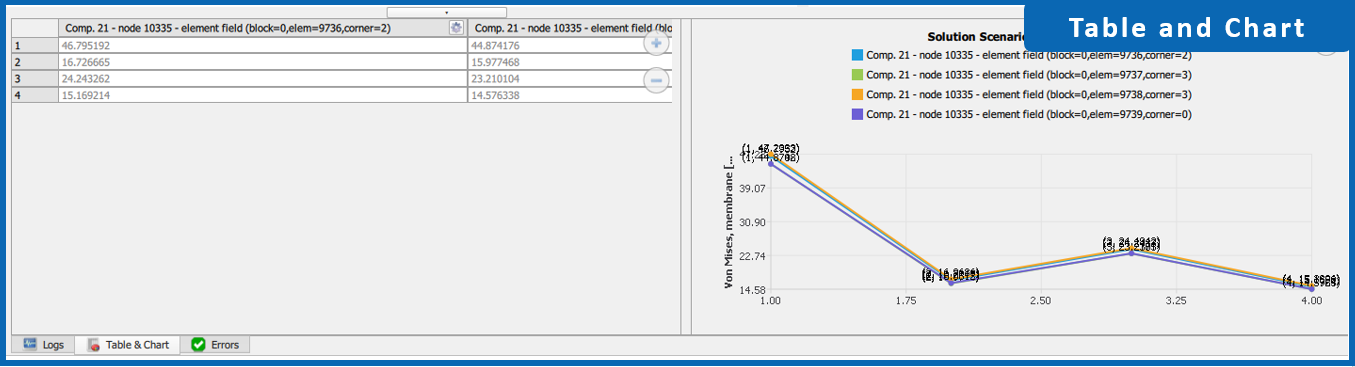 | Provides synchronized tabular and graphical visualization of result data, supporting comparison across nodes, elements, and time steps. Enables users to review numerical values, plot trends, compare multiple result signals, and export data to CSV format. |
3.2. General Engineering Features
| Feature Category | User Interface | Description |
|---|---|---|
| External mesh import | 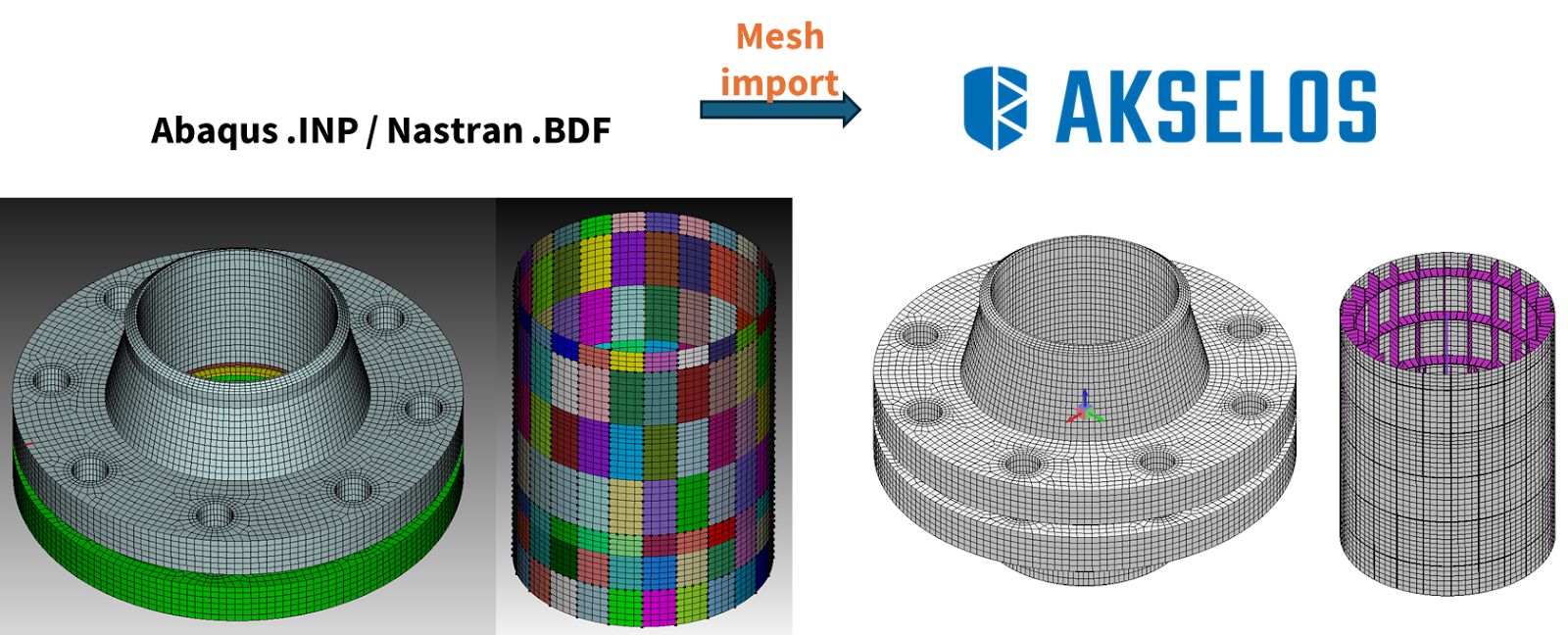 | Akselos Modeler can import Abaqus INP mesh files generated by external meshing tools. At this stage, INP files exported from CoreForm Cubit are strongly recommended. Import of Nastran format files (.bdf) is also supported. |
| One dimensional beam and stiffener configuration | 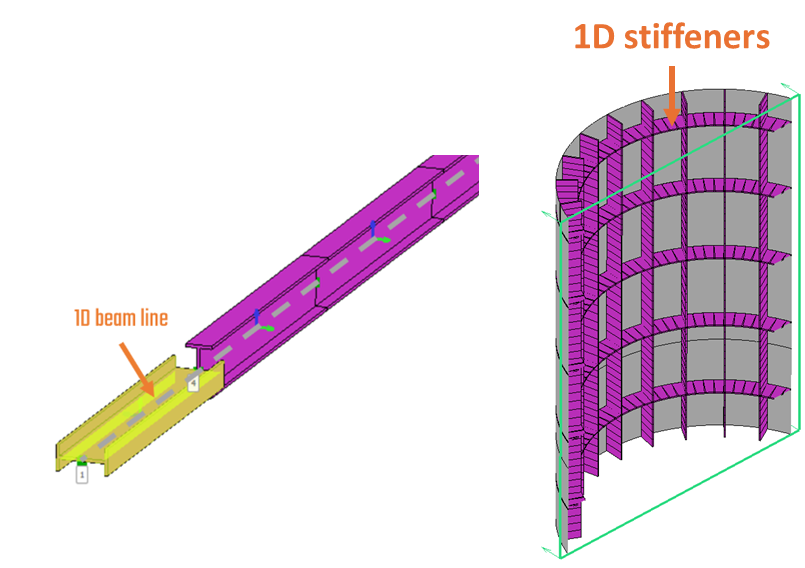 | One dimensional elements can be used in several areas, including:
Supported features:
|
| Supported beam cross sections (profiles) | 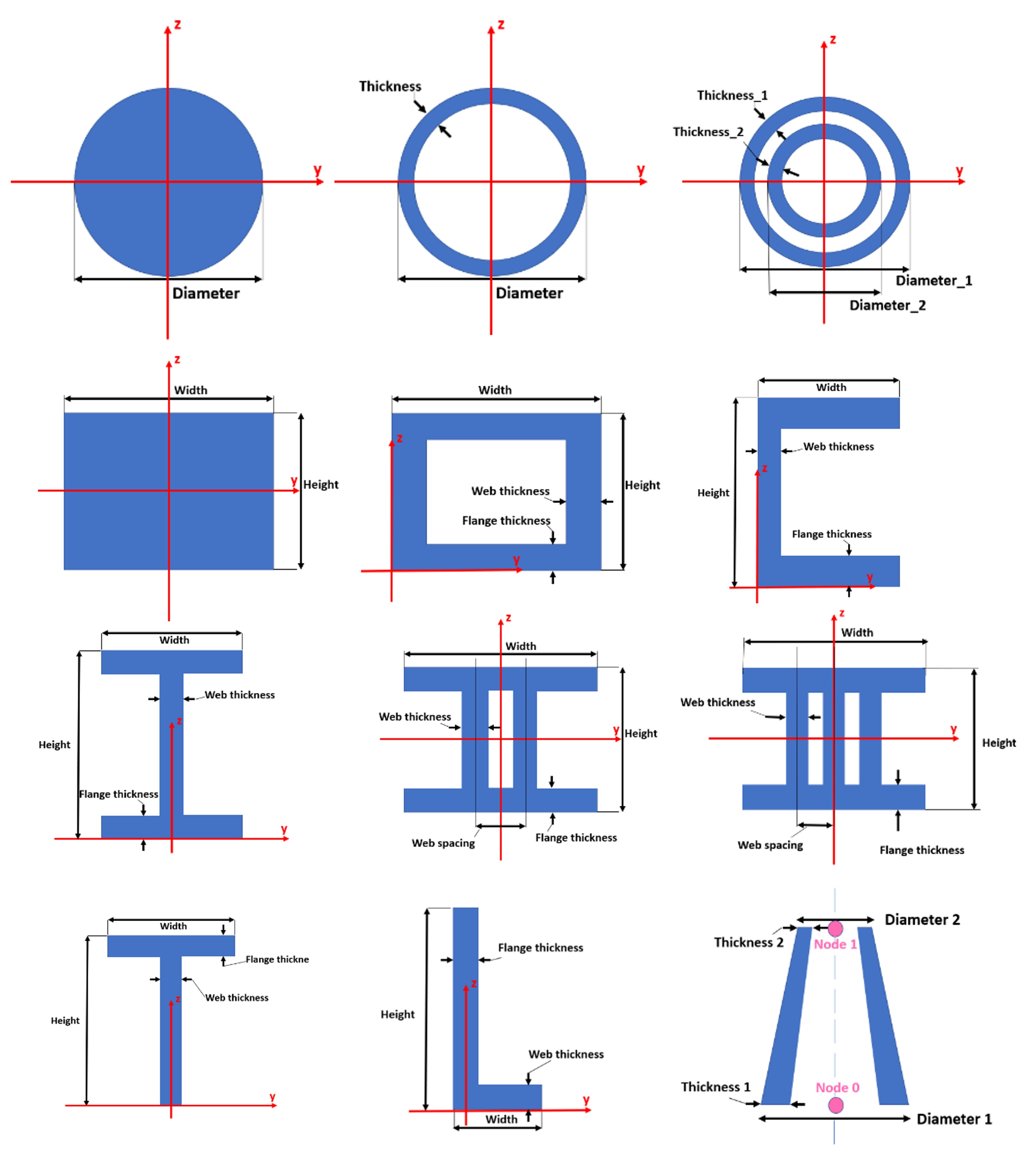 | |
| Material definition | 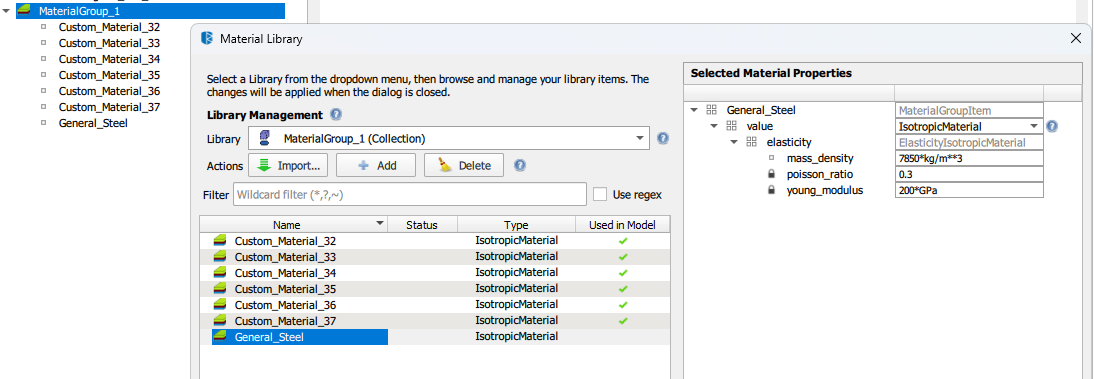 | Materials can be defined using material libraries within Akselos. Supported material types include linear isotropic, orthotropic, nonlinear, and gasket materials. |
| Model configuration | 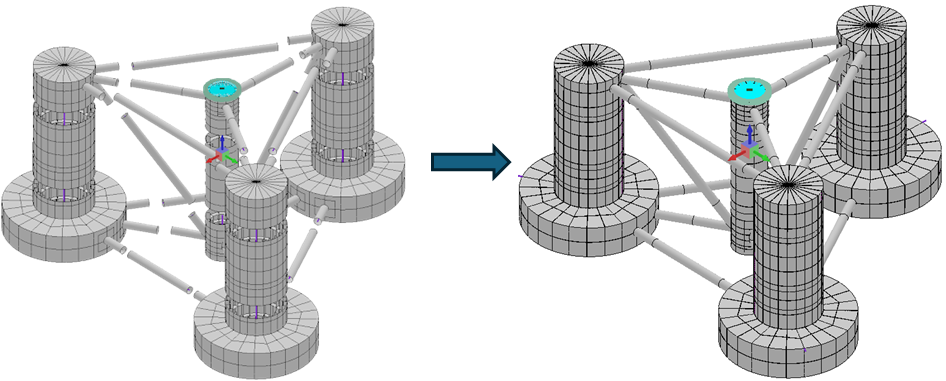 | Assembling and configuring RB-FEA components into Akselos models. Running FEA and RB-FEA structural simulations. Supported features:
|
| Thickness parametrization | 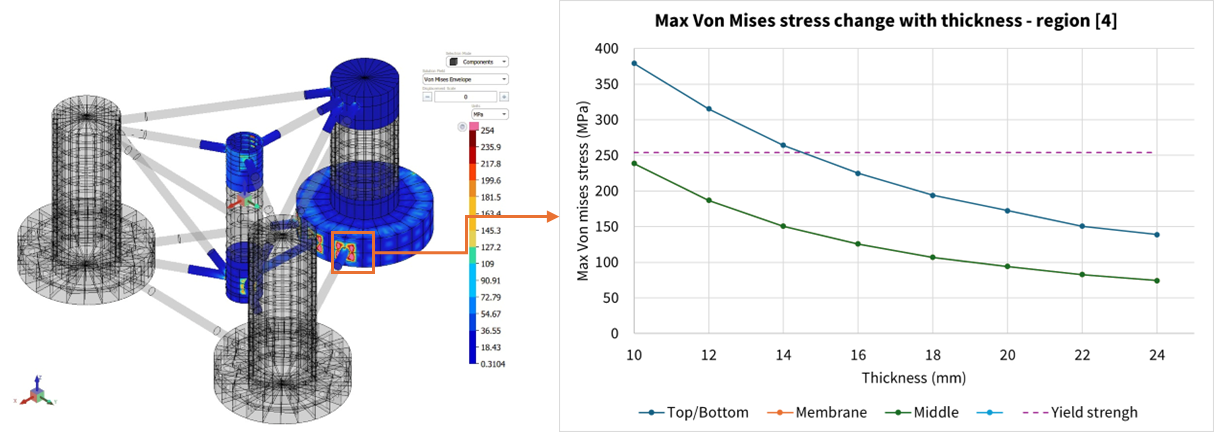 | Thickness parametrization is supported by defining subdomain thickness as a parametric variable, enabling rapid evaluation of structural response without remeshing. |
| Load modelling |  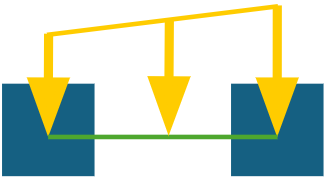 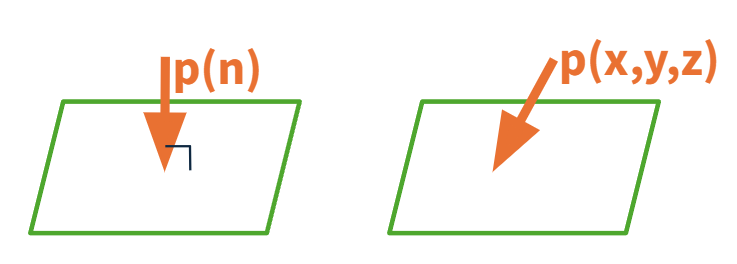 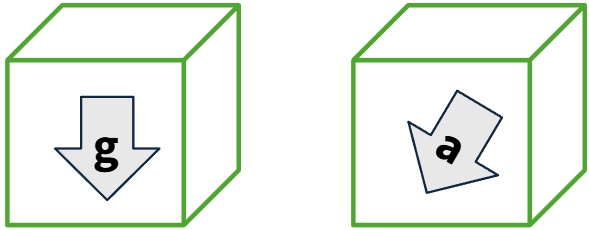 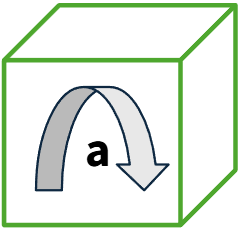 | The following load types are supported in Akselos Modeler and solver:
|
| Load combination and load factor | Akselos supports load combinations using different coefficients for individual load cases or load groups. This is commonly used to apply load factors for ULS or ALS design load cases. | |
| Boundary conditions | 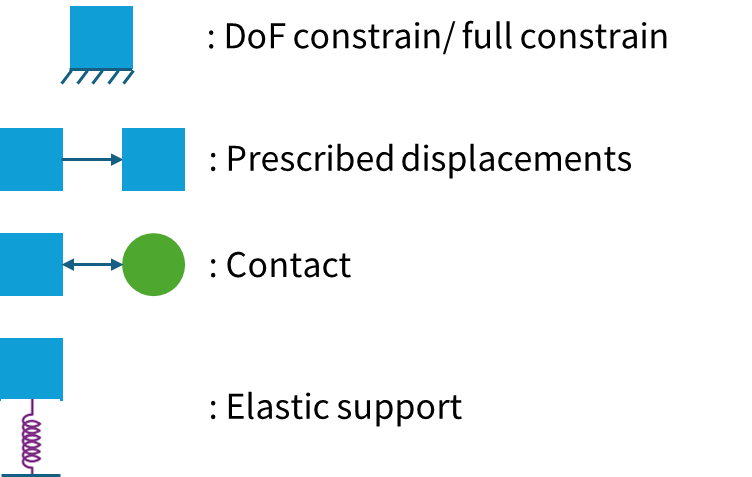 | The following boundary conditions are supported in Akselos Modeler and solver:
|
| Inertia relief | 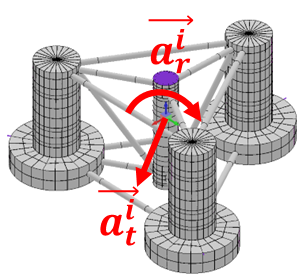  | Inertia relief keeps a floating structure in equilibrium during static analysis by balancing external loads with inertia forces. |
3.3 Specialized FOWT Features
| Feature Category | User Interface | Description |
|---|---|---|
| Hydrodynamic pressure mapping | 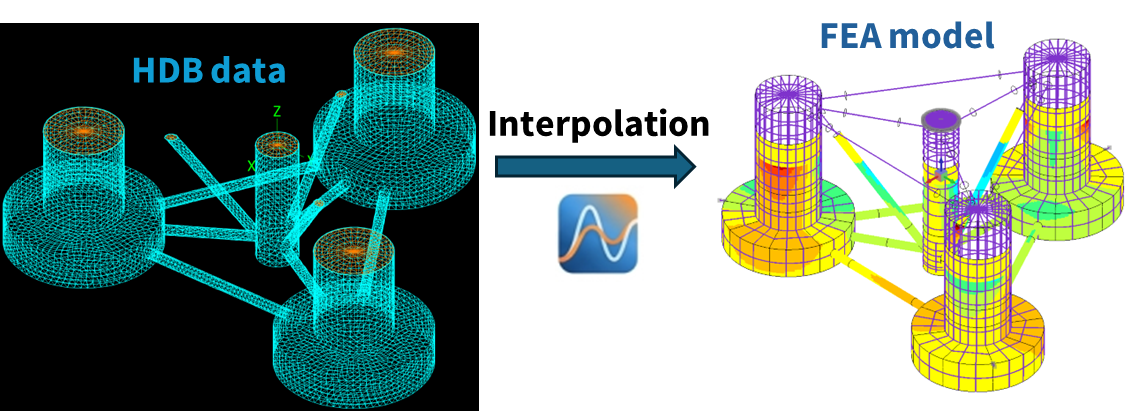 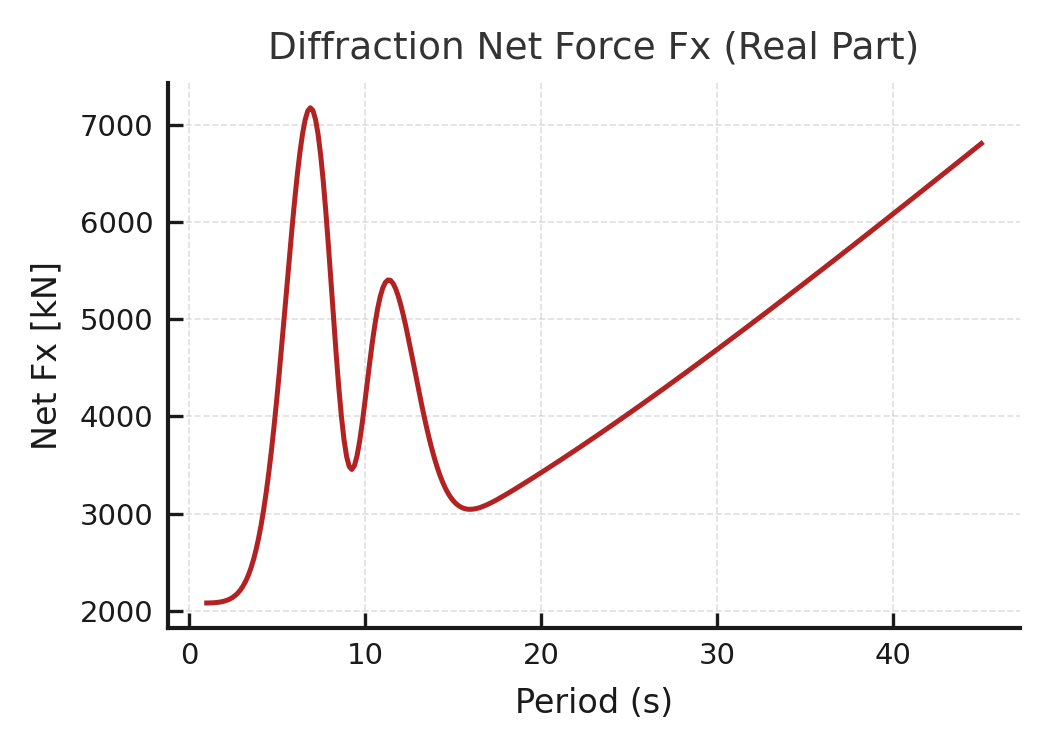 | Mapping hydrodynamic diffraction and radiation pressure in the frequency domain from HDB panels to Akselos models with high accuracy. Interpolation method: radial basis function and nearest neighbor. Compatible hydrodynamic solvers include Wamit, OrcaWave, Bladed, and Capytaine.
|
| Linear and non-linear hydrostatic | 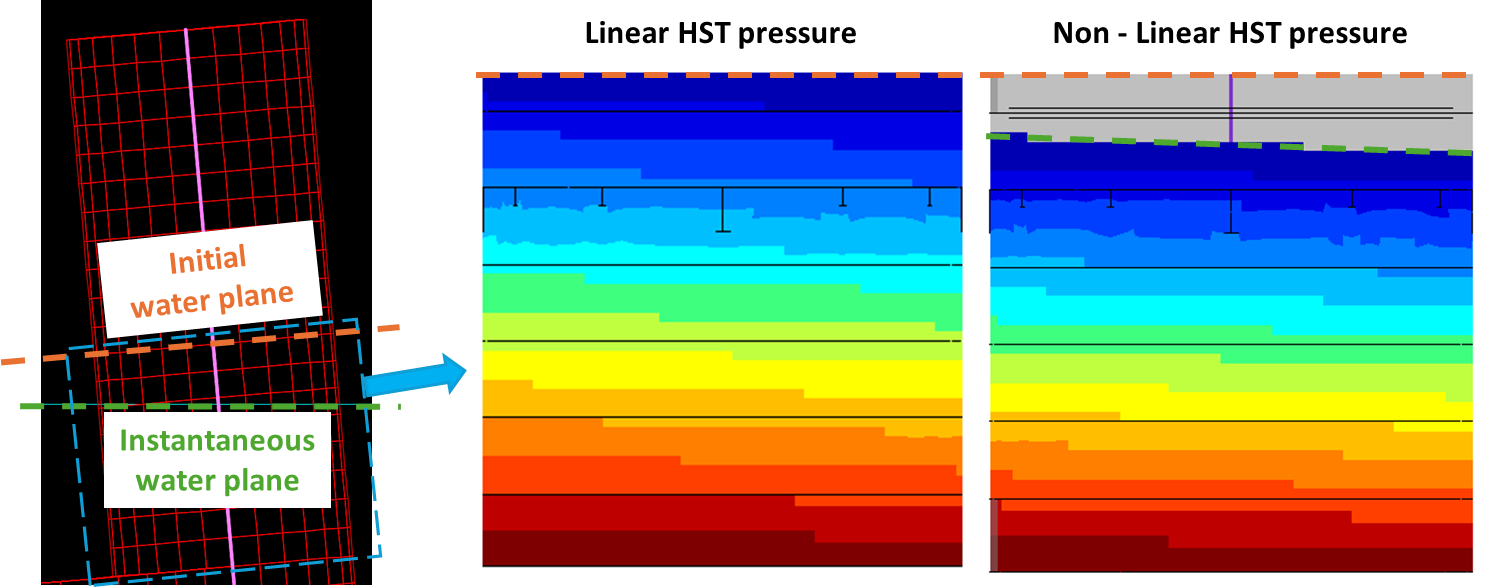 | Supports both linear and non-linear hydrostatic pressure loads on the FEA model.
|
| Morison configuration tool | 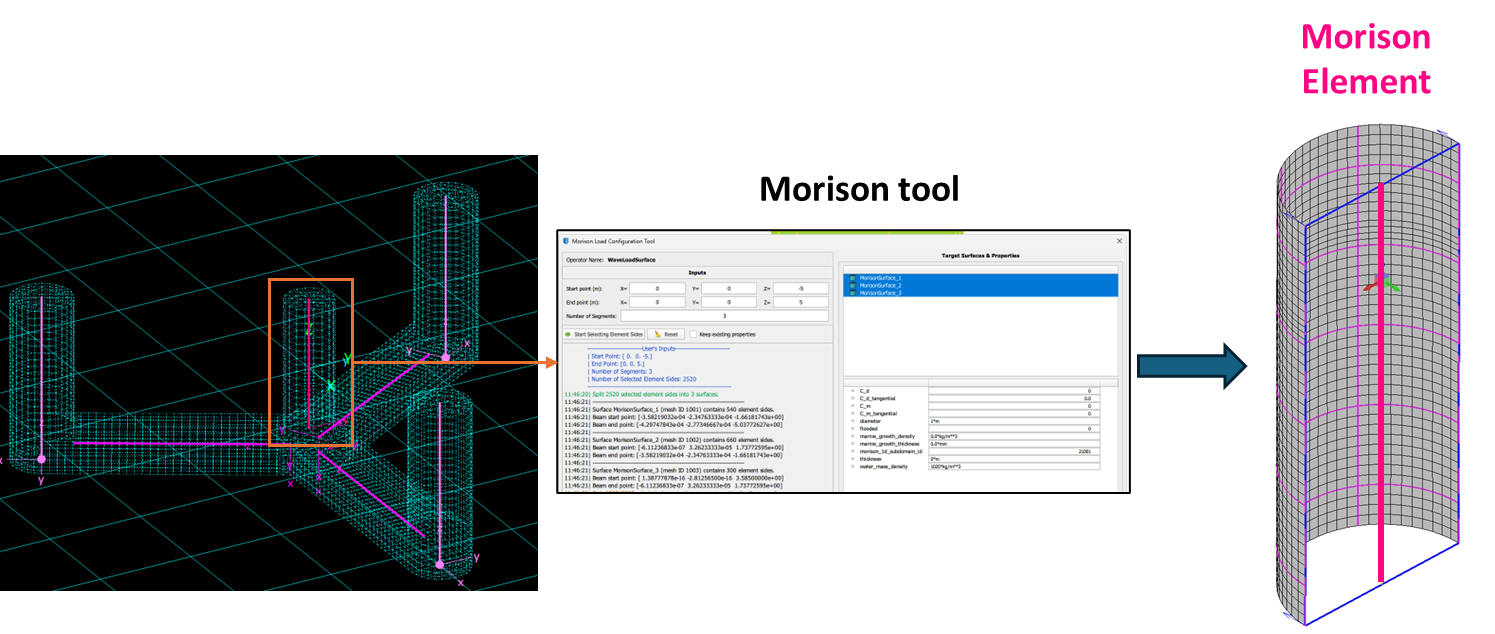 | Supports creation and configuration of Morison elements in the FEA model.
|
| Solid ballast and water ballast | 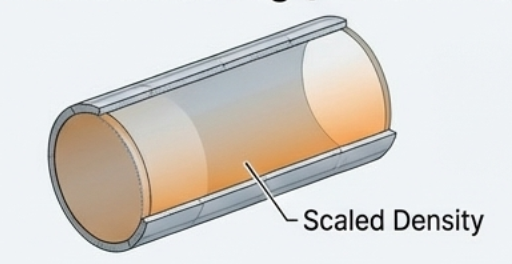 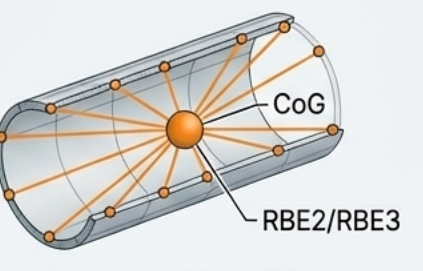 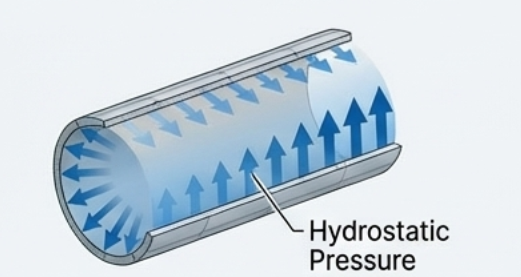 | Solid and water ballast can be modeled using three approaches.
|
| Verification of loads | 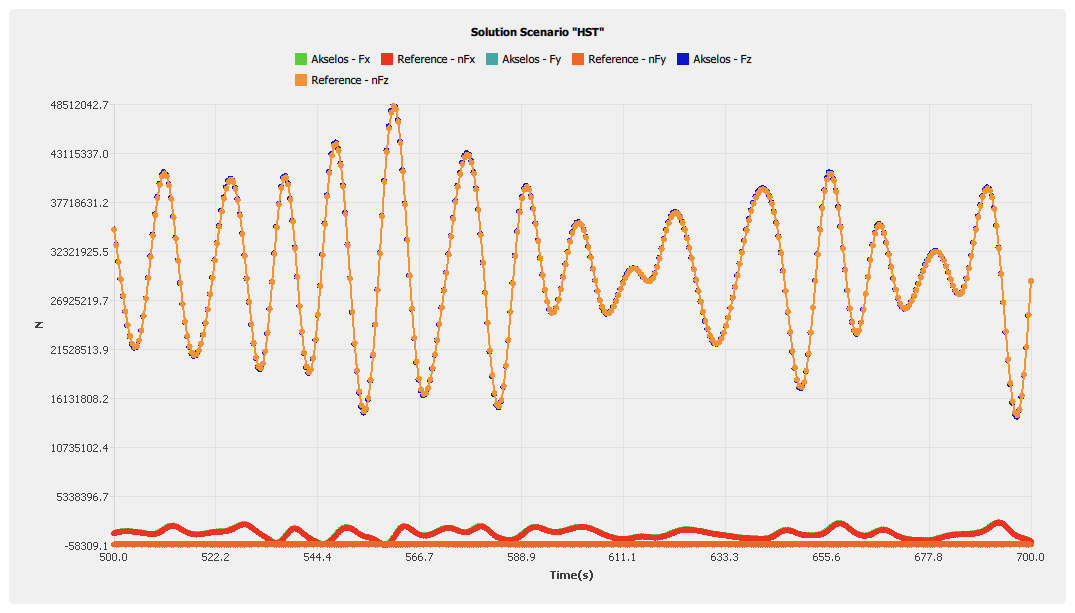 | Each migrated load is verified by comparing net forces and moments between the Akselos model and OrcaFlex results. The comparison can be visualized, saved as images, and exported as CSV data. |
| Coupled simulation load mapping and setup | 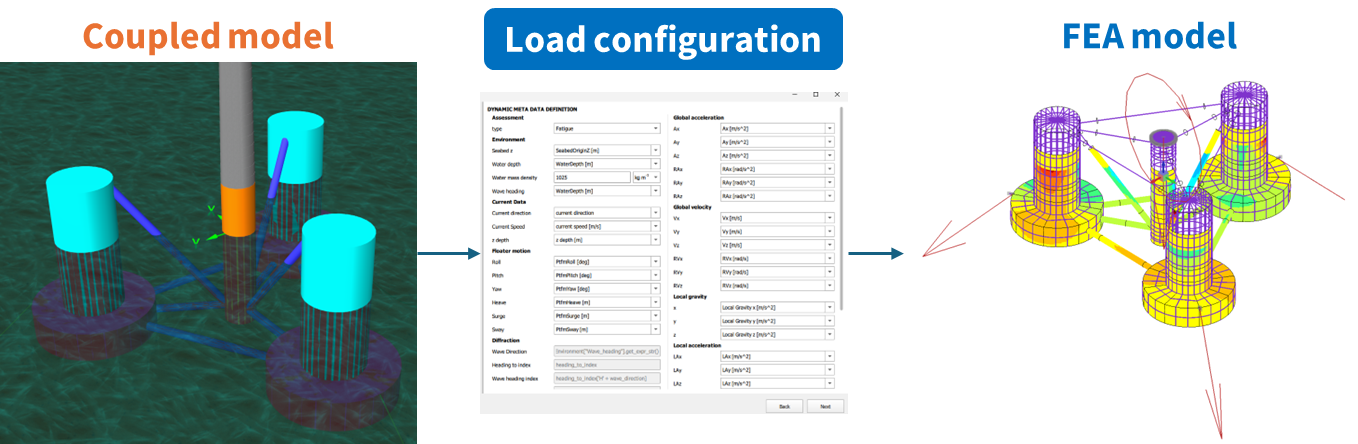 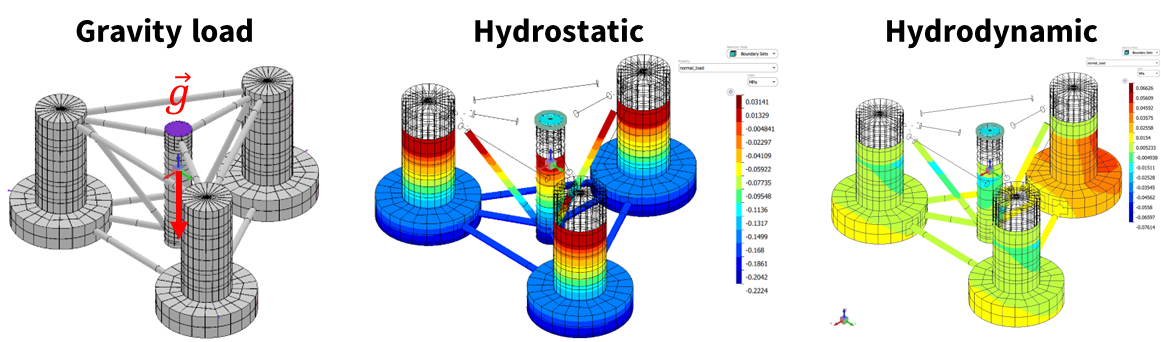 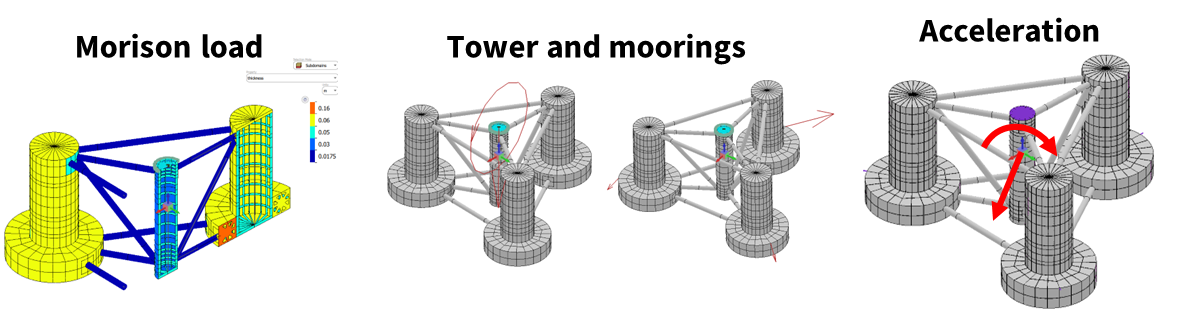 | Time-domain loads are imported or recomputed from coupled simulations such as OrcaFlex and OpenFAST. Load migration is performed either directly from simulation results or recalculated using hydrodynamic databases. Supported engines include Bladed, OrcaFlex, OpenFAST, and Capytaine. |
| Run hydrodynamic and coupled analysis |  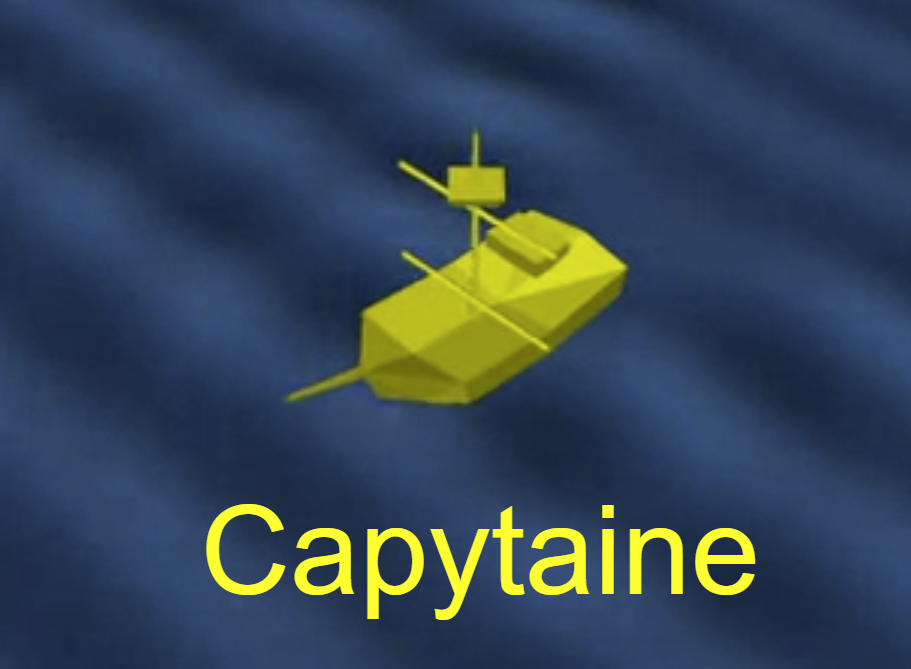 | Hydrodynamic analysis using Capytaine and coupled analysis using OpenFAST are fully integrated within the Akselos environment. Users can run the full workflow from wave analysis to structural response in a single cloud-based platform. |
4. Akselos Solvers
| Feature Category | User Interface | Description |
|---|---|---|
| Static Solver: FEA / RB-FEA static analysis (linear) | 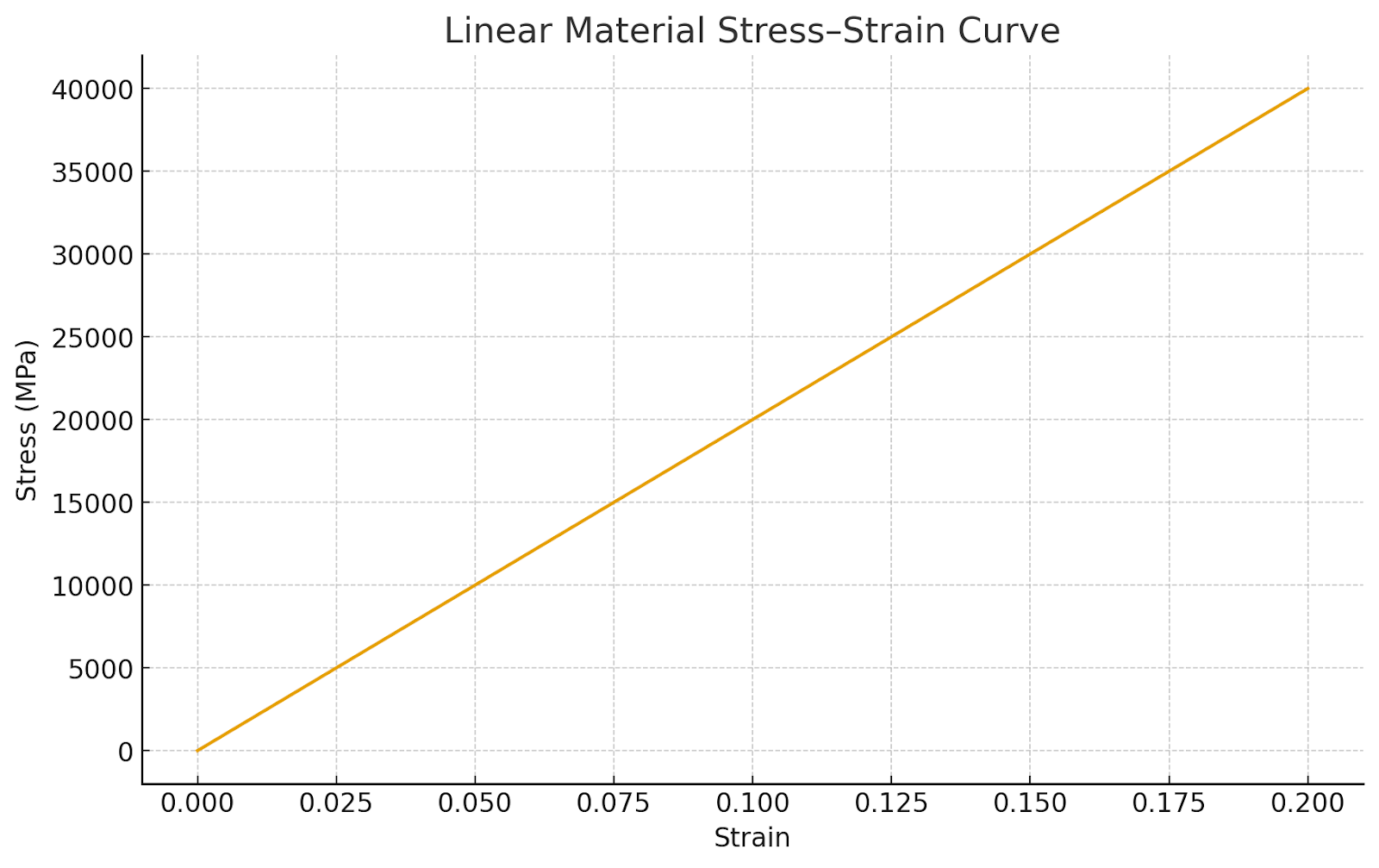 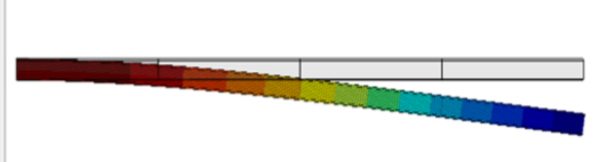 | Linear static solver used to compute structural equilibrium under constant stiffness assumptions. The formulation does not include geometric or material nonlinear effects. Suitable for elastic analyses involving small deformations and linear material behavior. |
| Static Solver: FEA / RB-FEA static analysis (material nonlinearity) | 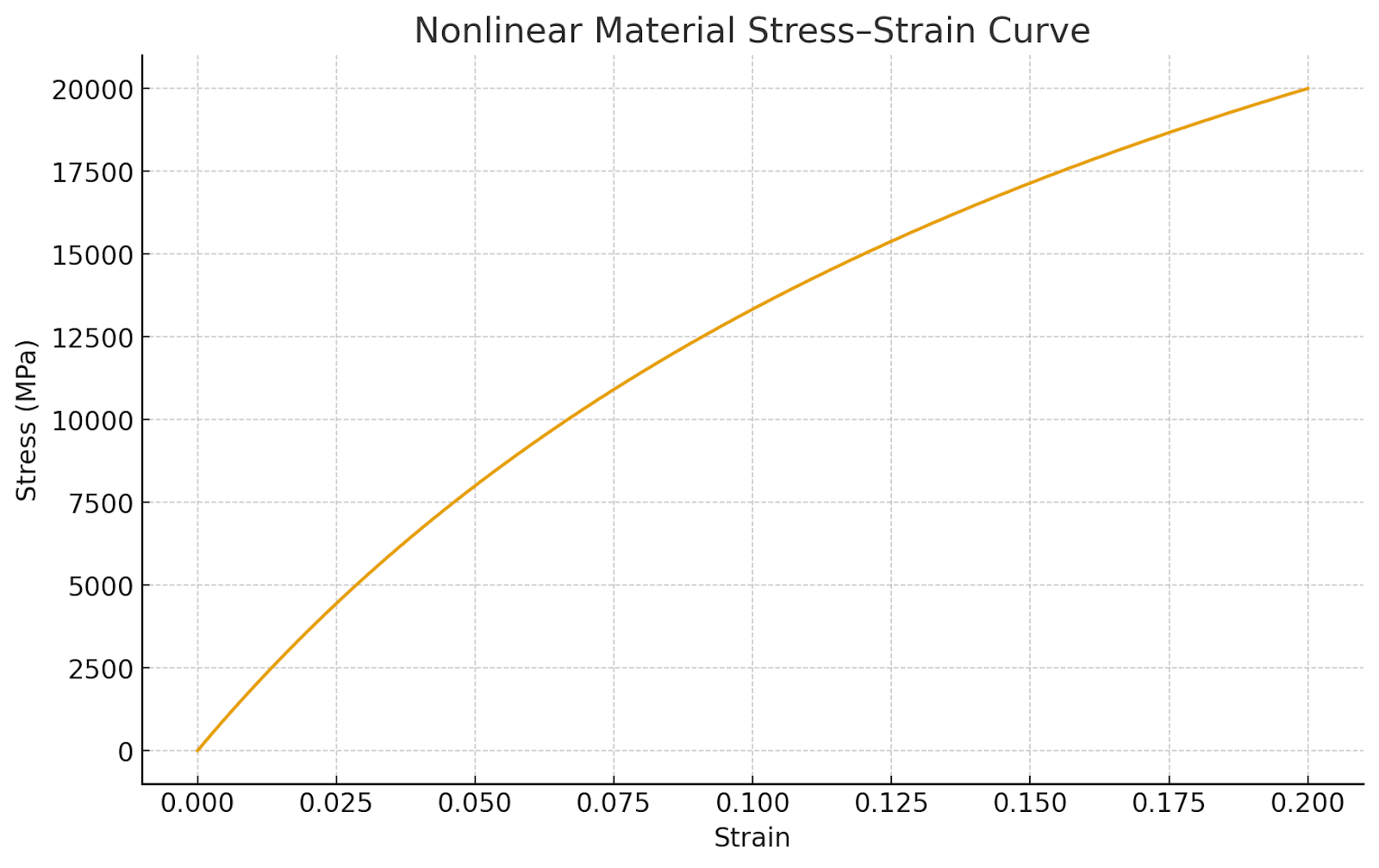 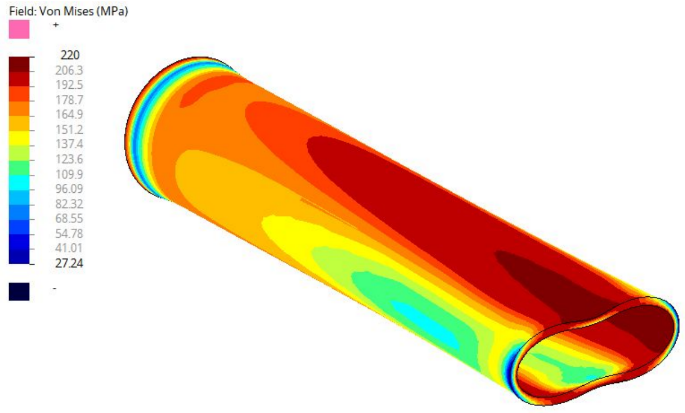 | Nonlinear static equilibrium solver based on the Newton–Raphson iteration scheme. Supports material nonlinearity, contact interactions, large deformations, and automatic load stepping. Recommended for problems involving significant nonlinear behavior in materials or contact conditions. |
| Modal Solver: FEA modal analysis | 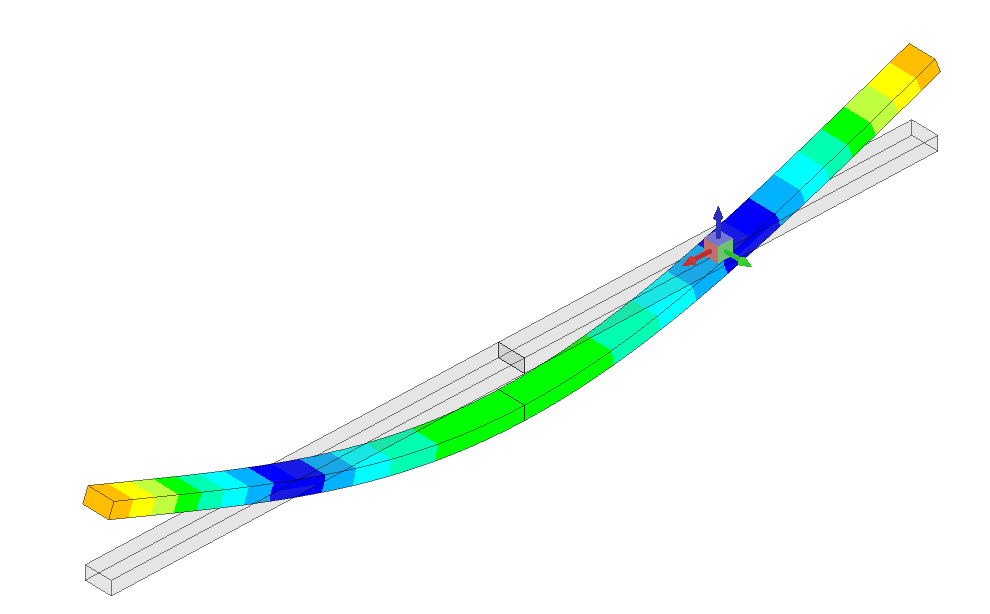 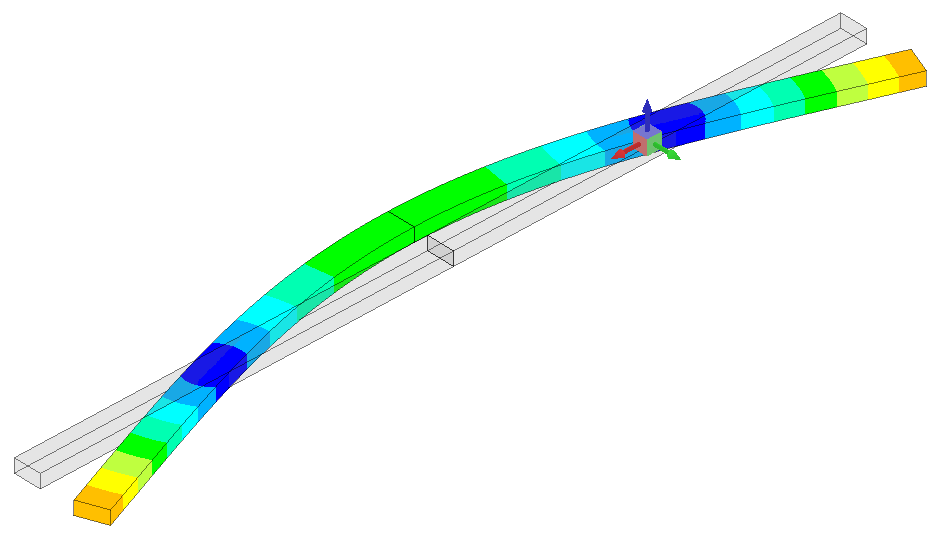 | Computes the natural frequencies and mode shapes of the structure. Supports both unstressed modal analysis and prestressed modal analysis. Prestressed modal analysis incorporates initial stresses resulting from loads, temperature variations, displacements, and boundary conditions. |
| Dynamic Solver: Implicit FEA / RB-FEA dynamic analysis | 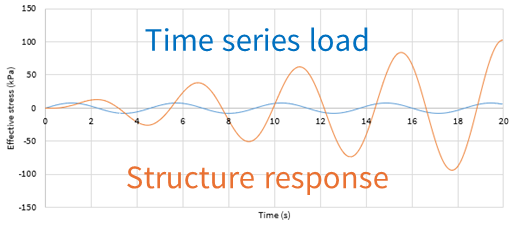 | Performs full dynamic time-domain simulation using implicit time integration schemes. Based on Newmark and Hilber–Hughes–Taylor (HHT-α) methods for stable integration of dynamic responses. |
| Post-processing: Net force and moment computation | 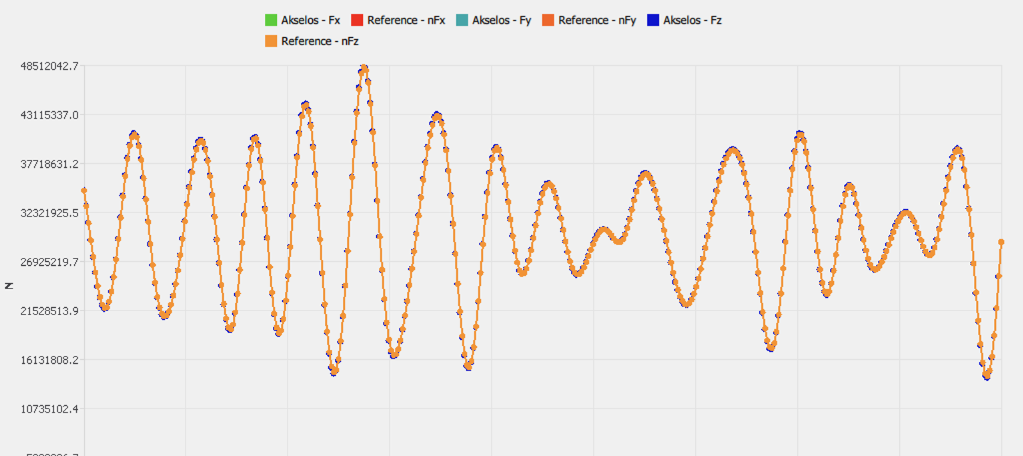 | Calculates the total resultant forces and moments acting on the structure at each analysis step. Moments are reported about a user-defined reference point. Outputs include full time-history data, force resultants, moment resultants, and computed load centroids. |
| Post-processing: Mass and weight property calculation |   | Computes total structural mass and mass distribution properties of the model. Provides center of gravity and moments of inertia relative to a user-defined reference point. Supports verification of mass modeling consistency for floating structures. |
5. Post-Processing
The table below summarizes the post-processing and reporting capabilities available for FEA and RB-FEA simulation results.
| Feature Category | User Interface | Description |
|---|---|---|
| Displacement results | 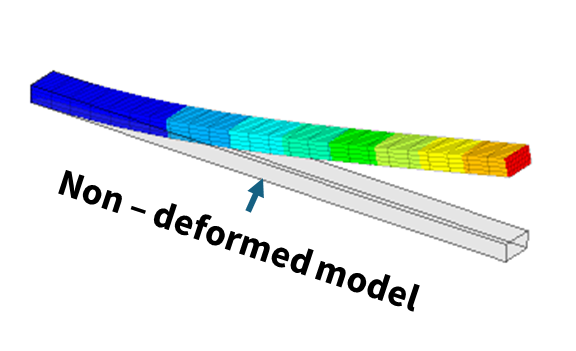 | Displacements for beams and plate or shell elements are visualized as three-dimensional contour plots. The deformed shape can be displayed alongside the undeformed model, with optional mesh rendering for context. Supported capabilities include:
|
| Beam deflection and rotation | 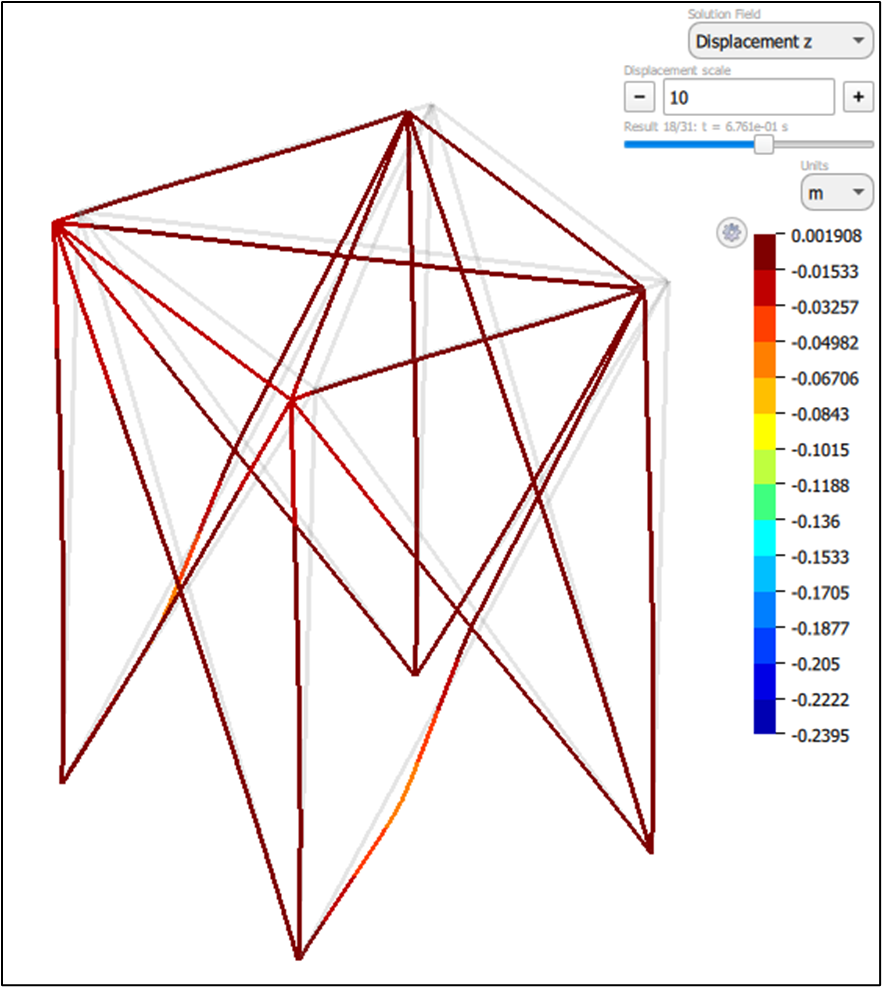 | Beam member deflections and rotations are evaluated along the beam axis and presented through the three-dimensional interface. Supported capabilities include:
|
| Beam internal forces and moments | 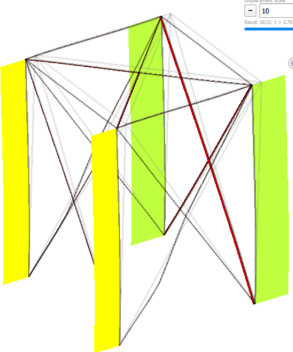 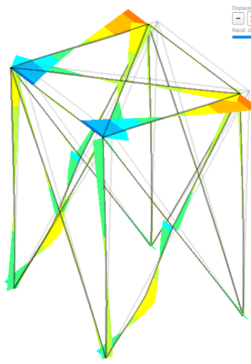 | Beam force and moment components are displayed using diagram-style plots within the three-dimensional interface. Supported capabilities include:
|
| Plate and shell stress results | 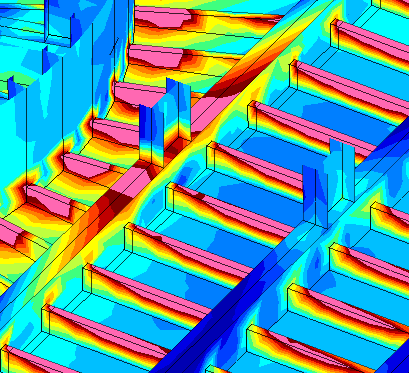 | Stress results for plate and shell elements are visualized in the three-dimensional interface. Available stress outputs include:
|
| Internal sectional loads | 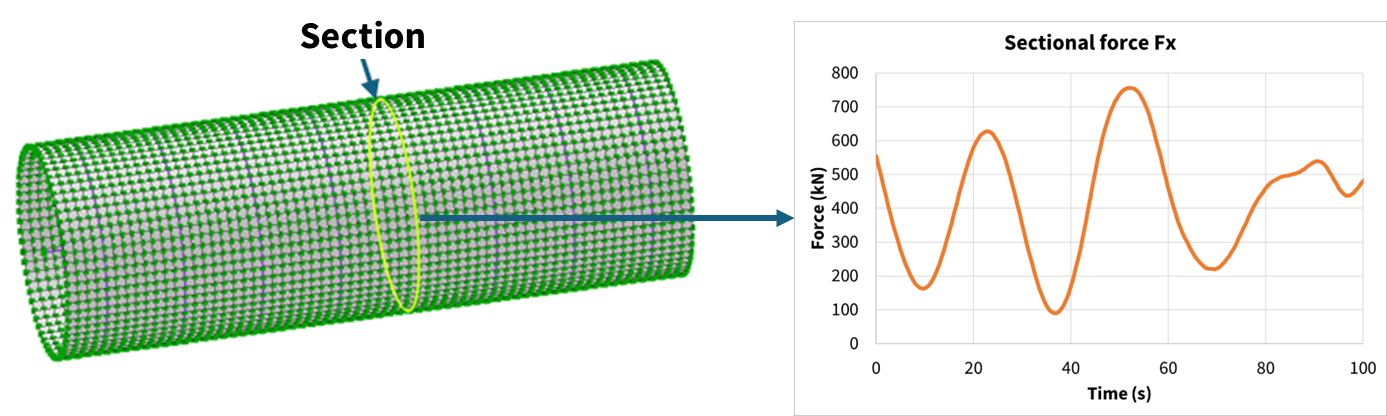 | Section loads are obtained by integrating stress results over a user-defined cut plane within the FEA model. Supported capabilities include:
|
| Mesh-independent stress tensor evaluation | 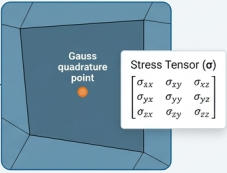 | Stress tensors can be evaluated at specific locations using Gauss integration points, enabling consistent point-based stress extraction that is less sensitive to mesh discretization. |
| Von Mises stress envelope extraction | 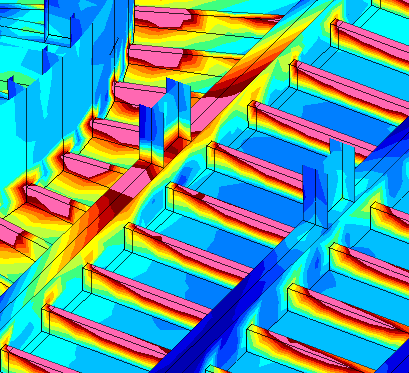 | Extracts the maximum Von Mises stress across all time steps for the full FEA model. This is commonly used for strength assessment workflows, such as ultimate limit state checks on shell structures. |
6. Akselos analyzer (workFLOWT)
Akselos has introduced a specialized solution for Floating Offshore Wind Turbine design, known as the Akselos Analyser, which is built on its proprietary Reduced-Basis Finite Element Analysis technology. The tool is tailored to support detailed fatigue assessments and structural strength verification of floating support structures, referred to as the floater, which are created in advance using the Akselos Modeler. A full description of the available capabilities is provided in the user manual.
Key benefits include:
Efficiency: Cloud-based computation enables rapid simulation and turnaround.
Accuracy: The Reduced-Basis FEA approach delivers reliable and high-fidelity results.
Usability: A three-dimensional, user-friendly interface supports clear interpretation of complex analyses.
Documentation: Automated report generation streamlines result review and distribution.
| Feature Category | User Interface | Description |
|---|---|---|
| Floater and assessment selection | 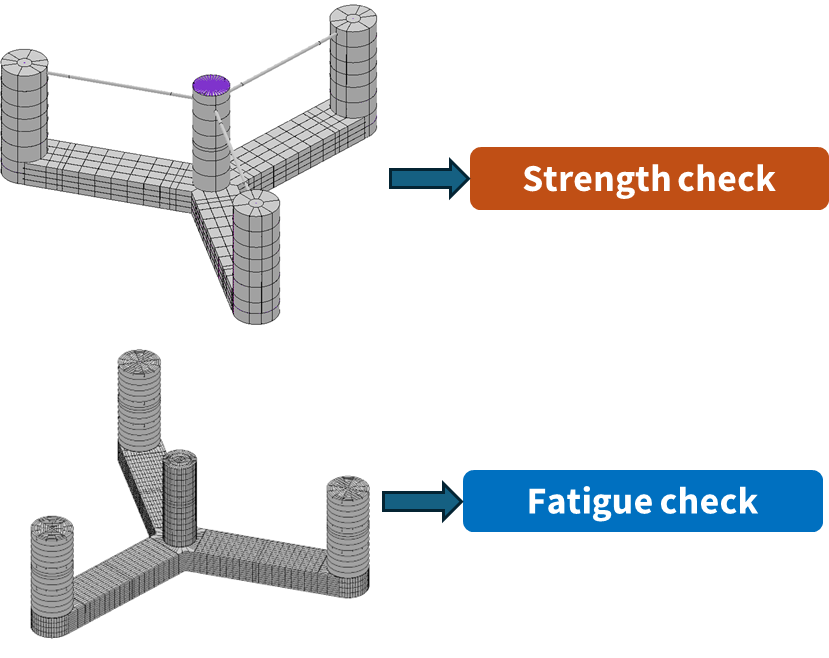 | Select the floater and the corresponding assessment types based on supported standards.
|
| Import and remove DLC data | 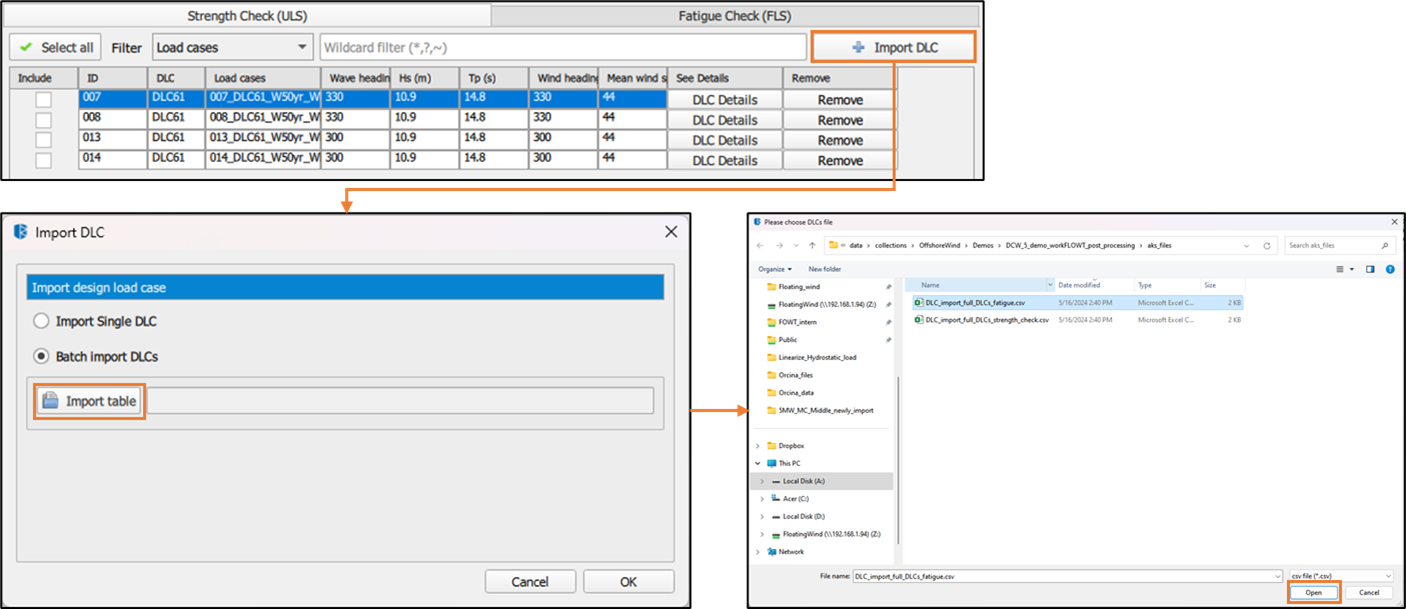 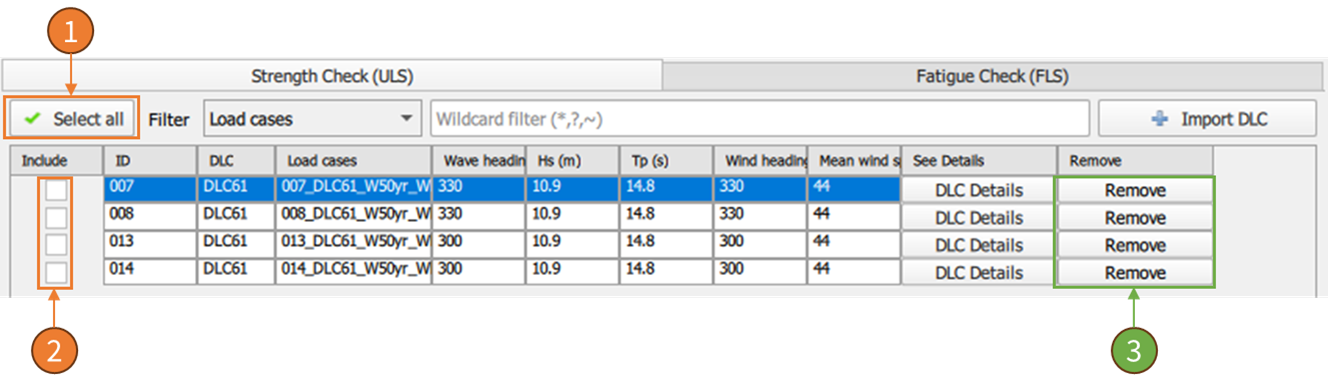 | Import DLC simulation results after conversion to NPZ format and manage DLC datasets.
|
| DLC information table | 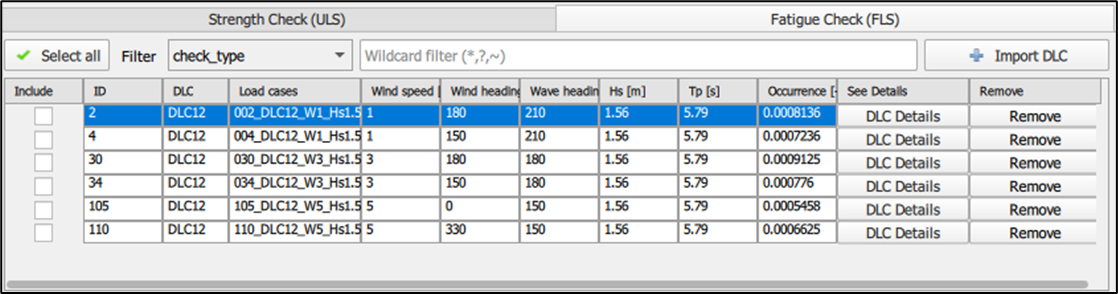 | Displays all imported DLCs grouped by assessment type.
|
| Run assessment | 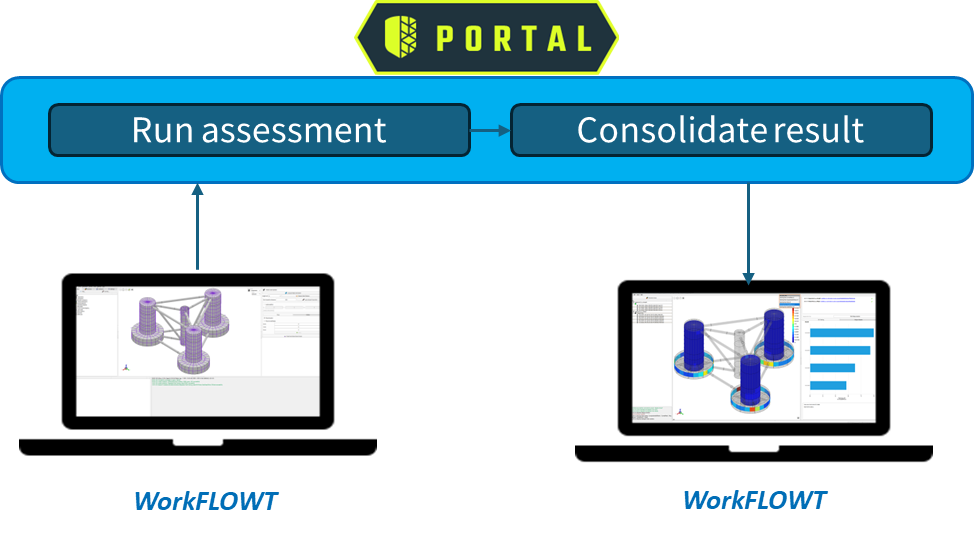 | Execute selected assessments on the Akselos Cloud and store results for post-processing.
|
| Result visualization | 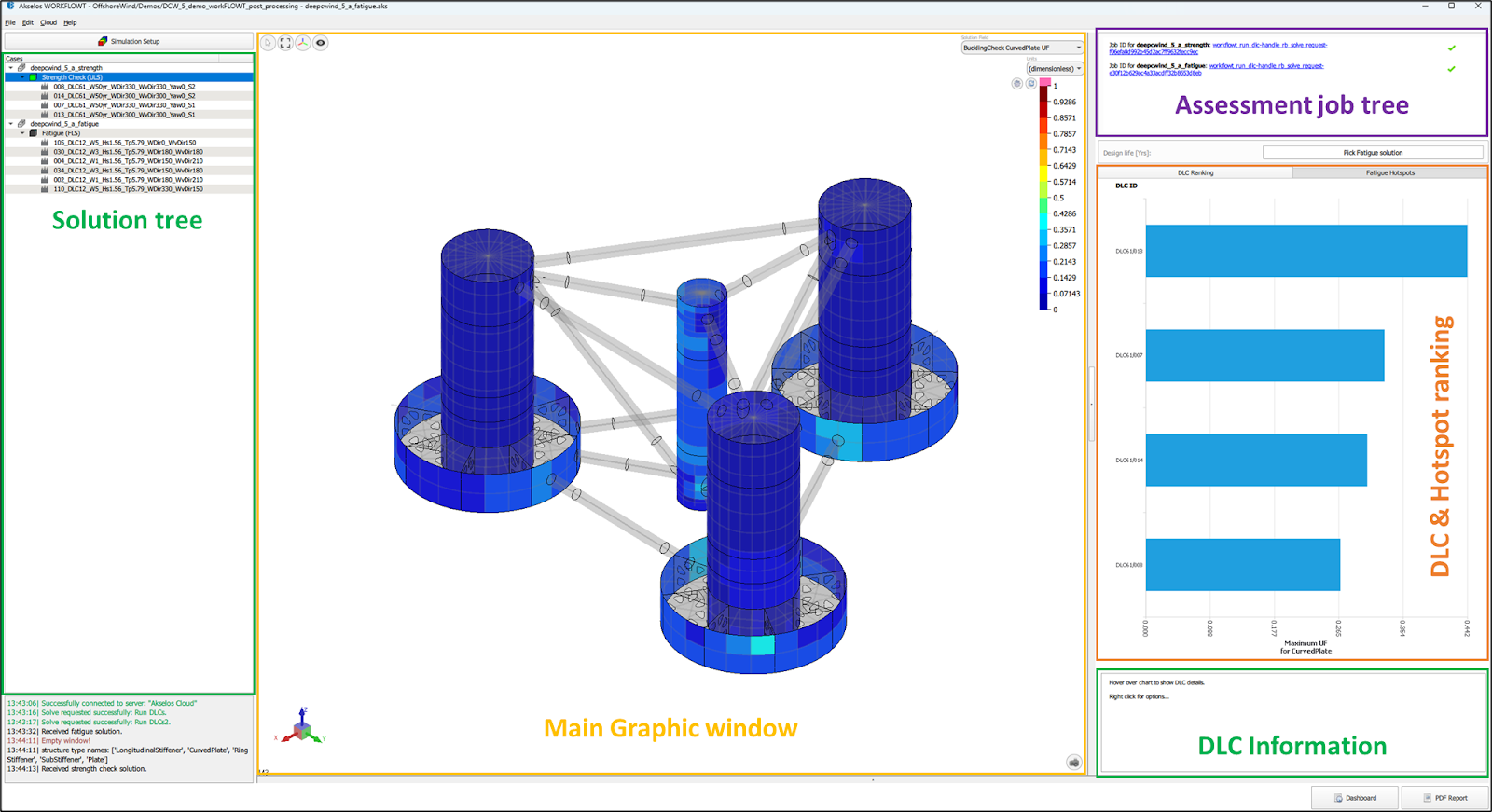 | Visualize assessment results in a three-dimensional environment.
|
| Solution tree | 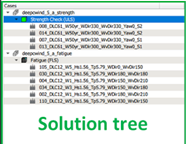 | Lists all selected floaters and DLCs and provides navigation across assessment results. |
| DLC ranking | 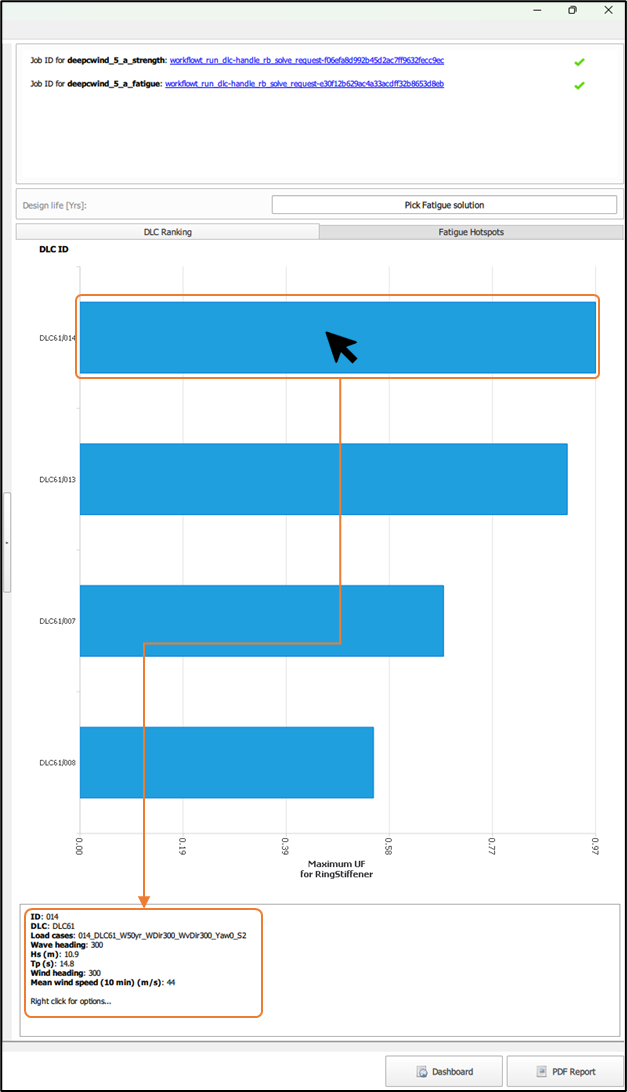 | Displays the top DLCs contributing to the highest ULS and FLS responses and allows interaction with individual DLC results. |
| Fatigue hotspots | 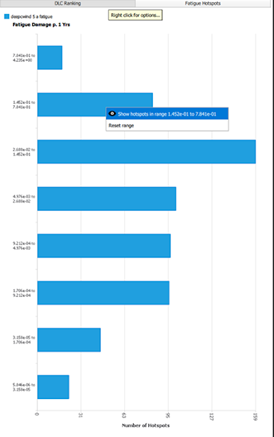 | Shows fatigue damage and fatigue life distributions and allows plotting of critical hotspots on the model. |
| PDF report generation | Export the current assessment results into an automatically generated PDF report. |
7. Supported standards
This section describes the industry standards and codes that Akselos supports for floating wind foundations.
| Feature Category | User Interface | Description |
|---|---|---|
| Fatigue check pre-processing: Define Fatigue Hotspots | 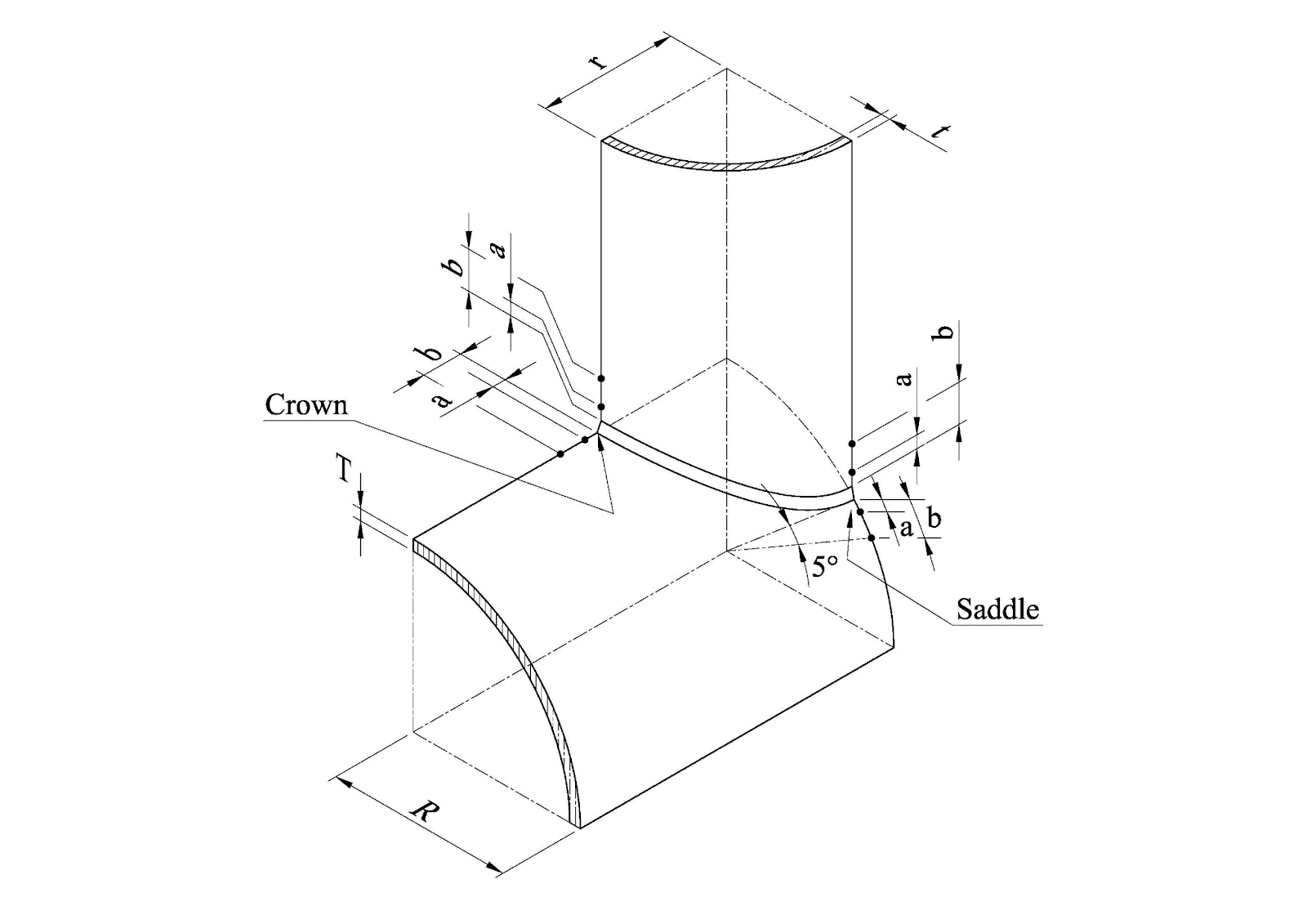 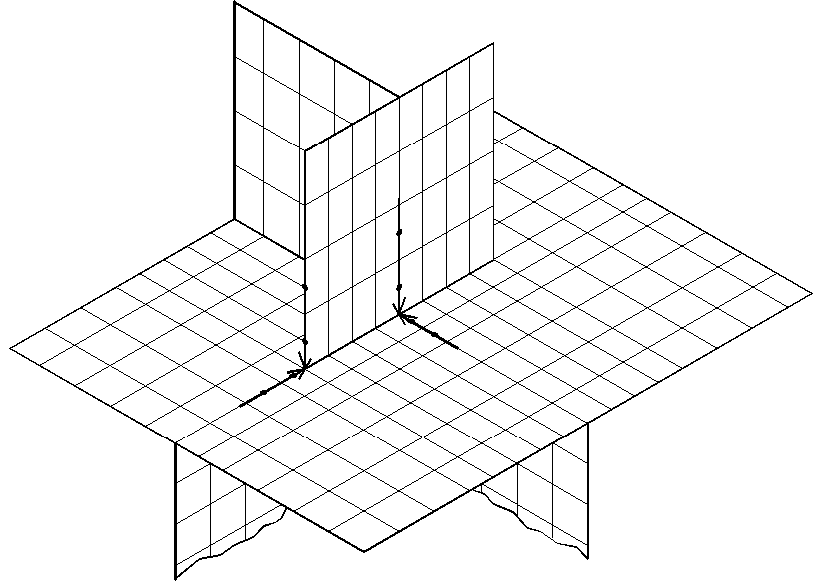 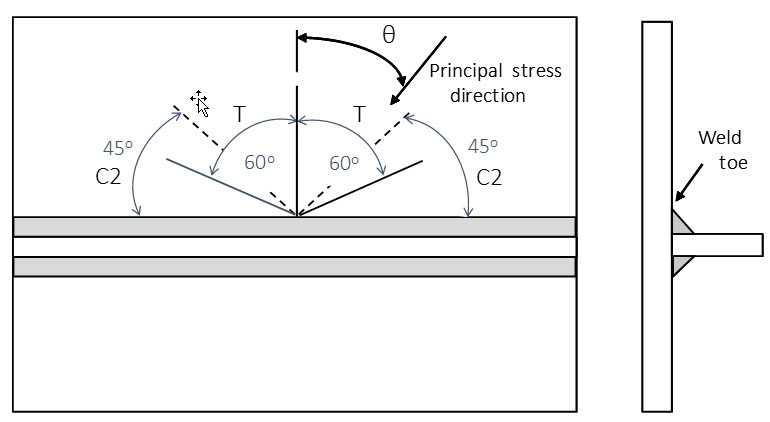 | Fatigue hotspots are locations on the mesh that are marked to extract fatigue stress. The fatigue hotspots are defined at locations with high risk for fatigue failure:
After importing the mesh file to Akselos Modeler, users are able to configure the Design Fatigue Factor (DFF) and SN curve for each hotspot. Supported features for hotspot stress calculation:
|
| Fatigue Analysis in the time domain: | 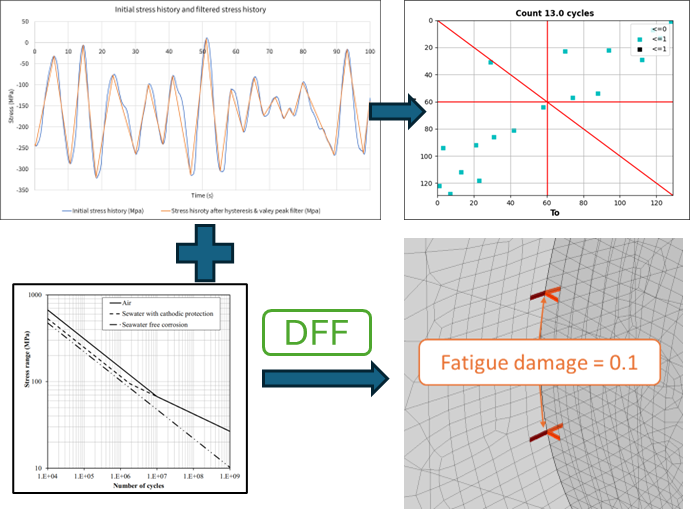 | The time domain fatigue is conducted on pre-defined hotspot locations (on shell/solid elements) in the simulation models. Each hotspot (aligned with [1]) uses an S-N curve, a designed fatigue factor (DFF), and a stress computing method. A quasi-static analysis is run to get stress responses from these hotspot locations. The thickness correction is included (Section 2.4.3 in [1]). Supported stress computing method:
[2] DNV-RP-C203, 2021 |
| Buckling panel identification: | 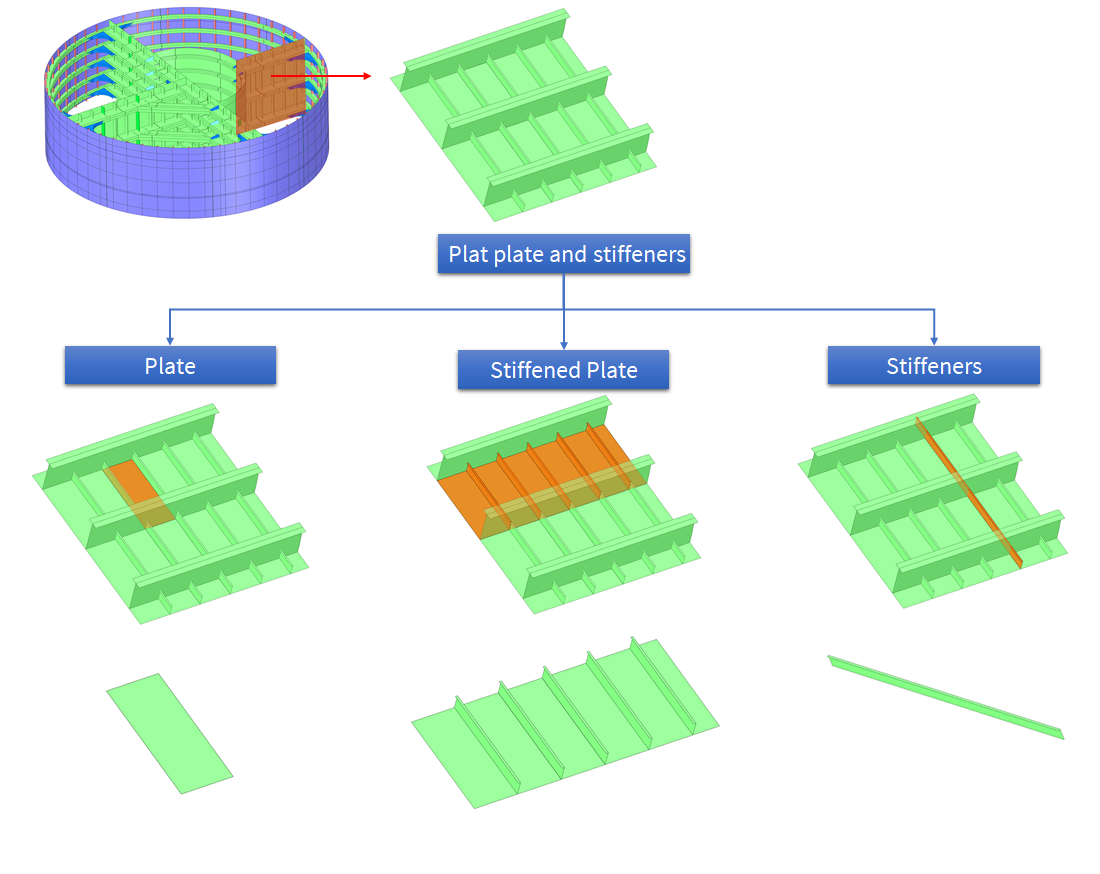 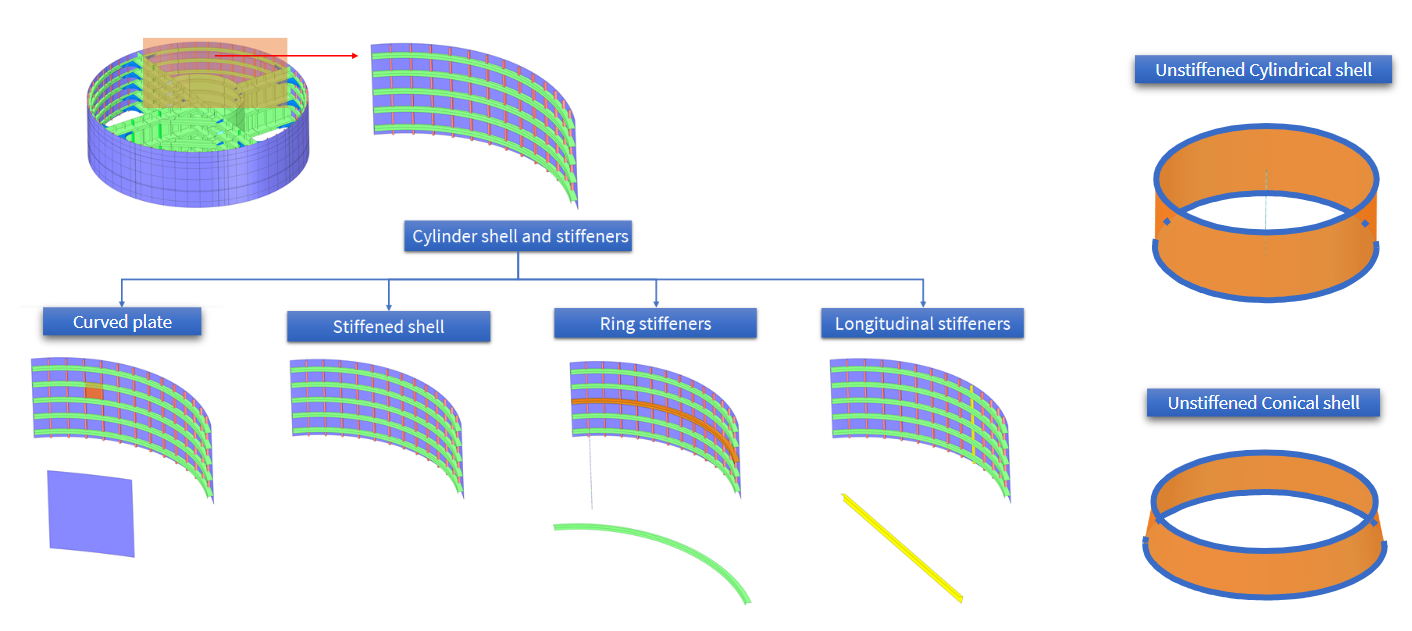 | Akselos buckling procedure identifies critical panels based on DNV-RP-C201 and DNV-RP-C202 standards for shell buckling check. Akselos buckling check uses STL files to identify panels, extract panel stress from solutions, and compute the panels’ UF. Supported panel types:
|
| Shell buckling checks: | 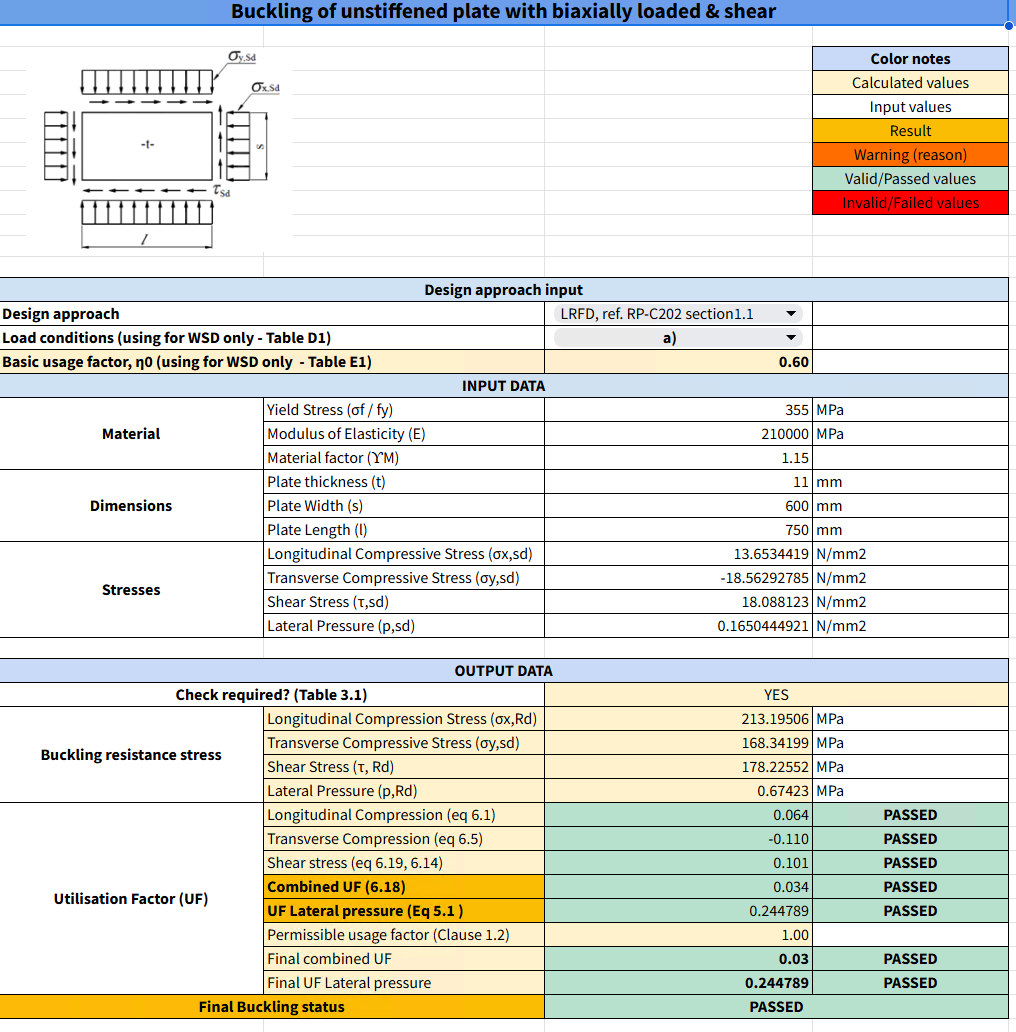 | Computing the utilization factor (UF) for shell elements (panels) in simulation models using DNV-RP-C201 and DNV-RP-C202 standards. The assessment can be performed for single or multiple-time-step solutions. In the latter case, the maximum UF for each panel is returned. Supported sections:
|
| Beam code check: | 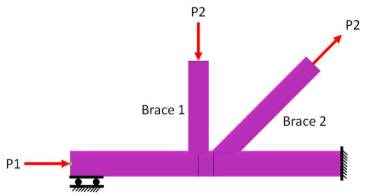 | Computing the utilization factor (UF) for beam members and truss joints in the simulation models. Supported standards:
|
| Post-processing visualization: | 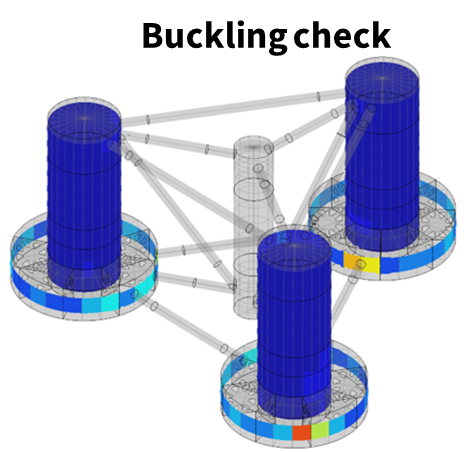 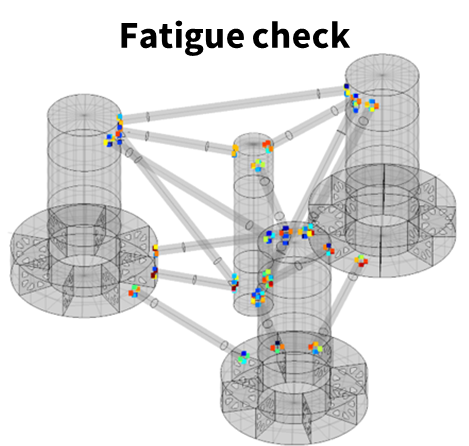 | Visualizing simulation results (displacement/stress distribution) and assessment results (codecheck UF, shell buckling check UF, fatigue result) in a 3D graphic UI. Supported features:
|
8. Conclusion
The Akselos Structural Performance Management (SPM) solution represents a paradigm shift in the analysis of Floating Offshore Wind Turbines. By integrating high-fidelity Reduced-Basis FEA with an automated, cloud-native workflow, it overcomes the traditional trade-offs between speed and accuracy.
Engineers can now move beyond static, simplified assessments to perform continuous, full-lifecycle structural health monitoring. From the precision of the Modeler to the massive parallel processing of WorkFLOWT and the accessibility of the Portal, the platform provides a unified source of truth. This empowers operators to make data-driven decisions that extend asset life, ensure regulatory compliance, and optimize the performance of floating wind fleets in the most demanding offshore environments.