What is in this Article?
1. Introduction
In the process of creating a model, selecting objects (components, mesh elements, or mesh nodes) is a common step for various purposes, such as checking the model, creating a stored selection, or visualization. This article will provide users with more information about selection types, how to select objects in Akselos Modeler, and how to use the Search/Tag tool to manage selections conveniently.
The Search/Select is mainly support for the Modeling stage.
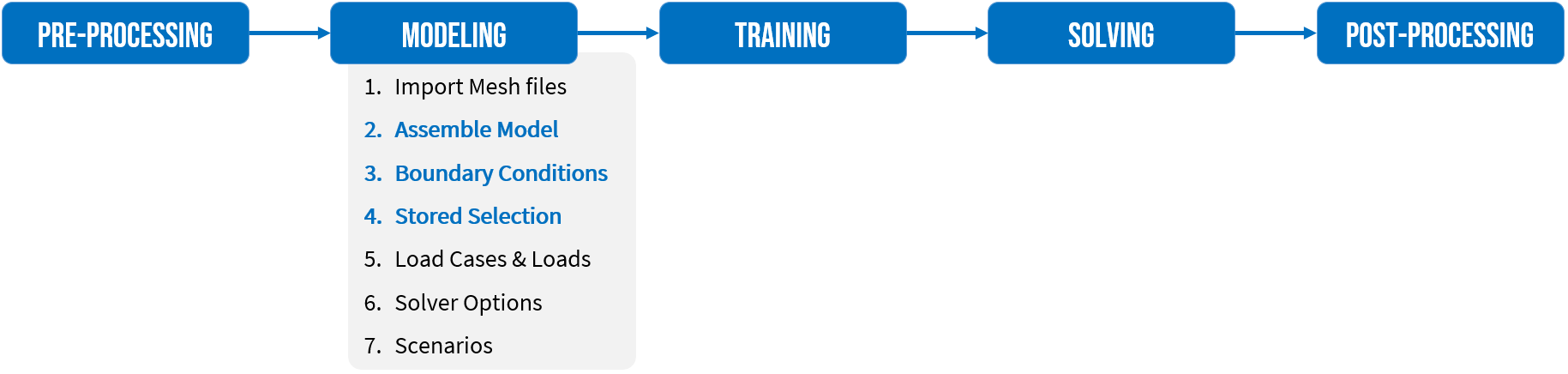
Terminologies
Components | Components created by the componentization process to use with Akselos Integra |
Graphic window | The main window displaying components/model in Akselos Modeler |
Model ribbon | An Akselos Modeler ribbon containing tools for model assembling and management |
Structure Tree | An Object Tree allowing users to configure models |
2. Manual Selection
For users who are selecting object(s) for visualization – checking properties or adding to Stored Selection(*),… There are two methods to select objects in Akselos Modeler: manual selection and tool assisted selection (see Search/Tag tool).
With the manual method, users can select objects by:
- Selecting from the Structure Tree.
- Selecting directly on the Graphic Window.
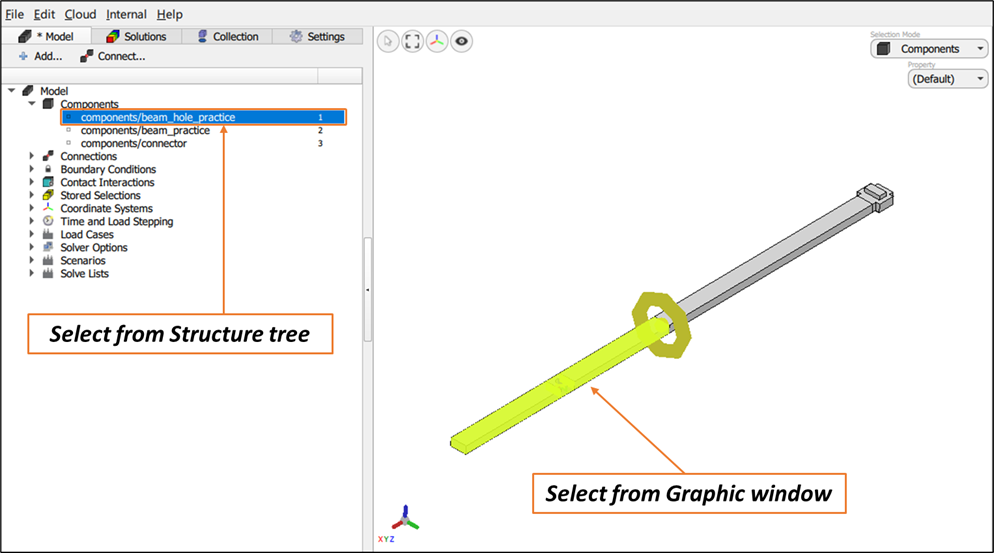 Figure 1. Select manually
3. Search & Tag tool
Search/Tag tool is created to adapt most users' search-select purposes. Besides, tagging will help to manage the selections in the model more convenient.
To open the Search & Tag tool:
- On the right panel, expand the tools list → Select the Search & Tag tool.
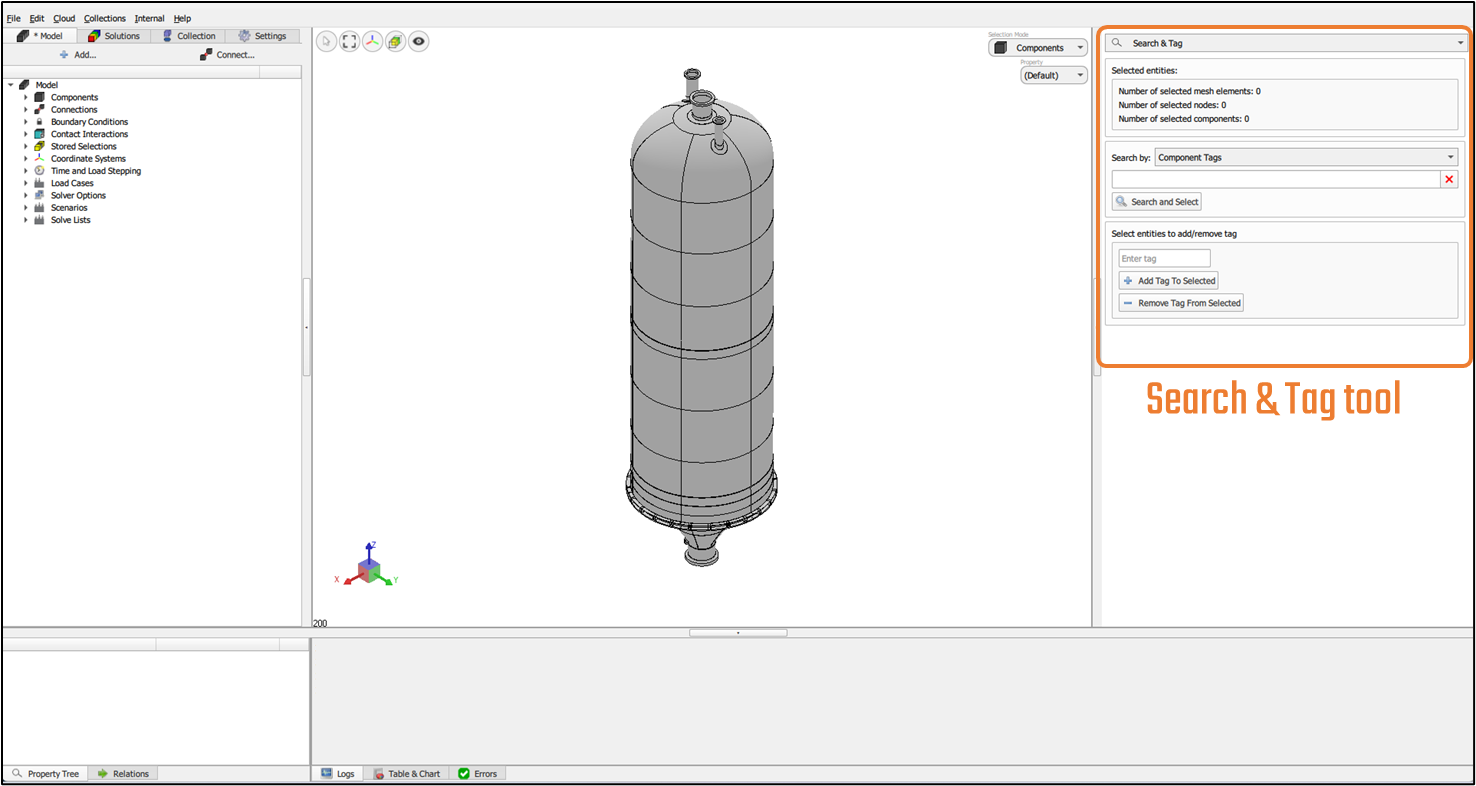
Figure 2. Search/Tag tool
There are three regions in the tool interface:
- Search Infos: showing the number of selected nodes/elements/components.
- Search and Select: searching and selecting the nodes/elements/components according to their types.
- Select entities to add/remove tag: defining a tag for nodes/elements/components.
Search and Select
Users need to use the middle region to Search and Select, then see the selection information on the top region (Search Infos):
- Select the search type in Search by.
- Type/Select names on the white box.
- Click on the Search and Select button.
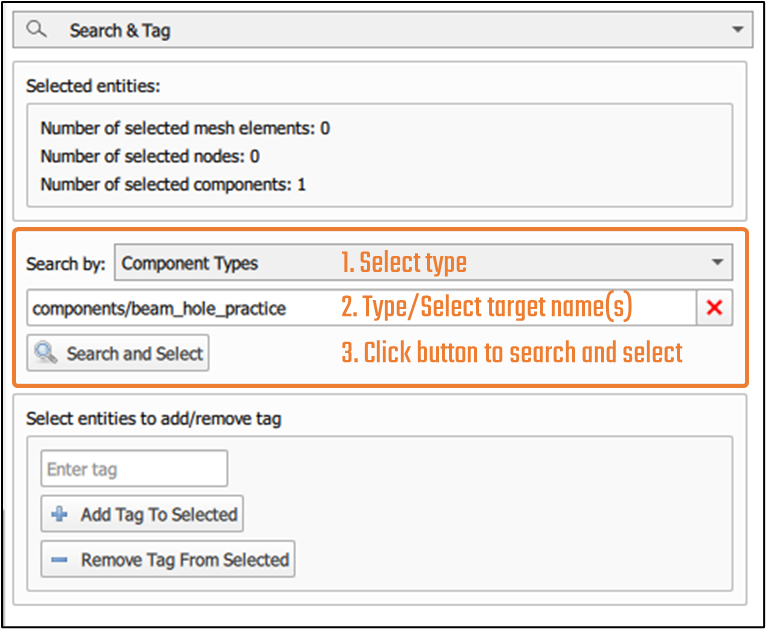 Figure 3. Search and Select steps
This function offers a variety of selection types:
- Component Tags: select all components having the same tag names (can use several tag names, see Tags below).
- Component IDs: select component(s) by the ID number(s) assigned to component(s).
- Component Type: select all components having the same names.
- Component Modeling Type: select all components having the same modeling type (3D/ shell/ generic beam/ pre-defined beam/ indirect node connector/ user-defined beam, etc.).
- Mesh Element Tags: select all mesh elements having the same tag names (can use several tag names, see Tags below).
- Mesh Node Tags: select all mesh nodes having the same tag names (can use several tag names, see Tags below).
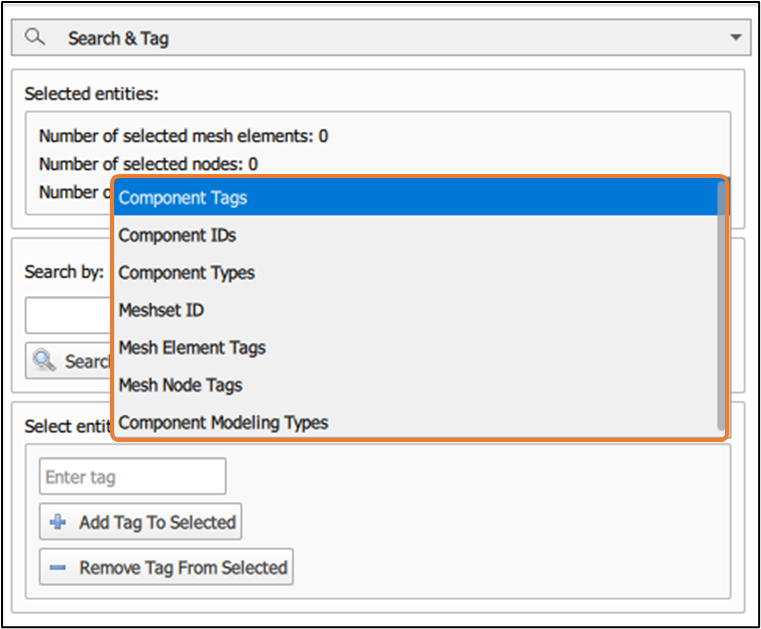 Figure 4. Search and Select types
Selected objects will be highlighted on the Graphic Window and the number of them is also shown in the Search Infos region.
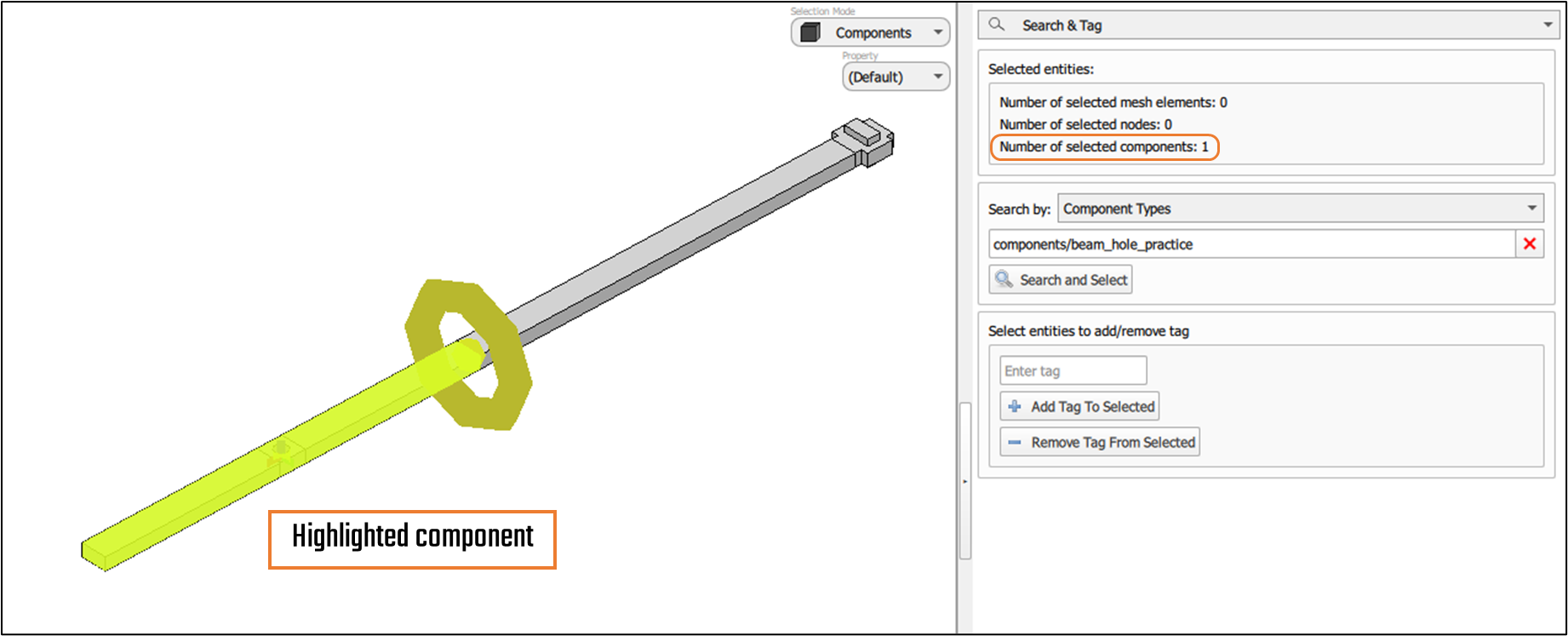 Figure 5. Selected component and Search Infos
Select entities to add/remove tag
As a part of Search/Tag tool, add/remove tag allows you to label object(s), which you can then easily select by their tag name.
This tool is especially useful when users want to group components/ mesh elements/mesh nodes for some reason. Thanks to adding the tag(s) to those groups of components/ mesh elements/ mesh nodes, users can easily pick up those later by using the Search and Select function (selecting by using Component Tags/ Mesh Element Tags/ Mesh Node Tags).
To add a tag, users need to:
- Select the target group (of components/ elements/ nodes) manually or by Search and Select function.
- Set a tag name.
- Click Add Tag To Selected button to add tag.
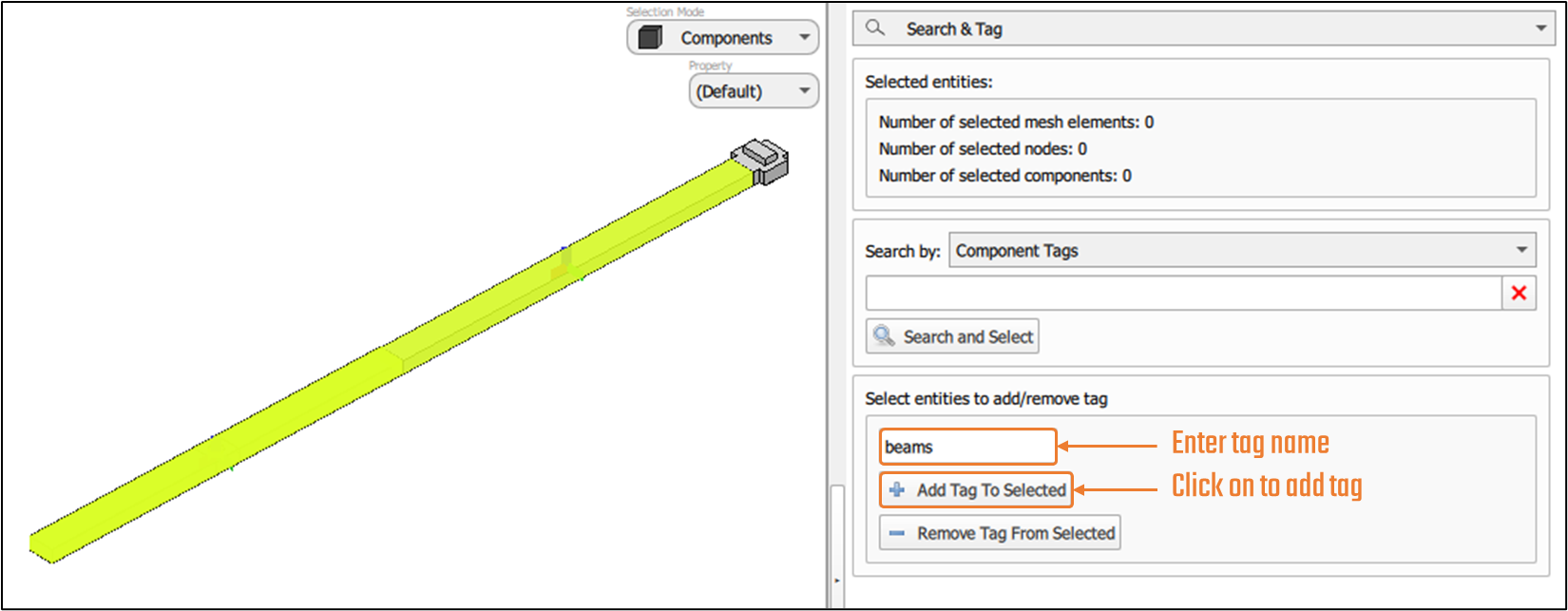
Figure 6. Add a tag to components/ elements
Once the objects (components/ elements/ nodes) have tags, users can use the Search and Select function with types: Component Tags - Mesh Element Tags - Mesh Node Tags
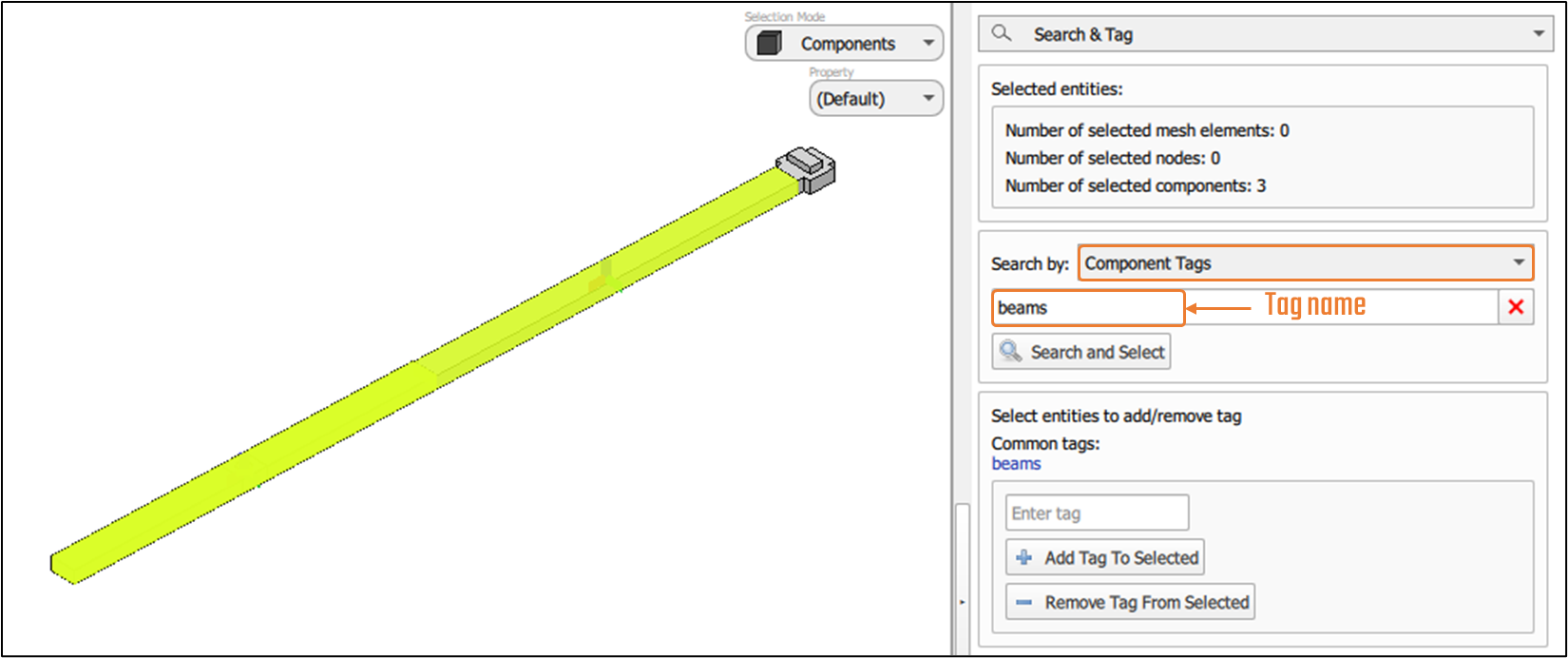
Figure 7. Search and Select with Tag
When users select components/ elements/ nodes that have tag(s), the tag will be shown in "Common tags:" line.
Users can also delete the tag by typing the tag name → Click Remove Tag From Selected.
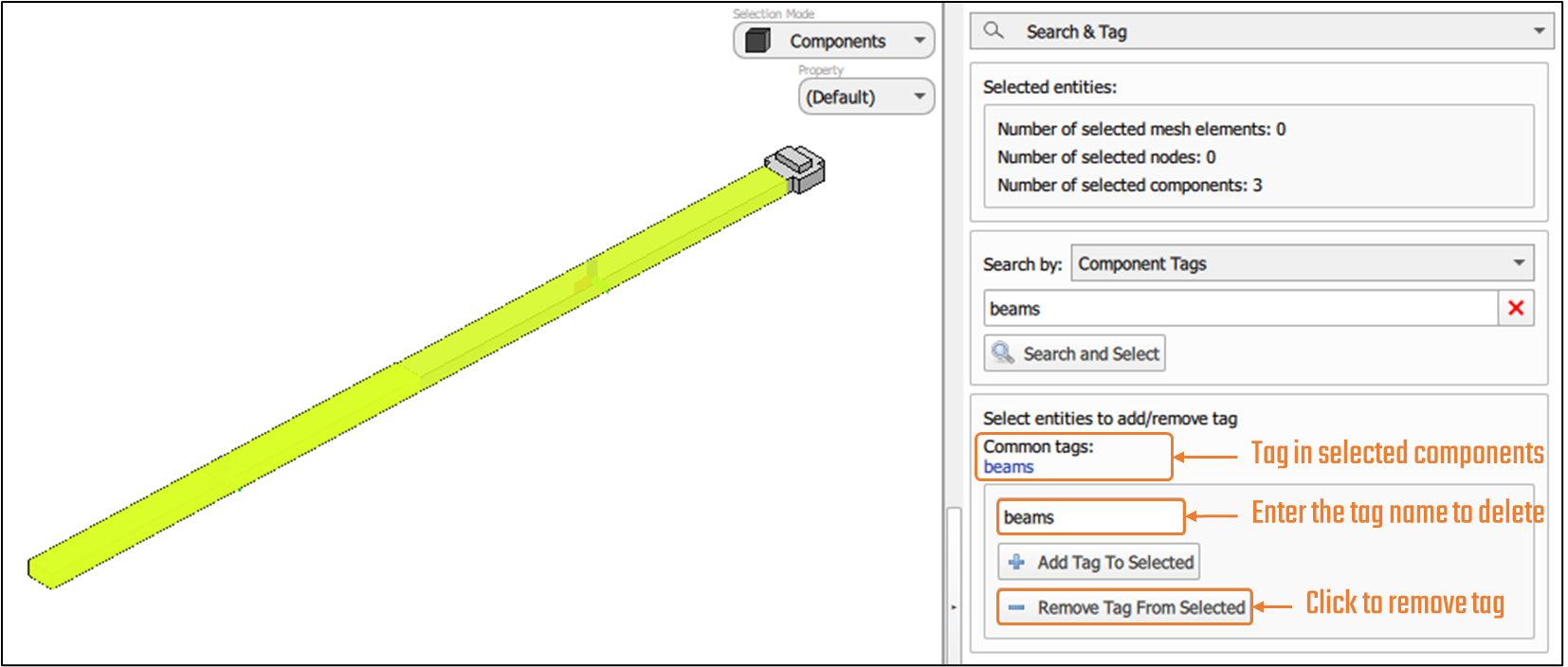 Figure 8. Remove a tag from component